Before You Begin
Welcome to the VEX AIR Controller Flight Course! In this course, students will apply what they learned in the Virtual Flight Course to flying the physical, indoor-only VEX AIR Drone with the VEX AIR Drone Controller. The goal of the course is for students to learn how to operate the drone safely, confidently, and precisely.
Important Safety Reminder
The VEX AIR Drone is designed for indoor use only. Students should never fly the drone outdoors.
- The maximum height at which the drone can fly is 8 feet, or 2.5 meters.
Note: It is recommended that students complete the Virtual Flight Course using the VEX AIR Flight Simulator prior to flying the physical drone in this course. If they have not yet completed Virtual Flight, go back and finish the course prior to beginning Controller Flight.
Teacher Notes in this Course: Teacher Notes appear in highlighted boxes like this one throughout the course. Use the Student-Teacher toggle at the top of each lesson to show or hide these notes. These Teacher Notes are designed to give you in-the-moment support and resources for facilitating the course.
Learning Objectives:
This unit is designed to introduce students to safety procedures and preparing their drone and controller for flight. By the end of this unit students will be able to:
- Demonstrate how to charge VEX AIR Batteries and the controller.
- Identify the steps to pair a controller and drone.
- Recognize the processes for updating drone and controller firmware.
- Identify how to disengage the Propeller Lock on the drone.
- Identify how to trigger an Emergency Stop with the drone and controller.
- Demonstrate how to perform a pre-flight safety check before taking off.
- Safely take off and land the drone using the controller.
Essential Resources for this Course and Unit
The first unit in this course establishes safety standards and procedures for flying the VEX AIR Drone. Before you begin implementing this course, review the following essential resources and follow the guidelines provided in each one. These articles are designed to help you ensure all safety and management considerations are addressed before you begin to teach, so that when you do, procedures are in place for safe drone operation. This will ensure all students are able to focus on their learning without distraction, and you are able to teach with confidence.
Materials Needed
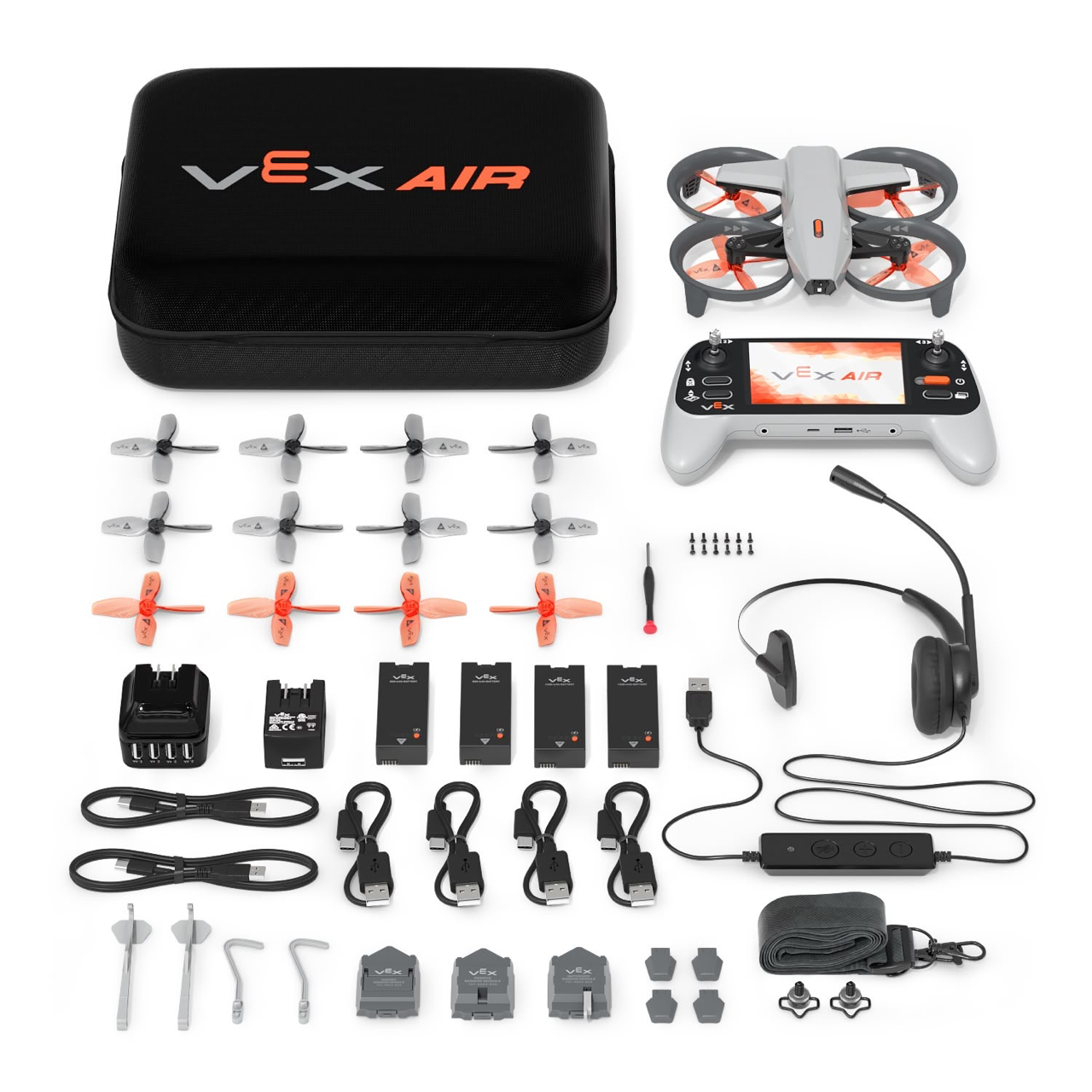
Students will need access to the contents of their VEX AIR Kit for this unit. Specifically, the following:
A Note About the Role of the VEX AIR Flight Simulator in This Course:
While this course is geared towards the application of skills learning in the simulator with the physical drone, students should be encouraged to continue to use the simulator throughout the course to test-fly missions or practice piloting skills or maneuvers. The simulator offers a safe environment for students to practice and build skills, and is intended to be used in conjunction with the physical drone throughout students' VEX AIR journey. Learn more about the simulator in this article.
Standards Alignment
Common Core English Language Arts (CCSS ELA)
- CCSS.ELA-LITERACY.CCRA.L.6 - Acquire and use accurately a range of general academic and domain-specific words and phrases sufficient for reading, writing, speaking, and listening at the college and career readiness level; demonstrate independence in gathering vocabulary knowledge when encountering an unknown term important to comprehension or expression.
- CCSS.ELA-LITERACY.RST.9-10/11-12.3 - Follow precisely a complex multistep procedure when carrying out experiments, taking measurements, or performing technical tasks, attending to special cases or exceptions defined in the text.
- CCSS.ELA-LITERACY.RST.9-10/11-12.4 - Determine the meaning of symbols, key terms, and other domain-specific words and phrases as they are used in a specific scientific or technical context relevant to grade level topics.
International Society for Technology in Education (ISTE)
- Empowered Learner – 1.1.c – Students use technology to seek feedback that informs and improves their practice and to demonstrate their learning in a variety of ways.
- Empowered Learner – 1.1.d – Students understand fundamental concepts of how technology works, demonstrate the ability to choose and use current technologies effectively, and are adept at thoughtfully exploring emerging technologies.
- Knowledge Constructor – 1.3.d – Students build knowledge by exploring real-world issues and gain experience in applying their learning in authentic settings.
- Global Collaborator - 1.7.c - Students contribute constructively to project teams, assuming various roles and responsibilities to work effectively toward a common goal.