
Before flying the VEX AIR Drone, pilots must ensure the drone, the environment, and the pilot are ready. In this lesson, you'll learn the safety procedures that professional drone pilots follow before every flight to protect people and equipment. This includes checking the indoor flight area, the drone, the VEX AIR Drone Controller, the pilot's readiness, and more to ensure a safe flight.
Watch the video below to learn about:
- How to use a pre-flight checklist.
- What makes a pilot fit to fly.
- Safely disengaging the Propeller Lock.
- How to trigger an Emergency Stop (E-Stop) of the drone.
Hover & Discover
An Emergency Stop (E-Stop) is a safety feature that immediately stops the drone’s motors when something unexpected happens. Pilots use the E-Stop if the drone is about to hit an object, move toward a person, or behave in an unsafe way. It is not part of normal flying — it is used only when safety is at risk.
To trigger the E-Stop with the drone, press the Takeoff & Land and Propeller Lock buttons on the controller at the same time. All power to the motors spinning the propellers will be cut, the Propeller Lock will engage, and the drone will remain still on the ground as shown in this animation.
Before You Fly...
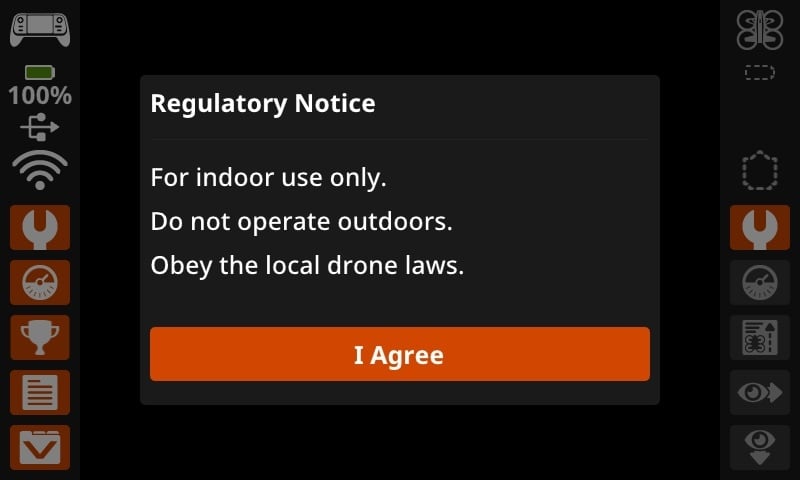
Each time you turn on your VEX AIR Drone Controller, a regulatory notice will appear. This is a reminder that the VEX AIR Drone is intended for indoor use only and should not be flown outside. Select I Agree to acknowledge your understanding and use your controller with the VEX AIR Flight Simulator or physical drone.
Mission: Safety Check
In this mission, you will complete a pre-flight checklist, disengage the Propeller Lock, then take off and land the drone safely within your indoor flight area. Follow these steps to complete your mission:
- Ensure your drone and controller are ready to fly. See this VEX Library article to learn more about any of the steps below.
- Install a charged battery in your drone.
- Check to be sure your controller is charged.
- Be sure your drone and controller are paired.
- Perform a pre-flight safety check.
- A pre-flight checklist is available at the beginning of the Mission Log (Google Doc / .docx / .pdf). Use this to document your pre-flight safety check and each flight as you practice this mission.
- This VEX Library article can be used for more details about elements included in the pre-flight safety check.
- Disengage the Propeller Lock.
- Fly the drone to take off and then land. Engage the Propeller Lock after landing.
- Follow the prompts on the controller to land safely.
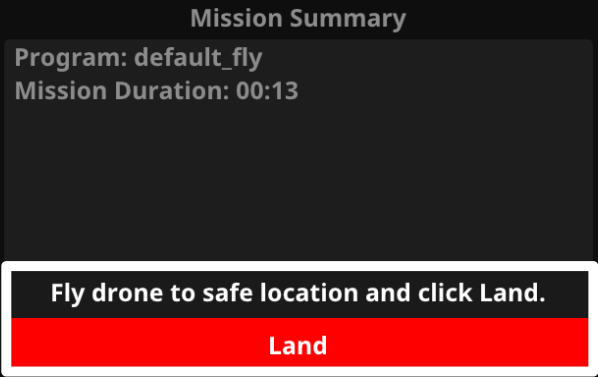
Practice this mission multiple times. Make sure you take notes on each flight in your Mission Log. Record the Mission Duration from the Mission Summary before closing the window and ending the project. 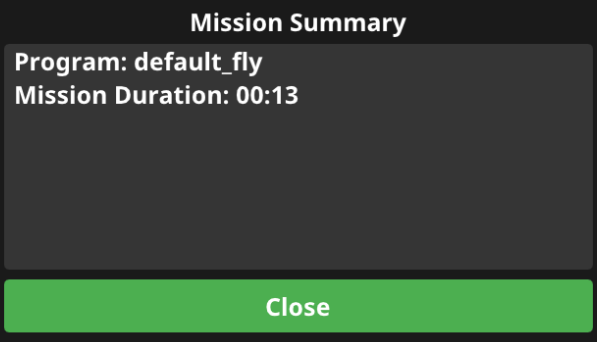
Real-World Connections
In the real world, drone safety starts before takeoff. Professional drone pilots use a pre-flight checklist to make sure the drone, controller, and flight area are ready. These checks help prevent accidents and protect people, equipment, and the drone itself.
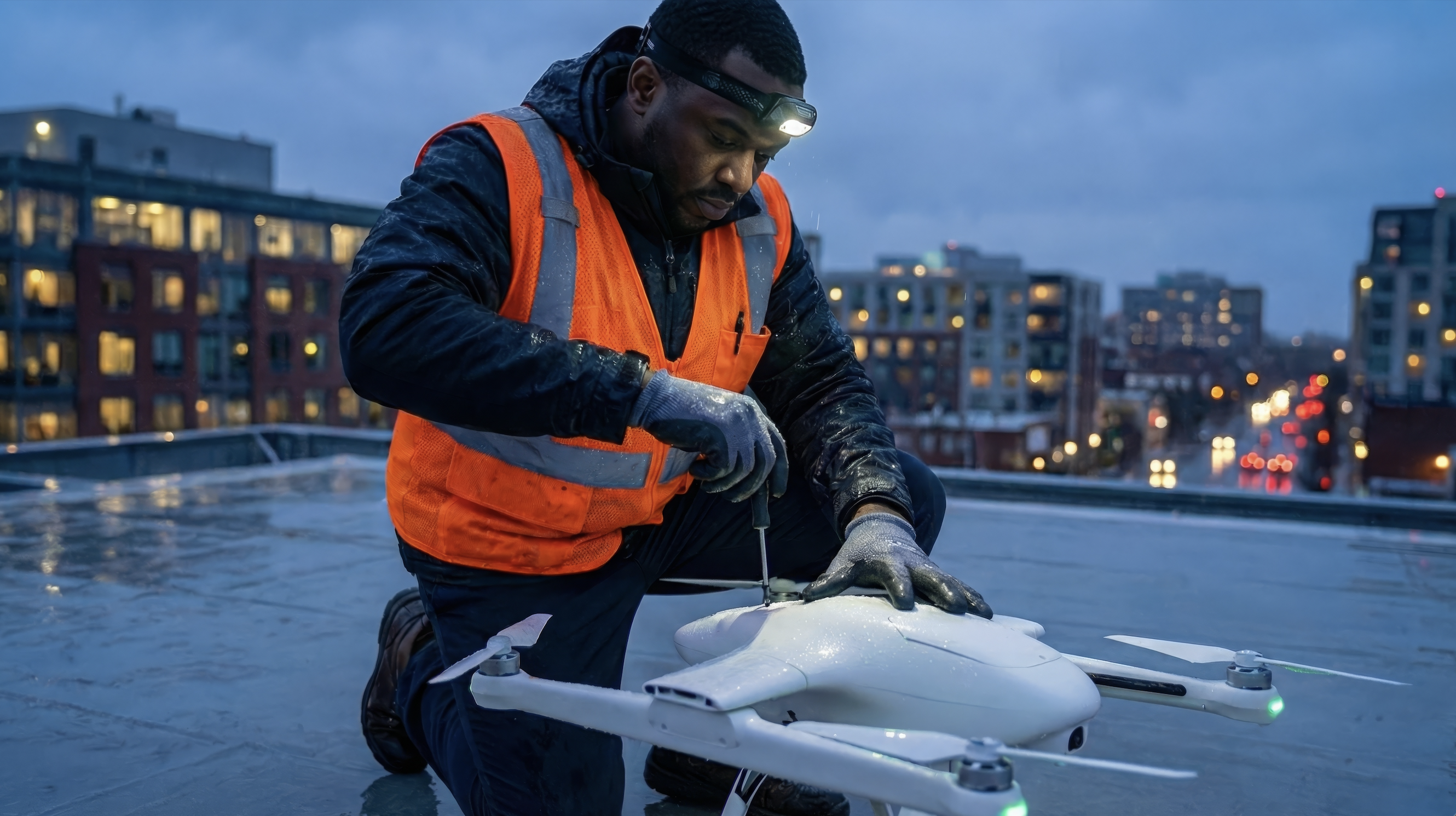
Before flying, pilots check the flight area for people, obstacles, and enough open space to take off and land safely. They also inspect the drone to make sure the battery is charged, the propellers are secure, and all parts are in good condition. Even small problems—like a loose propeller or low battery—can cause a crash.
Commercial drones, like the ones shown here, may be inspected and repaired outdoors, in the areas in which they are flown.
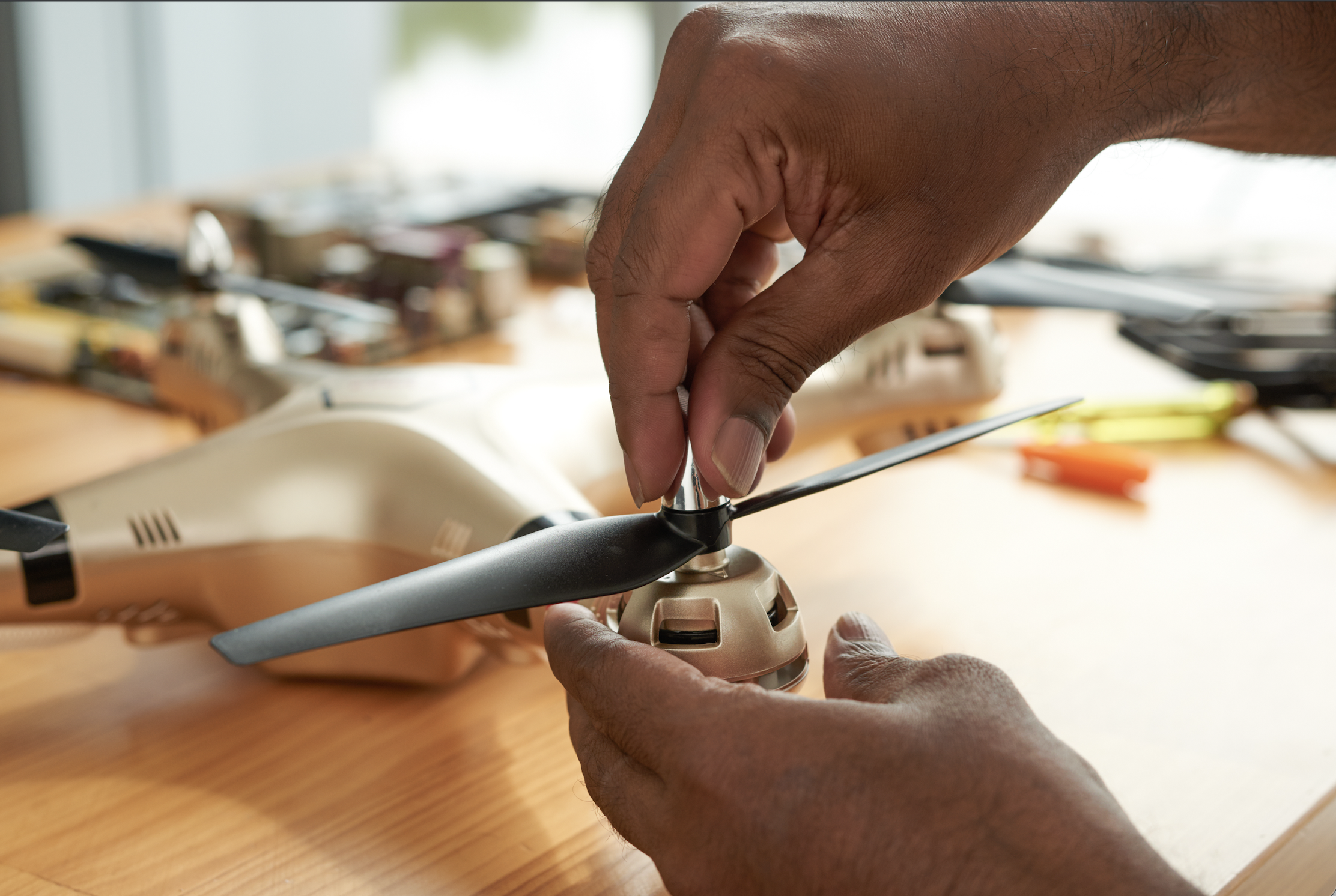
Pre-flight checklists are used in many real-world jobs, including emergency response, inspections, and filming. Building this habit helps pilots fly more safely and confidently on every mission.
Even hobbyists, like the one shown here, use pre-flight checks to ensure their drones are safe for use.
Check Your Understanding
Before moving on, ensure that you understand the concepts in this lesson by answering the questions here (Google Doc / .docx / .pdf).
Select Return to Units > to move on to the next unit.