Now that you have experience flying with cargo, you are ready to explore how to move objects with greater control and precision. Carrying cargo adds a new challenge since you will need to manage your flight path while keeping your VEX AIR Drone on the right path and your cargo secure.
Even experienced pilots make mistakes, so it’s important to check that your drone is safe and ready before every flight. Inspect the propellers and frame for any damage, as even small cracks can affect performance. In this lesson, you will explore new flight paths while also learning how to maintain your drone so it flies reliably during more complex missions.
Watch the video below to learn about:
- Inspecting your drone for damage
- Identifying cracked or damaged propellers
- Safely replacing a propeller
Mission Prep
Each exploration mission in this lesson focuses on flying with cargo while controlling your movement carefully and precisely. For each mission, make sure you:
- Complete a pre-flight check before every mission. Inspect your drone and propellers for damage before flying.
- The Pre-Flight Checklist will be available in each Mission Log below so you have multiple reminders to complete these safety checks.
- Be sure the Magnet Module is installed on the drone.
- See this article for pre-flight safety reminders and guidance on getting your drone ready for flight.
- Log each flight in your Mission Log. Record what worked, what didn’t, and what you want to improve. Even if you fly the path and successfully deliver cargo objects once, continue to practice to ensure repeatability and improve your precision.
- Practice each mission multiple times. Your goal is not just to complete the task, but to improve your accuracy and control while using the Magnet Module.
- Reset the flight area between attempts. This ensures that other pilots are starting with a consistent setup.
Each exploration mission in this lesson focuses on flying with cargo while controlling your movement carefully and precisely. For each mission, make sure you:
- Complete a pre-flight check before every mission. Inspect your drone and propellers for damage before flying.
- The Pre-Flight Checklist will be available in each Mission Log below so you have multiple reminders to complete these safety checks.
- Be sure the Magnet Module is installed on the drone.
- See this article for pre-flight safety reminders and guidance on getting your drone ready for flight.
- Log each flight in your Mission Log. Record what worked, what didn’t, and what you want to improve. Even if you fly the path and successfully deliver cargo objects once, continue to practice to ensure repeatability and improve your precision.
- Practice each mission multiple times. Your goal is not just to complete the task, but to improve your accuracy and control while using the Magnet Module.
- Reset the flight area between attempts. This ensures that other pilots are starting with a consistent setup.
Links to Mission Logs and images of the setup for each mission are included in each exploration. Distribute each Mission Log when students reach that exploration to help them stay focused on the current task.
Allow enough time for every student to fly each mission multiple times. These missions are more complex than any they have flown previously, and will likely take more time, patience, and perseverance to complete. Support students to engage with others as they are flying or planning for their next flight. Strategies could include:
- Moving all students through each exploration mission together, so students have a common goal they are working towards.
- Encouraging students who are feeling frustrated to move to another mission on this page so they can continue practicing while also giving them space to reflect on their practice.
- Celebrating successes together and highlighting each time a student reduces the time it takes to move the cargo object or helps their partner to improve.
- Reminding students to use the Competition Layout in the VEX AIR Flight Simulator to practice picking up and moving cargo objects with the drone.
Mission: Hit the Mark
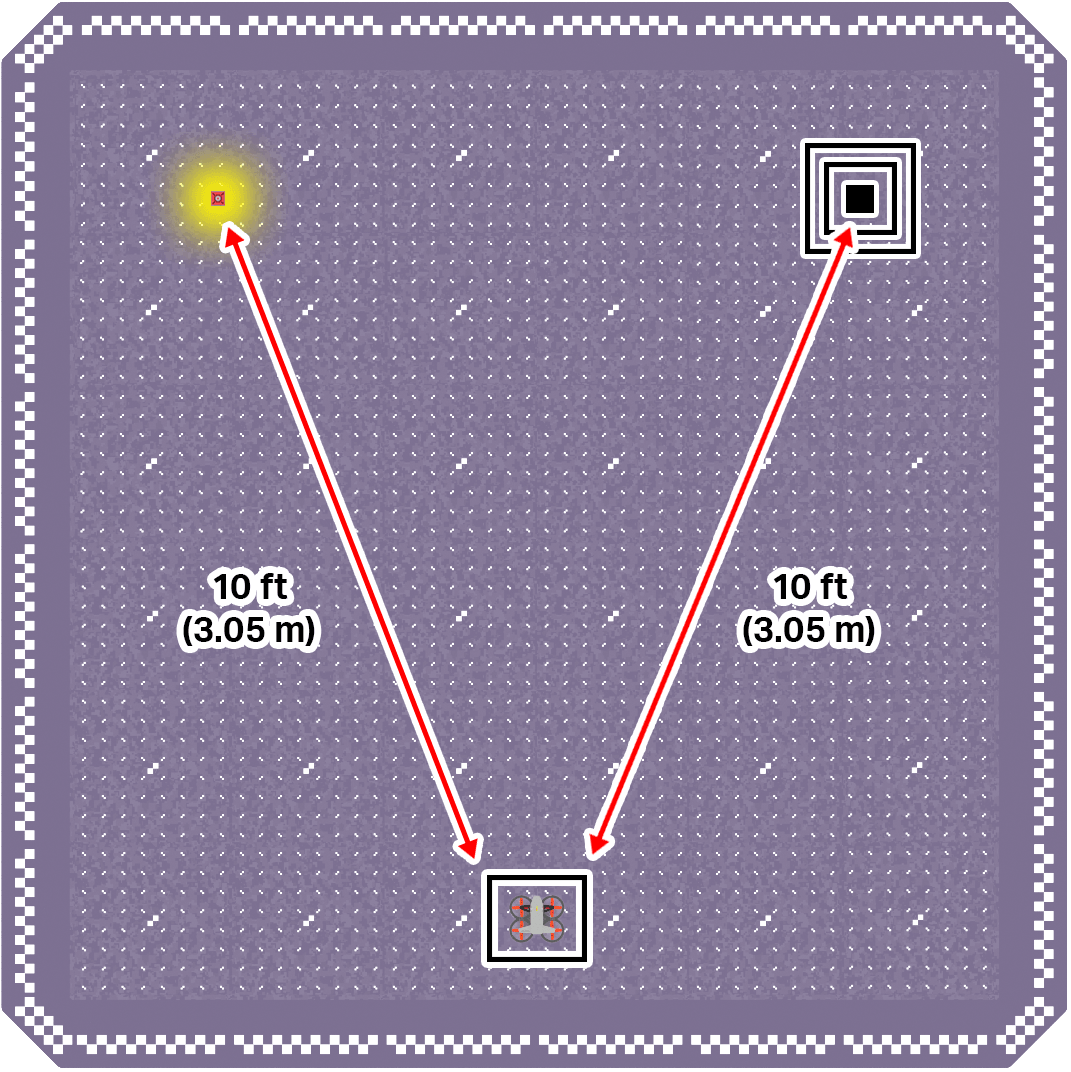
The goal of this mission is to fly the drone to pick up and move a piece of cargo from its starting location to the target. Get as close to the center of your target as you can!
To set up your flight area, place a piece of cargo in the upper left corner. Mark a target zone in the upper right corner. Use the image below for reference as you set up your flight area.

Record your results in your Mission Log (Google Doc / .docx / .pdf).
- Mark where the cargo landed in the target zone for each flight.
- Note strategies you used to help improve your precision and success with the Magnet Module for each flight attempt.
Pro Tips:
- A combination of camera views can be useful when determining how high the drone is and how far away it is from the target.
- Notice how reticle alignment is affected by how close the drone is to the object. Make sure you are maintaining your desired position as you throttle up and down.
The goal of this mission is to fly the drone to pick up and move a piece of cargo from its starting location to the target. Get as close to the center of your target as you can!
To set up your flight area, place a piece of cargo in the upper left corner. Mark a target zone in the upper right corner. Use the image below for reference as you set up your flight area.

Record your results in your Mission Log (Google Doc / .docx / .pdf).
- Mark where the cargo landed in the target zone for each flight.
- Note strategies you used to help improve your precision and success with the Magnet Module for each flight attempt.
Pro Tips:
- A combination of camera views can be useful when determining how high the drone is and how far away it is from the target.
- Notice how reticle alignment is affected by how close the drone is to the object. Make sure you are maintaining your desired position as you throttle up and down.
Distribute the Hit the Mark Mission Log to all students (Google Doc/ .docx / .pdf). Make sure students complete the Pre-Flight Checklist. Distribute additional Pre-Flight Checklists as needed as students work through the mission (Google Doc / .docx / .pdf).
Set up your flight area for target practice! Use the setup image for reference.
- You can use tape alongside a hook-and-loop surface to create the target zone in the flight area. You can make the target area larger or smaller as students practice, to best meet their needs and growing skills.
- If needed, use tape to identify the takeoff and landing zone as well.
Talk with students as they practice. Remind pilots and co-pilots that they can, and should, be talking to each other as they are flying, to help everyone better understand how to fly while interacting with objects. Use prompts like:
- How are you positioning the drone to make sure you can pick up the cargo effectively?
- What tools or flight strategies are you using to help you drop off the cargo in the target? How are you trying to improve your targeted delivery?
- What is challenging about using the Magnet Module for you? How are you working to overcome that challenge?
- What is the most helpful tip you've learned so far about interacting with cargo?
Encourage students to try and improve their precision and efficiency as they place cargo on the target. Students can aim to pick up cargo more smoothly, to improve their delivery location, or try to complete the whole mission in less time. Remind students to think about specific ways they want to make their flight better than the last to help them practice with intention.
Mission: Flip Flop Flight
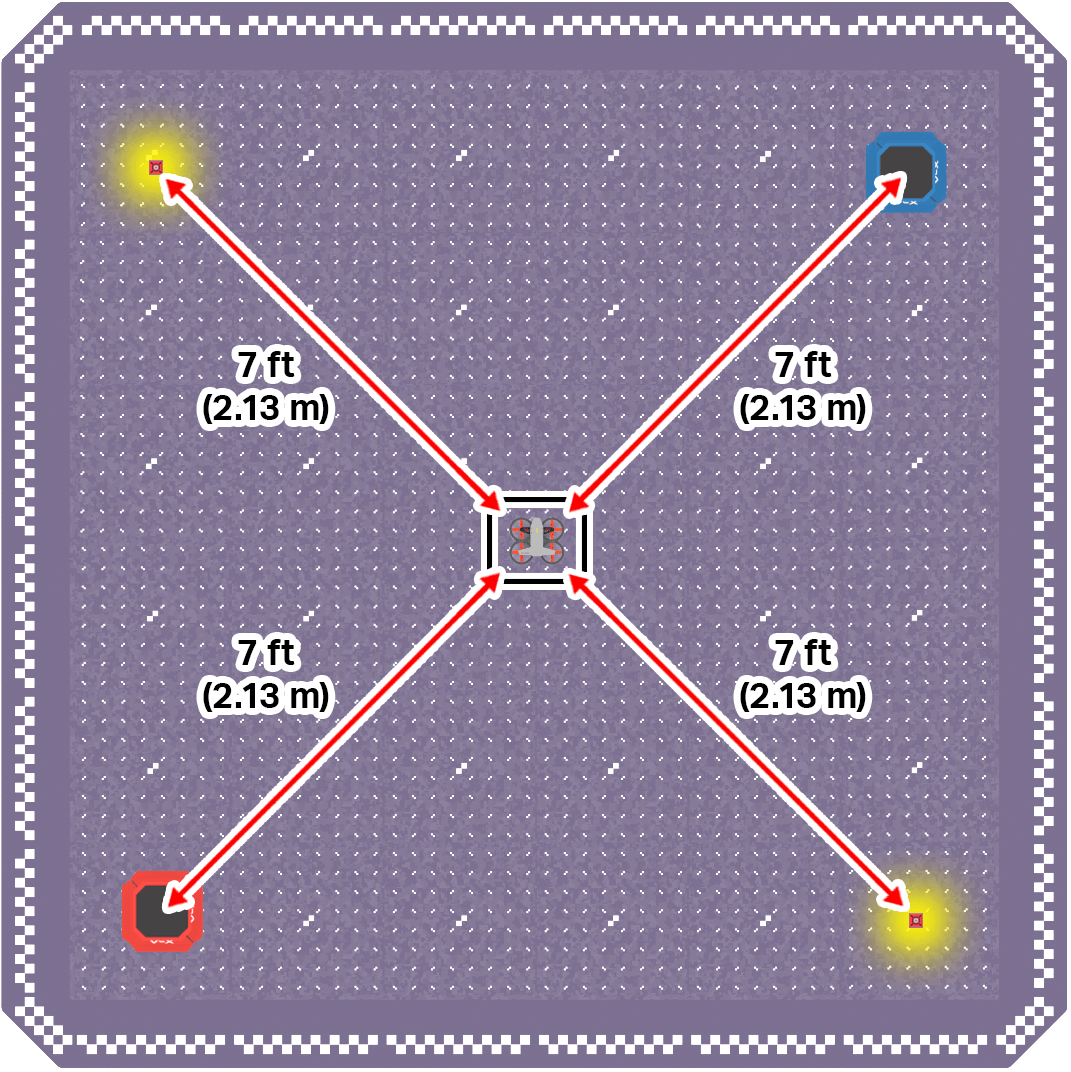
The goal of this mission is to fly the drone to pick up and move cargo from its starting location across the flight area to drop-off zones. Only one piece of cargo can be delivered to each drop-off zone.
To set up your flight area, place one piece of cargo in the upper left corner and one in the lower right corner. Mark drop-off zones in the upper right and lower left corners of the flight area. Use the image below for reference as you set up your space.
Record your results in your Mission Log (Google Doc / .docx / .pdf).
- Note your intended path for each flight in your Mission Log. Number each location 1 through 4 in the order you intend to fly to them. You can also use arrows to indicate your intended path.
- Record how well your flight path worked and any strategies or tips you learned about moving cargo with precision and efficiency in your reflection.
Pro Tip: Downwash can make picking up cargo difficult. Line up the drone above the piece of cargo at a height where downwash allows you to be steady and more exact, then throttle down to quickly pick up the cargo.
The goal of this mission is to fly the drone to pick up and move cargo from its starting location across the flight area to drop-off zones. Only one piece of cargo can be delivered to each drop-off zone.
To set up your flight area, place one piece of cargo in the upper left corner and one in the lower right corner. Mark drop-off zones in the upper right and lower left corners of the flight area. Use the image below for reference as you set up your space.

Record your results in your Mission Log (Google Doc / .docx / .pdf).
- Note your intended path for each flight in your Mission Log. Number each location 1 through 4 in the order you intend to fly to them. You can also use arrows to indicate your intended path.
- Record how well your flight path worked and any strategies or tips you learned about moving cargo with precision and efficiency in your reflection.
Pro Tip: Downwash can make picking up cargo difficult. Line up the drone above the piece of cargo at a height where downwash allows you to be steady and more exact, then throttle down to quickly pick up the cargo.
Distribute the Flip Flop Flight Mission Log to all students (Google Doc/ .docx / .pdf). Make sure students complete the Pre-Flight Checklist. Distribute additional checklists as needed as students work through the mission (Google Doc / .docx / .pdf).
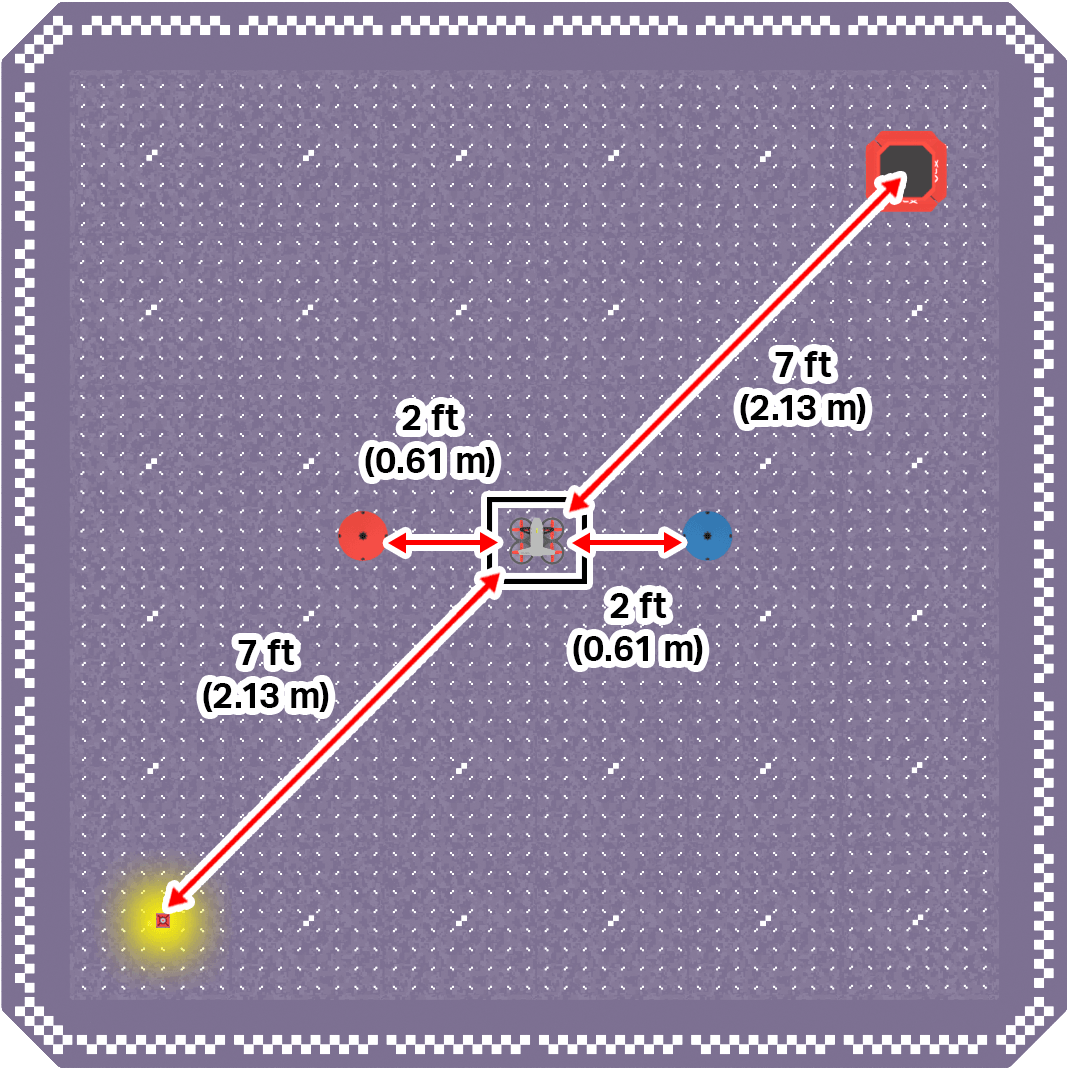
Set up your flight area so that there is a cargo and drop-off zone on each side. Use the setup image for reference. Tape can be used to mark the drop-off zones along with the hook-and-loop surface. You can adjust the size and shape to best meet the needs of your students.
Talk with students as they practice. Ask questions like:
- Why are you moving the cargo in that order? How does your flight path work with your strategy for moving cargo?
- What do you notice as you fly across to the drop-off zone carrying cargo? How is your drone movement similar or different to previous flight experiences?
- What is one tip you would share with a new pilot trying to use the Magnet Module for the first time? Why is that important?
Remind students that they can talk with one another before, during, and after flight to help them improve their skills with each mission. The perspective of the co-pilot can be helpful when positioning the drone for cargo pickup or drop-off.
Mission: Cargo Weave
The goal of this mission is to pick up and move a piece of cargo across the flight area in a zigzag path, and drop it in the drop-off zone.
Use the image below for reference as you set up your flight area:
- Place one piece of cargo in the lower left corner.
- Mark a drop-off zone in the upper right corner.
- Mark two “obstacles” in the center of the flight area that you will fly around.

Record your practice flights in your Mission Log (Google Doc / .docx / .pdf).
- Note things like how you knew when to change direction on the zigzag path, how the drone moved with cargo attached, and tools you used to improve your cargo movements.
Pro Tip: This mission is meant to simulate more complex movements, so be sure you are flying around each marked obstacle location. Reference the image in the Mission Objectives section if you need help remembering where the drone should fly to complete the mission.
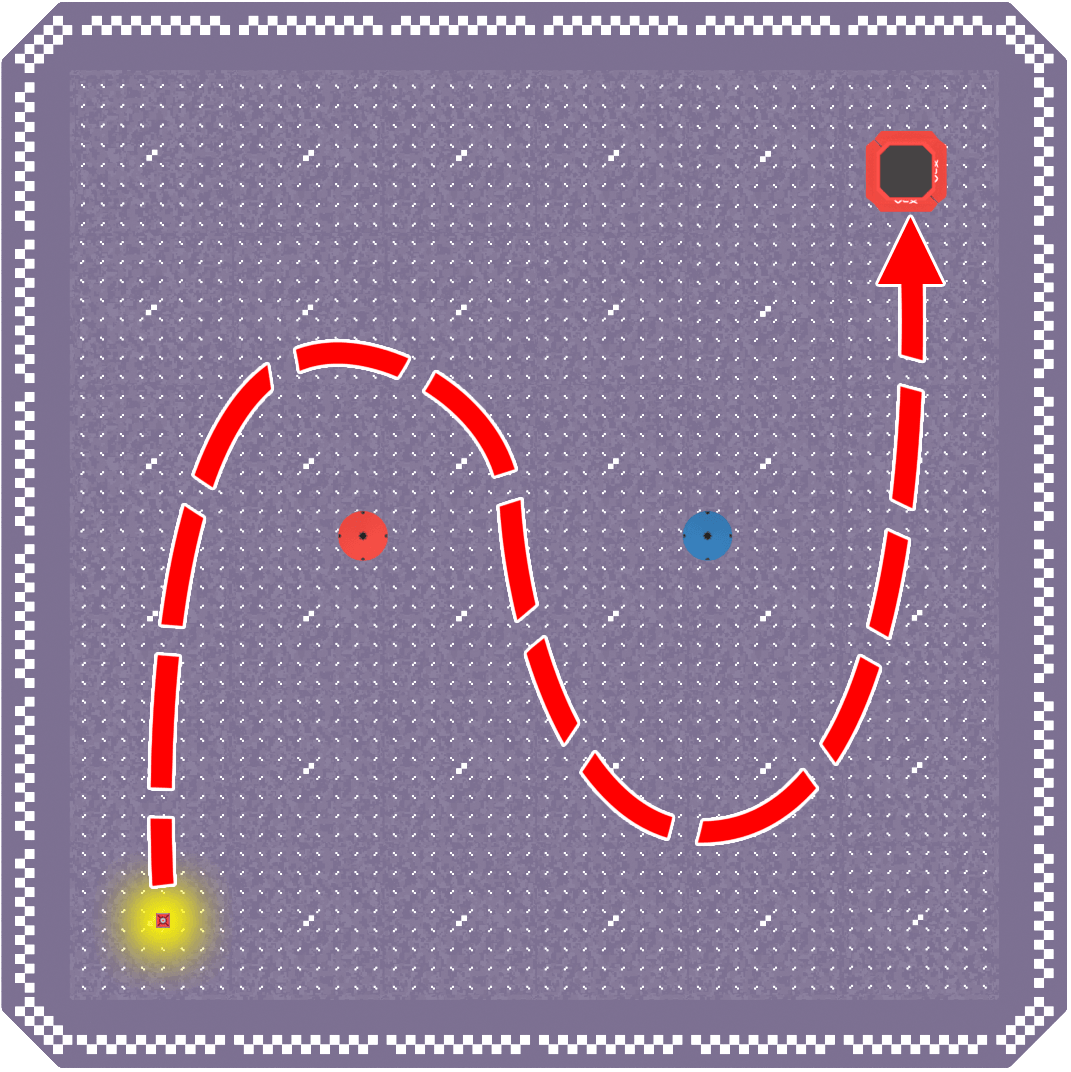
The goal of this mission is to pick up and move a piece of cargo across the flight area in a zigzag path, and drop it in the drop-off zone.
Use the image below for reference as you set up your flight area:
- Place one piece of cargo in the lower left corner.
- Mark a drop-off zone in the upper right corner.
- Mark two “obstacles” in the center of the flight area that you will fly around.

Record your practice flights in your Mission Log (Google Doc / .docx / .pdf).
- Note things like how you knew when to change direction on the zigzag path, how the drone moved with cargo attached, and tools you used to improve your cargo movements.
Pro Tip: This mission is meant to simulate more complex movements, so be sure you are flying around each marked obstacle location. Reference the image in the Mission Objectives section if you need help remembering where the drone should fly to complete the mission.
Distribute the Cargo Weave Mission Log to all students (Google Doc/ .docx / .pdf). Make sure students complete the pre-flight checklist. Distribute additional pre-flight checklists as needed as students work through the mission (Google Doc / .docx / .pdf).
Set up your flight area for zigzag flight! Use the setup image for reference.
- You can use tape alongside the hook-and-loop surface to mark off a drop-off zone in one corner of the flight area. You can make the drop-off zone larger or smaller to best meet students' needs and growing skills.
- Mark “obstacles” with tape or heavy objects like textbooks to give students objects to fly around to complete the path.
- If needed, use tape to identify the takeoff and landing zone as well.
Be sure that students know the path they are intended to fly before they begin. Use the reference image below (or in the Mission Log) to help clarify.

Talk with students as they practice. Ask questions like:
- What do you notice about how the drone moves while flying a more complex path holding cargo?
- How do you know when to change direction around an obstacle?
- How have your cargo skills improved from the first mission to this one? Why is that?
Check Your Understanding
Before moving on, ensure that you understand the concepts in this lesson by answering the questions here (Google Doc / .docx / .pdf).
Answers to the Check Your Understanding questions can be found here (Google Doc / .docx / .pdf).
The questions in this lesson are intentionally simple to help keep the focus on flying the drone using the Magnet Module. The short answer question can be used to prompt a whole-class discussion about how these flights compared to those using the Passive Module in the previous unit.
Select Return to Units > to move to the next unit in the course.