
In this lesson, you will use flight data to guide how you control the Z Height of your VEX AIR Drone. You will open the Drone Dashboard on the VEX AIR Drone Controller and learn how the drone’s height is shown using the z-axis data on the screen. As you fly, you’ll watch how the numbers change when you throttle to raise and lower the drone. This helps you understand how your inputs affect how high the drone is above the ground.
Watch the video below to learn about:
- How changing throttle affects the drone's z-coordinate.
- Using Z Height as a safety tool while flying.
Hover and Discover
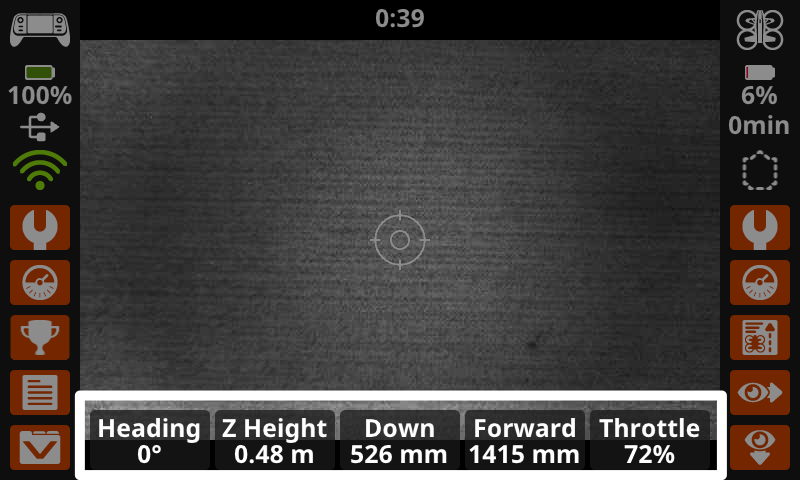
You are now familiar with some of the data displayed on the Drone Dashboard. Data can also be displayed on the main controller screen as you fly the drone. You can toggle Instruments on or off in the Controller Settings. When turned on, the screen will display real time instrument data including the drone's heading and Z Height, downward and forward facing range sensor data, and its throttle percentage. This setting allows you to view this information while you are also using (and switching between) the camera views on the drone. The combination of the data plus the camera view offers a more comprehensive picture of the drone's position and movement as it flies.
The Z Height data shown here reports the drone's current z-coordinate in meters. Pilots can use this measurement to ensure the drone does not fly too close to the ceiling or other overhead objects.
Mission: Lift and Lower
In this mission, you will estimate the drone's z-coordinates at different relative positions. You will fly the drone to test your estimates. This will help you to develop an understanding of the drone's position in space. Follow these steps to complete your mission:
- Predict the approximate position of each z-coordinate listed in the Mission Log (Google Doc / .docx / .pdf). Use classroom objects or landmarks to help you describe the position, and record your predictions in the table.
- Divide your flight team into starting roles to determine who will be the pilot and co-pilot(s). Review the responsibilities for before, during, and after a flight in this article.
- Use the pre-flight checklist in the Mission Log to ensure you, your indoor flight environment, and the drone itself are ready and safe for flight.
- Place the drone in the center of the flight area in the takeoff zone.
- Take off and open the Drone Dashboard on the controller.
- Throttle up or down to fly the drone to each z-coordinate on the Mission Log to test your estimates. As you reach each coordinate, record the actual position of the drone in the table.
Pro Tip: Remember, you can set your Maximum Z Height in the Drone Settings menu on the controller. Setting the Maximum Z Height helps ensure the drone only throttles up to a safe height in your indoor environment.
Check Your Understanding
Before moving on, ensure that you understand the concepts in this lesson by answering the questions here (Google Doc / .docx / .pdf).
Select Return to Units > to move to the next unit in the course.