
Play
Part 1 - Step by Step
- InstructInstruct students that they are going to practice the debugging process of Identify – Find – Fix together. The goal of this project is to drive the 123 Robot drive to put a book back on the bookshelf, but there is a bug in the project. The animation below shows the bugged project, so the 123 Robot will not successfully reach the bookshelf. The robot begins in the lower left corner of the Tile, and the bookshelf is in the top center square of the Tile. The project reads When start 123, Drive 2, Turn Left, and Drive 1.
Video file
- ModelModel for students how to build the bugged project, so that they can use the debugging process to identify, find, and fix the bug.
- Distribute the following materials to each group:
- 123 Robot
- Coder
- A 123 Tile with the bookshelf location marked
- Coder cards
- Students should have the 'When start 123" card, four "Drive 1" cards, one "Drive 2" card, one "Turn left" card, and one "Turn right" card.
- Students will use the same set of Coder cards for building and debugging their projects.
- Students will need to wake the robot. To wake the 123 Robot, push the wheels along a surface until you hear the startup sound, as shown in the animation below. Turn on sound for this animation. For more information about the 123 Robot, see the Using the VEX 123 Robot STEM Library article.
Video file-
Students should then build the bugged project as shown here. This project is intentionally incorrect, to give students an opportunity to use the debugging process together. Be sure students build the project exactly as shown.
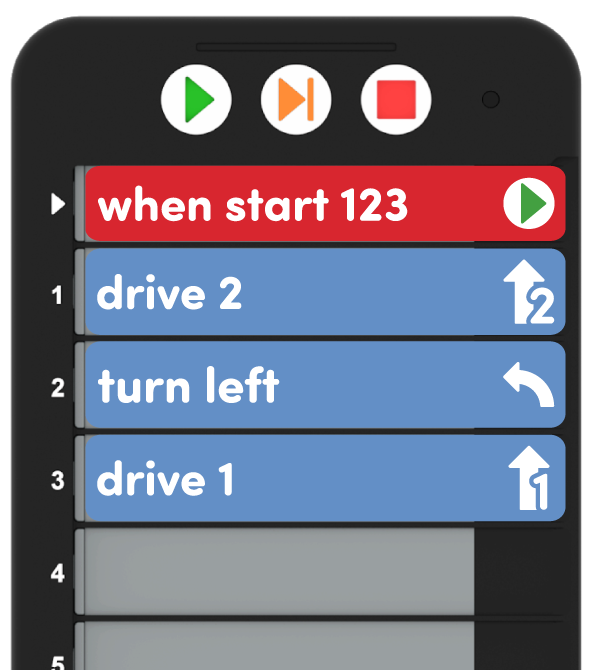
Build the bugged project - Connect the 123 Robot to the Coder. To connect the 123 Robot, press and hold the Start and Stop buttons on the Coder, and the Left and Right buttons on the 123 Robot for at least 5 seconds, until you hear the connected sound, and the indicator lights flash in time, as shown in the animation below. Turn on sound for this animation. For more information about the Coder, see the Using the VEX 123 Coder STEM Library article.
Video file-
Once all the 123 Robots are on, and the Coders are connected, have students place the 123 Robot on the starting point, as shown here, and press "Start" to test the project. Students should watch the movement of the 123 Robot to identify when they see a bug in the behavior.
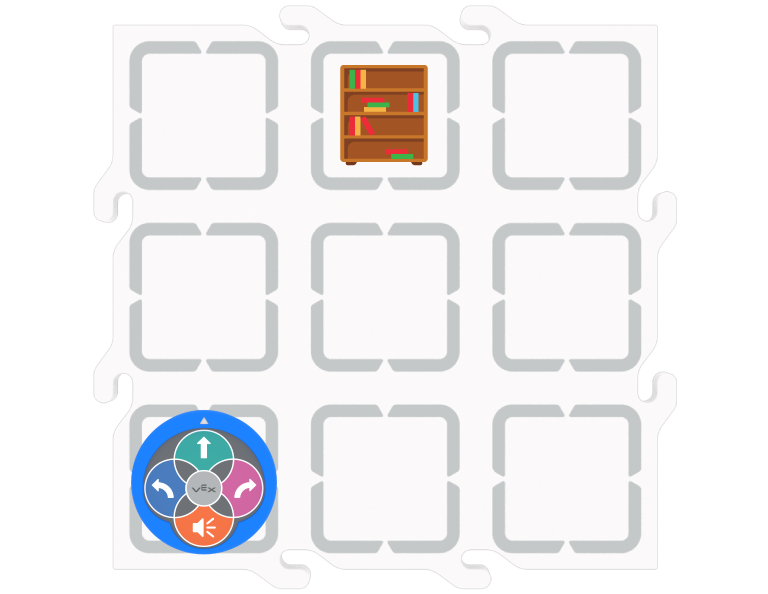
Place the 123 Robot on the starting point - Be sure that students are orienting the 123 Robot correctly on the Tile. As shown here, the 123 Robot should be placed on the bottom left square of the Tile, with the white arrow aligned with the notch on the top of the square. If students' robots are moving to the left or right of the Tile when the project is started, have them reset their robot to match the setup image and start the project again.
- Once all groups have identified that there is a bug, congratulate them on completing the first step of the debugging process! Have students share what the 123 Robot did that was different from the goal of the project, and be sure students agree on the error in robot behavior (turning the wrong direction) before moving on.
- Now that students have identified the bug in the robot's behavior, they need to find the bug in the project. Have students look at the Coder cards in their project to find the one that makes the 123 Robot turn left. Students can share which Coder card they think is the bug with the class.
- Next, students should fix the bug by choosing a different Coder card to replace the "Turn left" Coder card.
- Students should only have "Drive 1" or "Turn right" Coder cards available to choose from, to help limit their options for fixing their project.
-
Once students have replaced the "Turn left" Coder card with a different card, they should reset the 123 Robot to its starting point, and press "Start" to test their project. The debugged project should make the 123 Robot successfully reach the bookshelf, as shown in the animation below.
Video file
- Distribute the following materials to each group:
- FacilitateFacilitate each step of the debugging process with students as they debug their projects. Congratulate students as they complete each of the Identify – Find – Fix steps successfully!
To help students to identify a bug in the robot's behavior:
- As students watch their 123 Robot's behavior, have them announce when they have identified a bug in their project. You may want to do this by having groups raise their hand when they see an unexpected behavior, or cut out and use the bug (Google Doc/.docx/.pdf) printable to put on their desk or hold up to show that they see a bug.
To help students to find the bug in their project:
- Begin with the first Coder card in the project, and ask students if "Drive 2" matches the bugged behavior of turning the wrong direction.
- Move to the next Coder card and ask students if this card matches the bugged behavior of turning the wrong direction.
- The "Turn left" Coder card makes the 123 Robot turn left – but to get to the bookshelf, the 123 Robot needs to turn right.
To help students to fix the bug:
- Ask students which Coder card they need, instead of "Turn left", to fix the project.
- Have students look at the other Coder cards they have available, and select a different Coder card. The limited choices available should help students to more easily focus and find the appropriate fix for their project.
- If students disagree on which 'fix' to use, have them explain why they want to try a particular Coder card over another. In this project, it may seem obvious, but being able to articulate this logic will be useful as students debug projects more independently.
- RemindRemind students that debugging is something they are going to have to do often when they are coding their 123 Robots.
While this project had a simple bug, as their projects grow more complex, there will be more opportunities to identify, find, and fix bugs in their projects. Remind students that having a bug in their project is ok, and an expected part of coding. Bugs are opportunities to learn and to problem solve together, not failures.
- AskAsk students about how using the debugging process could help them as they continue to work with the 123 Robots, by asking questions like:
- What do you think you would do if you had more than one bug in a project? How would you solve the problem?
- Is this debugging process similar or different to how you fixed coding projects with your group before?
Mid-Play Break & Group Discussion
As soon as every group has fixed the bug and tested the project to see the 123 Robot reach the bookshelf successfully , come together for a brief conversation.
Give students an opportunity to recap the debugging process in their own words, to check that they understand the three steps of Identify – Find – Fix.
- How would you explain the debugging process to someone whose robot wasn't doing what they wanted it to?
- What will you do the next time you see your 123 Robot move differently than you want it to?
Acknowledge that bugs and debugging are parts of the coding process, and that this is something they will do to help them learn about coding the 123 Robot. Students can share how it feels to find and fix a bug in their project.
- If they say that it sometimes feels frustrating, that is ok. Students have different emotional responses to making mistakes. Explain that this is why you are taking the time to learn about a process for debugging, so that next time they encounter a bug it can be easier and less frustrating.
- Remind students that the goal of coding is to learn and have fun with their robots – not to get the 'right' answer on their first try.
Part 2 - Step by Step
- InstructInstruct students that they are now going to use the debugging process in their groups to make their 123 Robots line up in its spot on the Tile. The 123 Robot should drive to spot number 2, but there is a bug in the project. The animation below shows the bugged project, so the robot will not successfully drive to the number 2. The center row of squares on the Tile are labeled 1, 2, and 3 from left to right. The robot begins in the upper left corner of the Tile facing right, and the project reads Drive 2, Turn Right, and then finally Drive 1.
Video file
- ModelModel for students how to set up their 123 Robot and Tile, so the robot can line up. Check to make sure the arrows on the 123 Robot and the Tile are lined up properly, and that the robot is facing the correct direction in its starting point, as shown in the image below.

Place the 123 Robot on the starting point - Be sure that students are orienting the 123 Robot correctly on the Tile. As shown here, the 123 Robot should be placed on the top left square of the Tile, with the white arrow aligned with the notch on the right of the square to point the 123 Robot to the right. If students' robots are moving to the left or down the Tile when the project is started, have them reset their robot to match the setup image and start the project again.
-
Have students build the bugged project as shown here. (Students should continue to use the same set of Coder cards that they had for Play Part 1.)
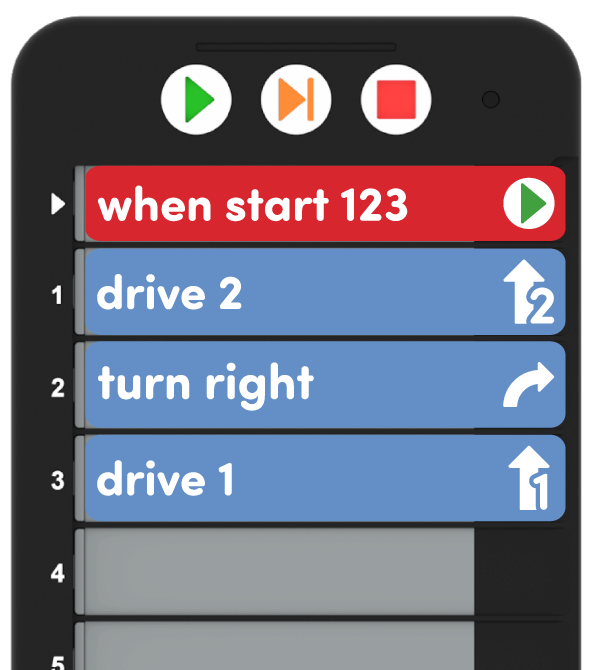
Build the bugged project. - Students may need to wake the robot if it has timed out. To wake the 123 Robot, push the wheels along a surface until you hear the startup sound, as shown in the animation below. Turn on sound for this animation. For more information about the 123 Robot, see the Using the VEX 123 Robot STEM Library article.
Video file- Then, connect the 123 Robot to the Coder as shown in the animation below. Turn on the sound for this animation. For more information about the Coder, see the Using the VEX 123 Coder STEM Library article.
Video file- Once the 123 Robot is connected and their project is ready in the Coder, students can press "Start" to test their project and begin the debugging process.
- Students should follow the same steps they used in Play Part 1 to Identify the bug in the 123 Robot's behavior, then Find the bugged Coder card in their project, and Fix the project by replacing that Coder card with the one that will cause the robot to move as intended.
- Be sure that students are placing the 123 Robot in the correct orientation and starting position before they begin the debugging process.
-
When students have debugged the project, the 123 Robot should successfully move to the number 2 on the Tile to 'line up' in its spot, as shown in the animation below.
Video file
- FacilitateFacilitate conversations about the debugging process as students identify, find, and fix the bugs in their projects.
- What did you see the 123 Robot do that helped you identify the bug?
- Can you explain what the bug is, and how that is different than what you want the robot to do?
- Where did you find the bug in your project?
- What Coder card do you need to use to fix the bug? Why did you choose that one?
- Is the robot moving differently with the new Coder card in the project? How do you know if you debugged the project correctly?
For groups that quickly debug the project, have them choose a different spot to line up. They can then use the debugging process again to adjust their project to make the 123 Robot drive from the starting point to number 1 or 3 in line.
- RemindRemind students that their 123 Robots will only do exactly what they tell them to do, so debugging is going to happen a lot as they are coding their robots.
Remind students about other times that they have successfully debugged a project, and talk about how that process helped them to learn more about coding their robots. Ask students about something they learned from using the debugging process today, or from fixing a bug in a previous project to highlight the positive learning opportunities that bugs offer.
- AskAsk students about other times that they have had to 'debug' a project or problem. Can they think of another situation where a debugging process would be helpful?