
Now that you have practiced flying the VEX AIR Drone with multiple controls, you are ready to explore movement modes. In this lesson, you will use the VEX AIR Flight Simulator to experience Precision, Balanced, and Performance modes firsthand. You will compare how each mode affects the drone's speed, control, and stability.
Watch this video to learn more about:
- How to change movement modes on the VEX AIR Drone Controller.
- How each mode affects the way the drone flies.
- Considerations for choosing a movement mode.
Hover & Discover
Stability assist helps keep the drone steady and controlled during flight, particularly in Precision and Balanced modes. The VEX AIR Drone's built-in Inertial Sensor detects orientation changes and automatically makes small adjustments to keep the drone level and flying smoothly. For example, if wind pushes the drone off course, stability assist corrects the movement without requiring an immediate pilot response, maintaining safe and stable flight.
In Performance mode, stability assist is disabled. The drone responds directly to pilot inputs, providing experienced users with greater speed and control. However, this requires quicker reactions and more precise handling.
Mission: Precision, Balanced, and Performance Modes
In this mission, you will test each movement mode by flying through all of the blue rings, starting and ending on the platform. You will record data on each flight, to see which mode allows you to quickly fly through the four blue rings with as few collisions as possible.
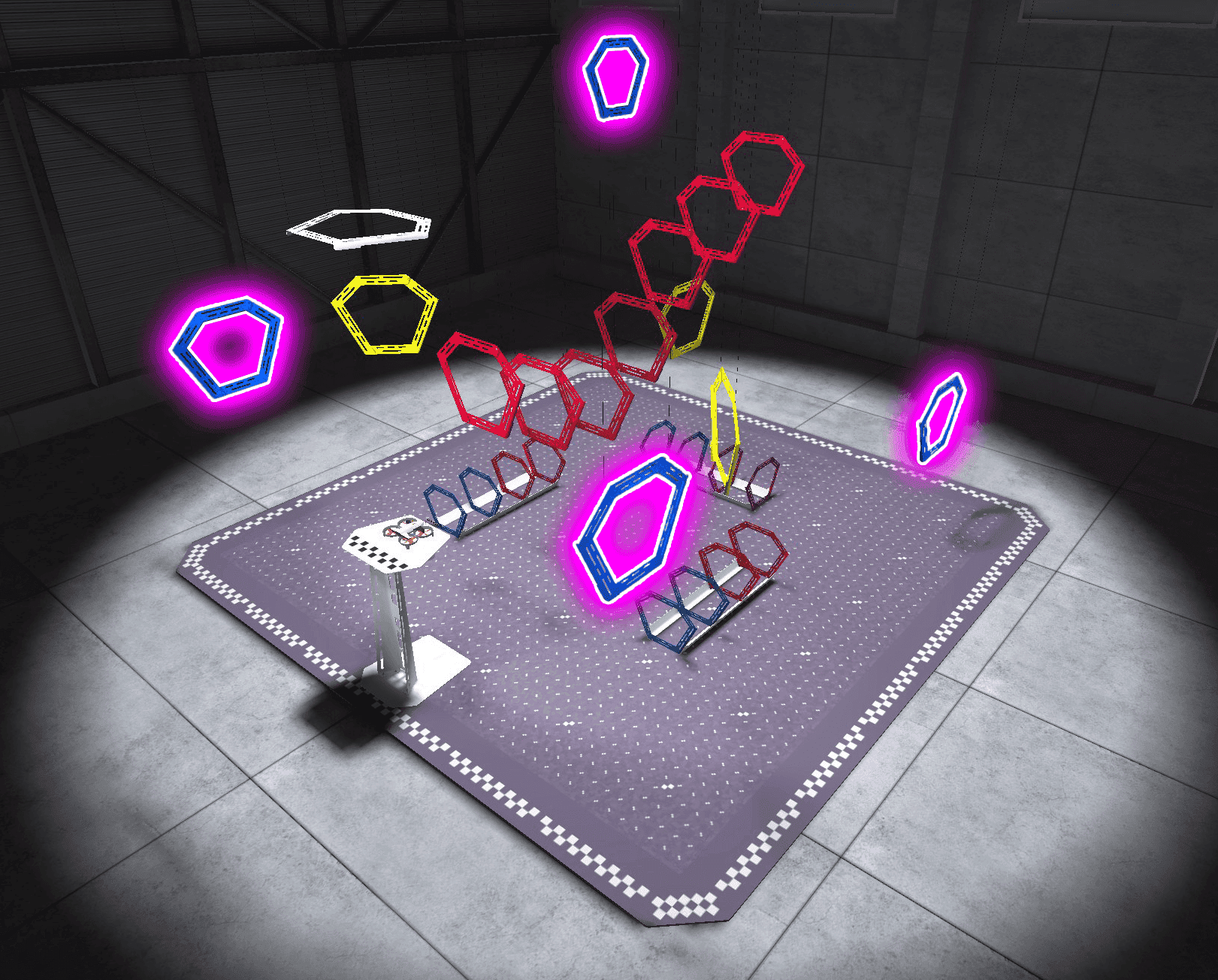
Follow these steps to complete your mission:
- Connect your controller to VEXcode AIR and select the Simulator tab. Refer to this article about using the VEX AIR Flight Simulator for more detailed instructions.
- Fly the drone using Precision mode first. Fly through all four blue rings and land on the platform.
- Use the Mission Log to document your flights (Google Doc / .docx / .pdf). Record the movement mode used and any challenges it presented.
- Use the drone settings menu to switch the movement mode to Balanced. Repeat the flight path with the new movement mode. Refer to this article for help with switching the movement mode.
- Record your data on the Mission Log as before.
- Repeat the flight path using Performance mode and record your data once again.
As you complete this mission, pay special attention to how changing movement modes alters both the speed and precision of your flight. Complete the steps of the mission multiple times so you have multiple data points about each movement mode.
- Once you have practiced the mission and logged your practice flights in your Mission Log, complete the Precision, Balanced, and Performance Modes mission in Flight School.
- Read the VEX Library article Using Flight School in the VEX AIR Flight Simulator for instructions on how to access and use Flight School.
- Find badge criteria for the mission in the Mission Log.
- When you have completed your Flight School mission, add your name to your badge.
Real World Connections
In real-world drone operations, pilots choose different movement modes based on the task they need to complete and the environment they are flying in. Understanding how Precision, Balanced, and Performance modes affect a drone’s movement is an important part of flying safely and effectively, whether in a simulator or with a real drone. Logging hours in a flight simulator allows pilots to practice each movement mode, build muscle memory, and develop the control needed to fly safely, using the best movement mode for the mission at hand.
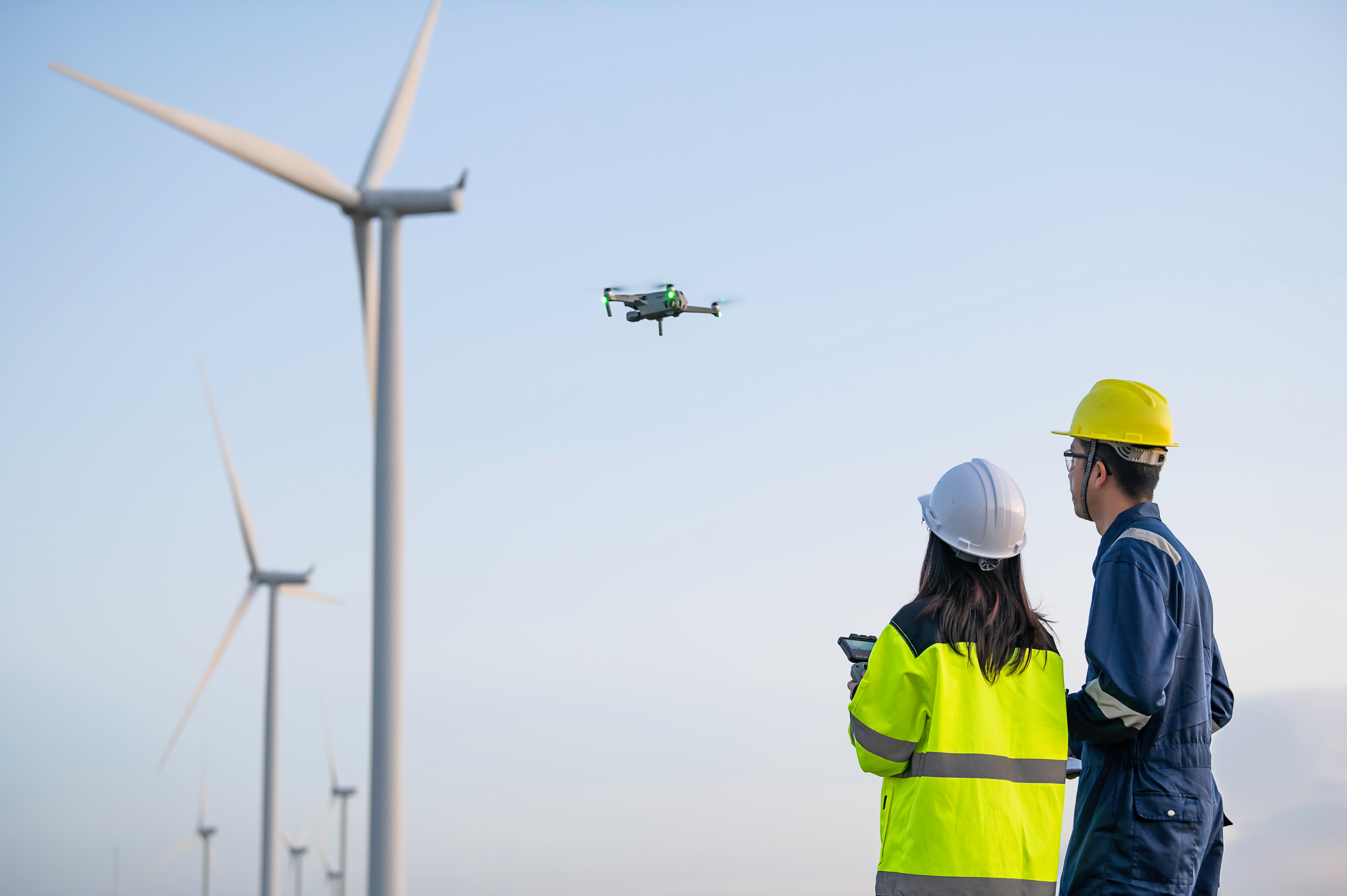
Precision mode is commonly used when safety and accuracy are most important. For example, inspectors such as those flying an outdoor drone in the picture to the left, use precision flying when checking bridges, wind turbines, or buildings, where slow and steady movement helps avoid contact with structures. Precision mode is also used during indoor flights, such as warehouse inspections, where even small mistakes could cause damage.
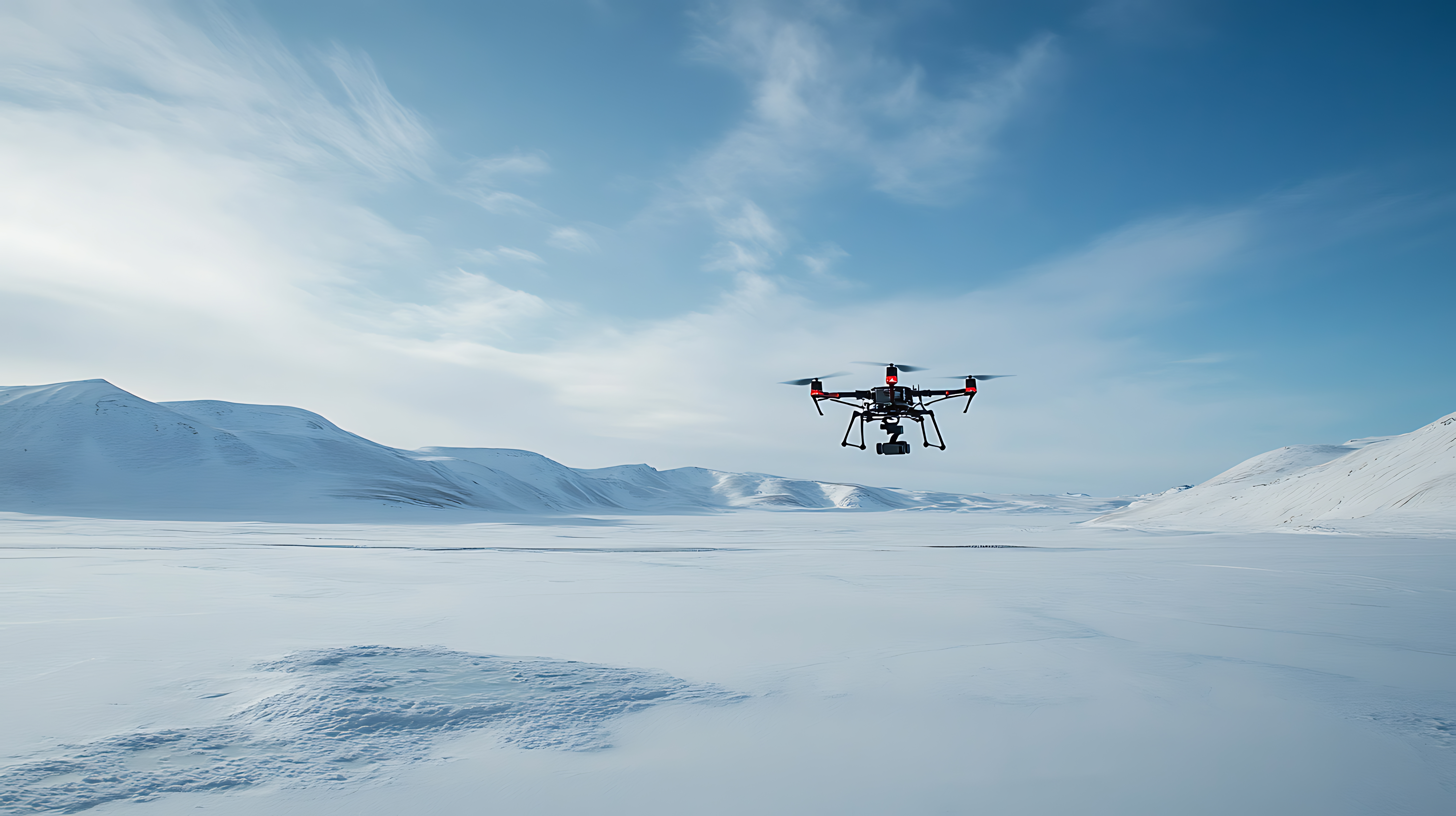
Balanced mode is often used for general operations and training flights. Farmers and environmental researchers frequently use this mode when flying outdoor drones to survey fields, monitor crops, or track changes in land over time. Balanced mode allows the drone to move efficiently while still maintaining stability and control, making it ideal for longer flights and skill development.
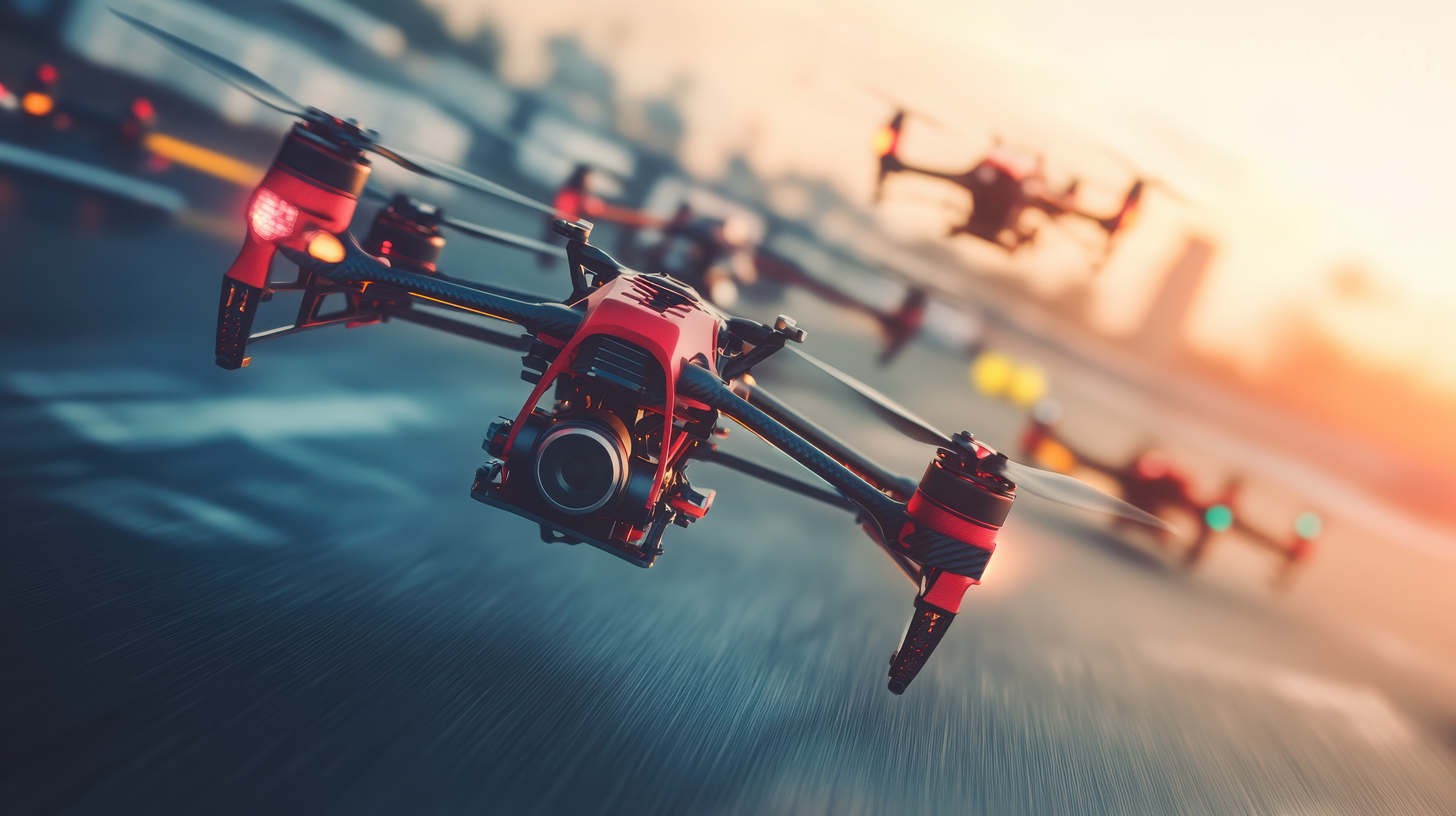
Performance mode is typically used by professional pilots in open spaces where speed and quick responses are needed. Search-and-rescue teams may use faster movement modes to scan large areas quickly when time is critical. Performance mode is also used in drone racing and testing, where experienced pilots use highly responsive drones (as shown in the picture to the left).
Check Your Understanding
Before moving on, ensure that you understand the concepts in this lesson by answering the questions here (Google Doc / .docx / .pdf).
Select Return to Units > to move on to the next unit.