Place the Blue and Green Disks
Now that you have successfully picked up and placed the red disk from the disk pick up location to the red disk drop off location, you will now program the arm mounted on the VEX V5 Workcell to pick up and place all three colored disks.
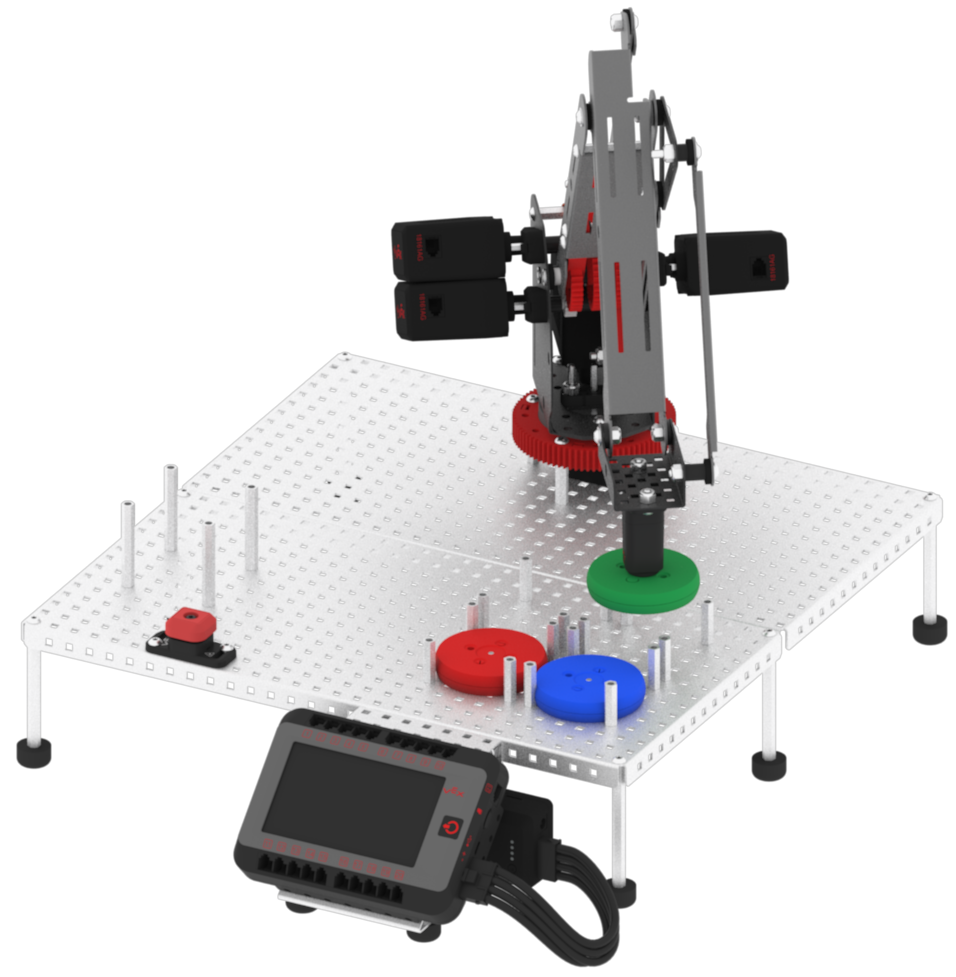
Four location points will need to be documented in order to pick up and move the blue and red colored disks. The exact location of the points may vary, but the z-values should move the arm mounted on the V5 Workcell up enough to not collide with any standoffs.
The blue points include:
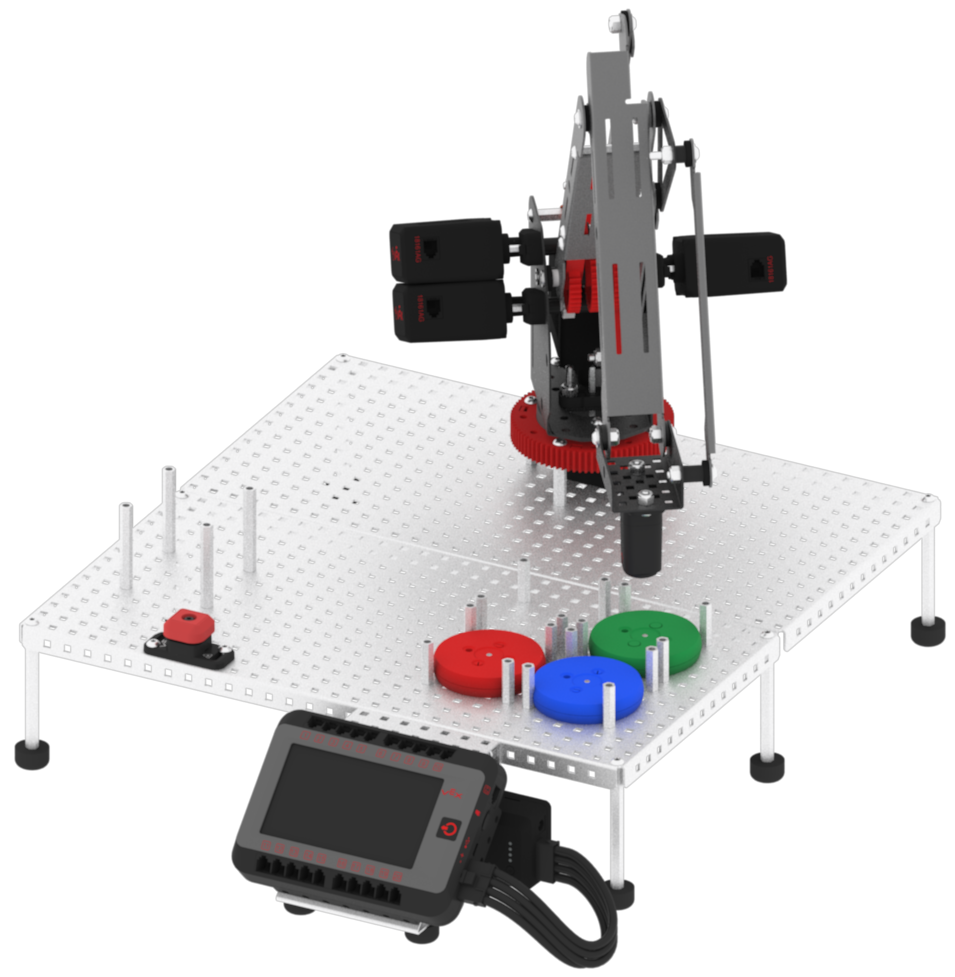
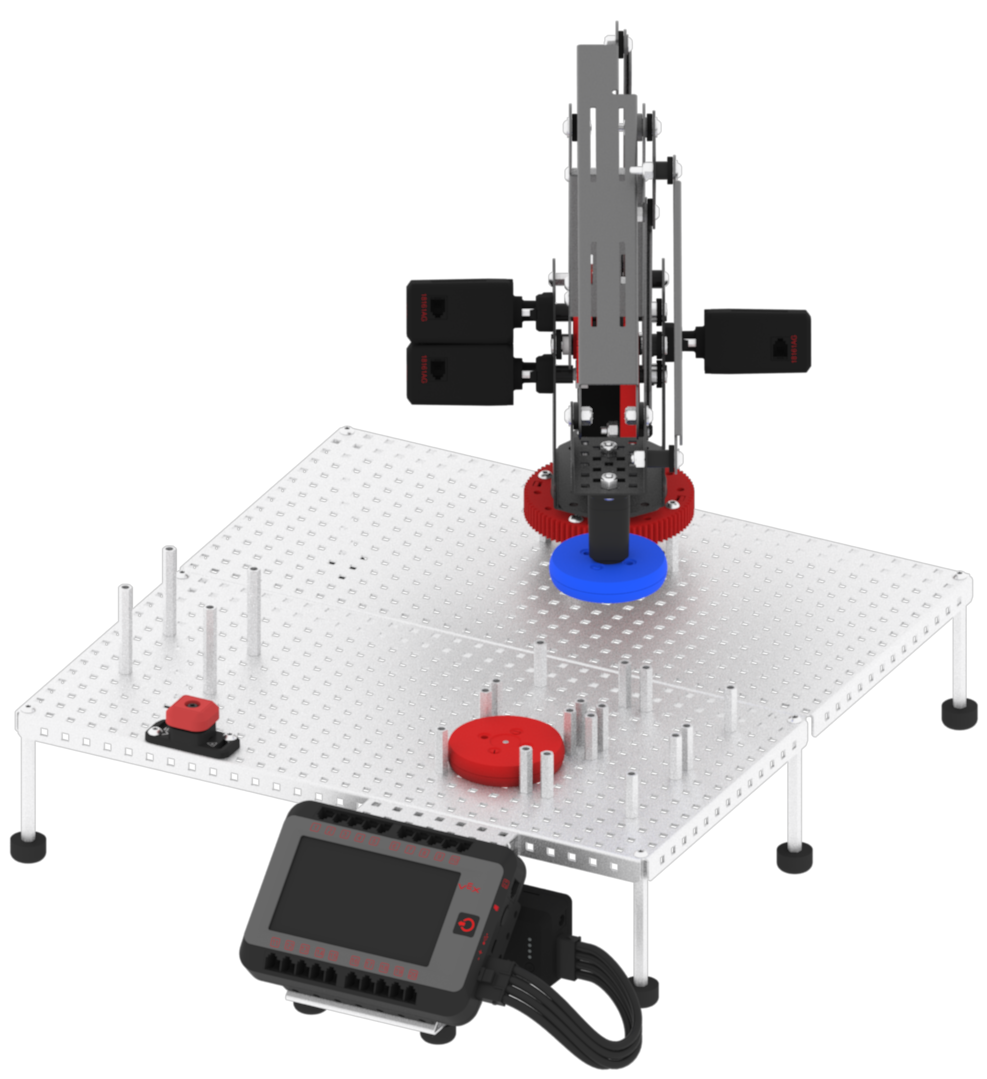
- Point 5: The Electromagnet is directly above the blue disk drop off location.
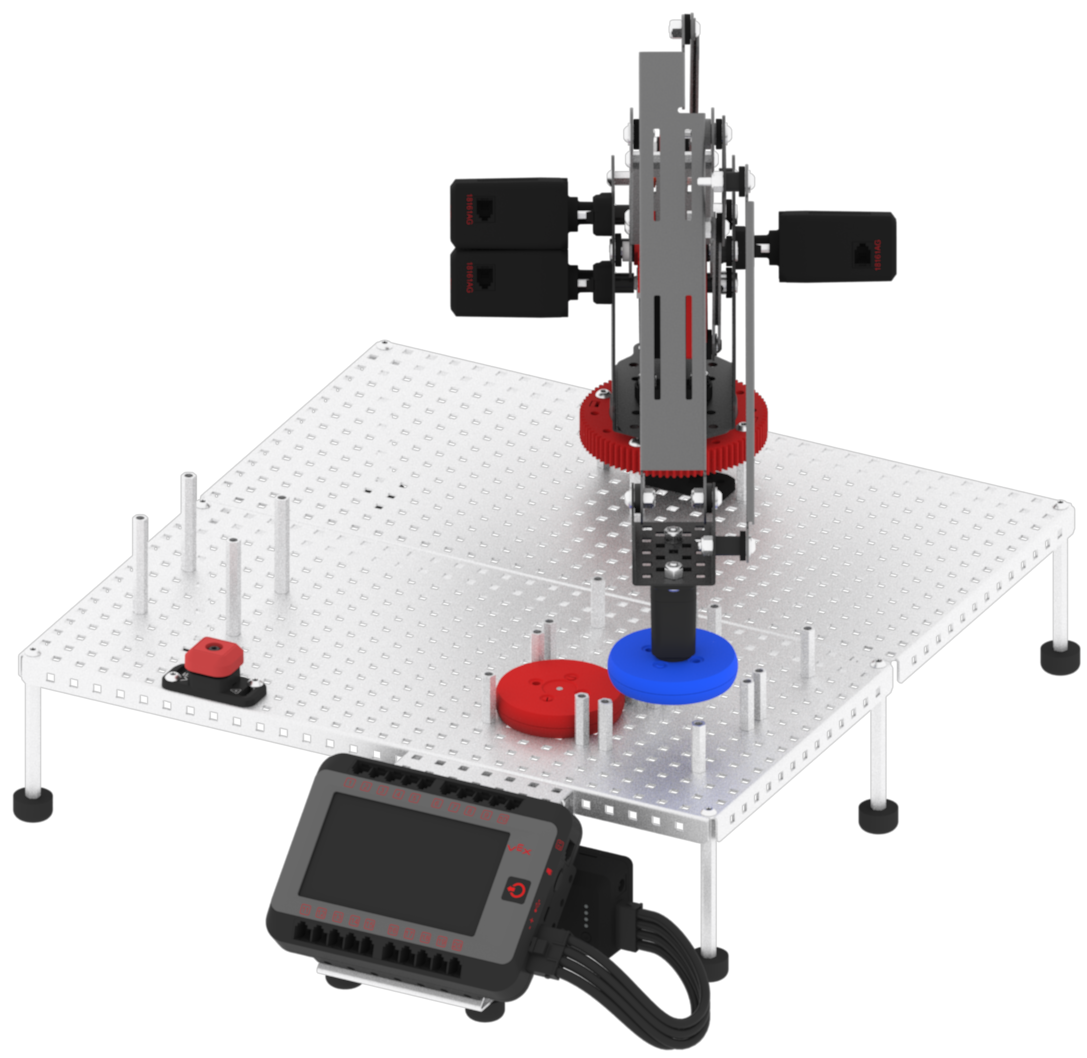
- Point 6: The disk is just above the standoffs in the blue disk drop off location.
The green points include:
- Point 7: The Electromagnet is directly above the green disk drop off location.
- Point 8: The disk is just above the standoffs in the green disk drop off location.
- Using steps 1-11, find the coordinate (x, y, z) locations of Point 5.
- Using steps 1-11, find the coordinate (x, y, z) locations of Point 6.
- Using steps 1-11, find the coordinate (x, y, z) locations of Point 7.
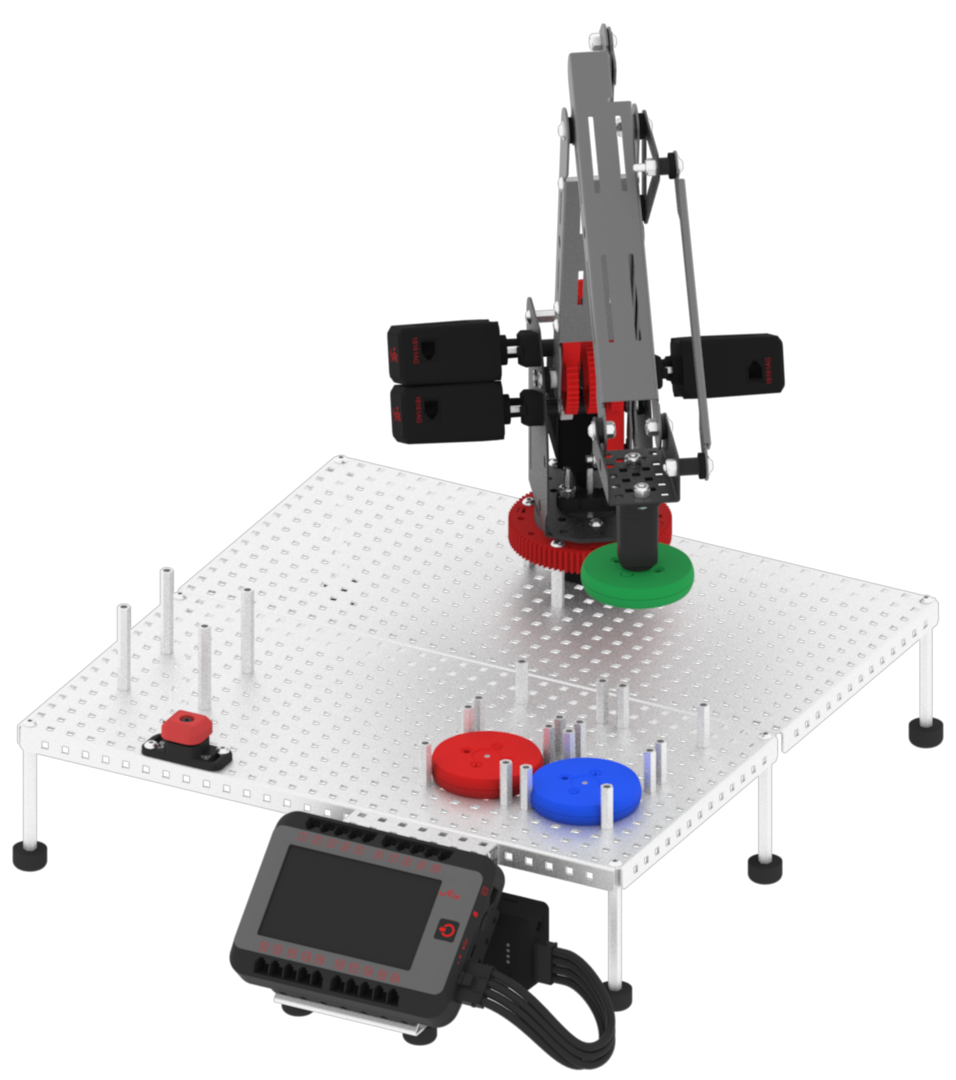
- Using steps 1-11, find the coordinate (x, y, z) locations of Point 8.
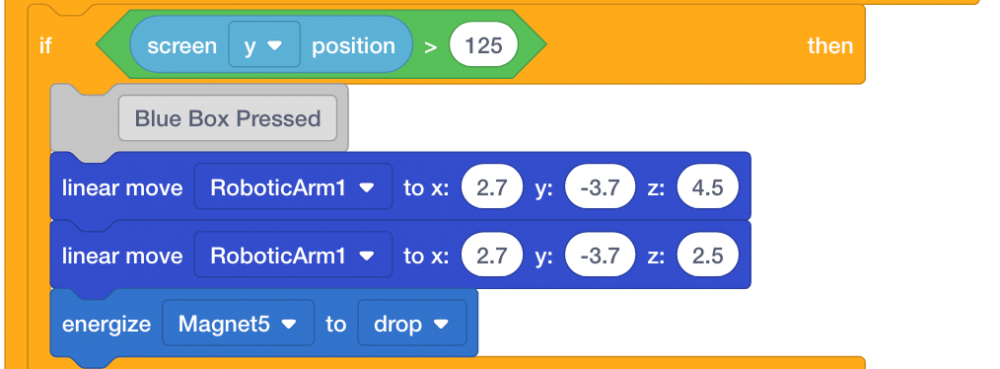
- Follow steps 35-38 to program the locations for the blue disk.
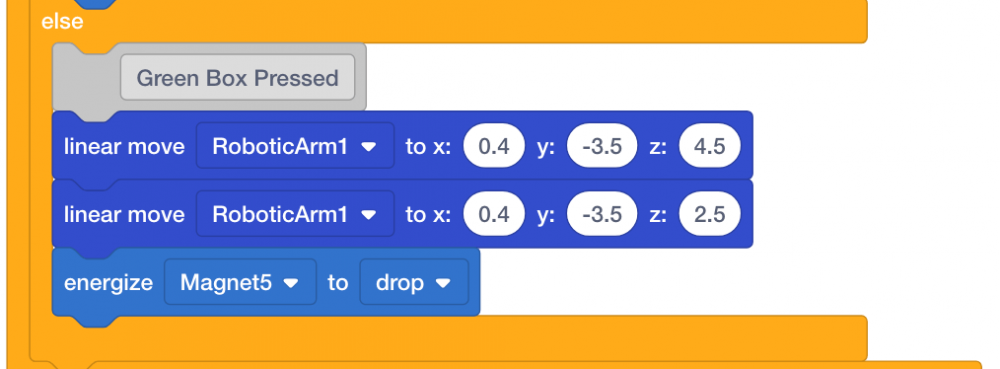
- Follow steps 35-38 to program the locations for the green disk.
- Download and run the project.

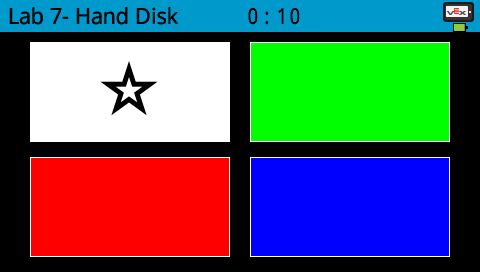
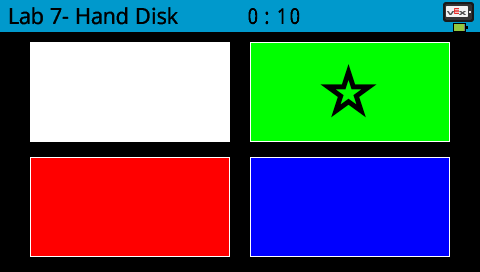
- Place a red disk in the disk pick up location if there is not one already there. The four colored boxes will appear on the V5 Brain’s screen. Press the white box to move to the disk pick up location.
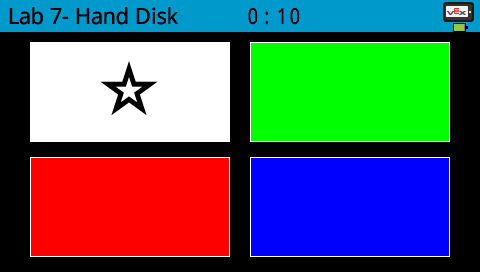
- Observe the arm mounted on the V5 Workcell move to the disk pick up location and pick up the red disk.

- Press the red box to move to the red disk drop off location.
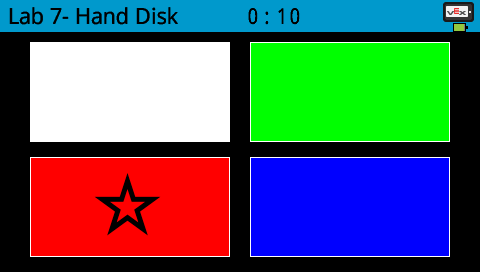
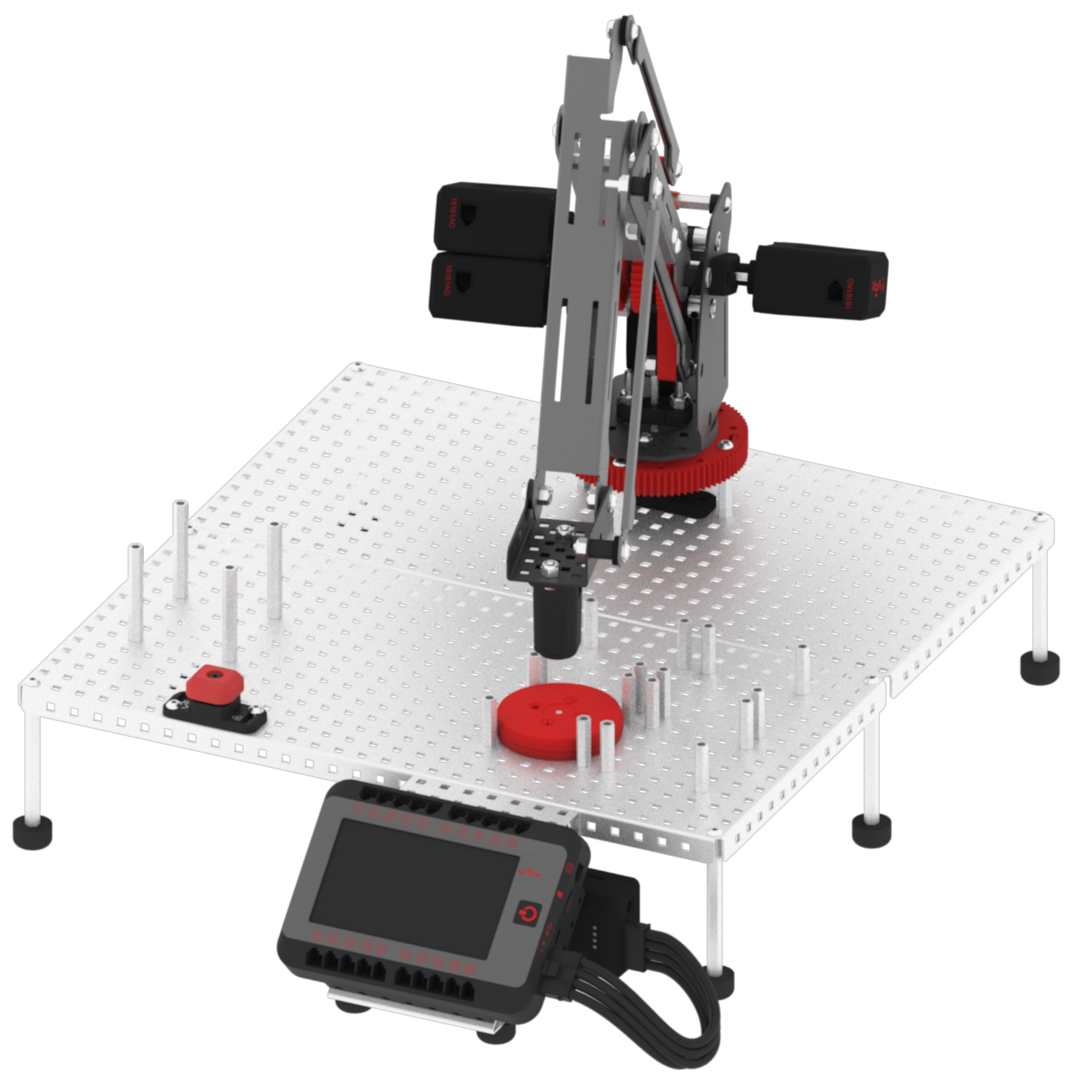
- Observe the arm mounted on the V5 Workcell move to the red disk drop off location and drop the red disk.
- Place a blue disk in the disk pick up location. Press the white box to move to the disk pick up location.
- Observe the arm mounted on the V5 Workcell move to the disk pick up location and pick up the blue disk.
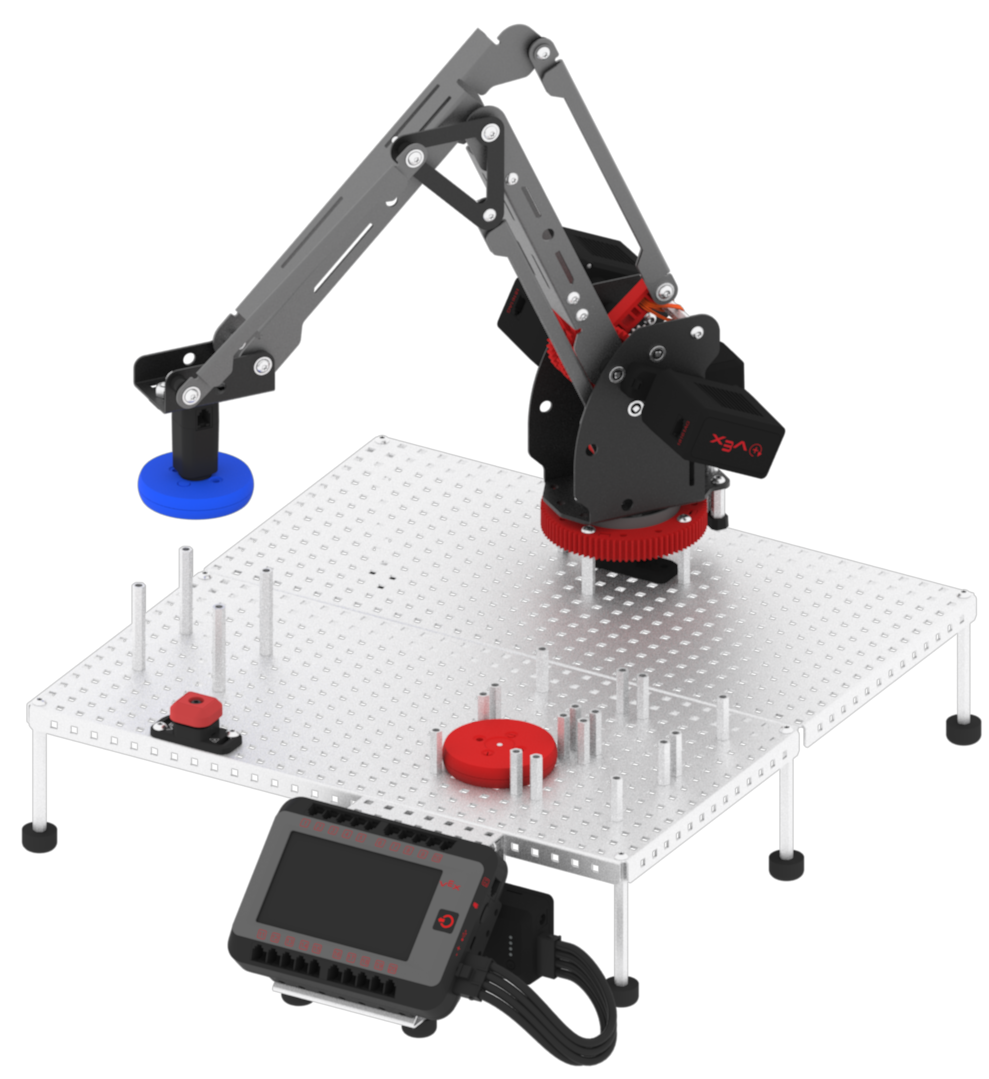
- Press the blue box to move to the red disk drop off location.
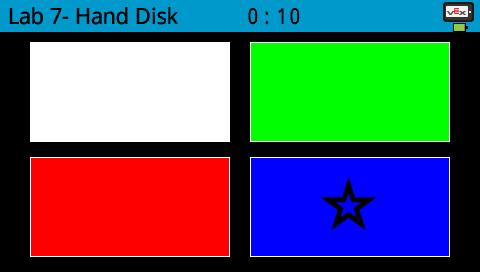
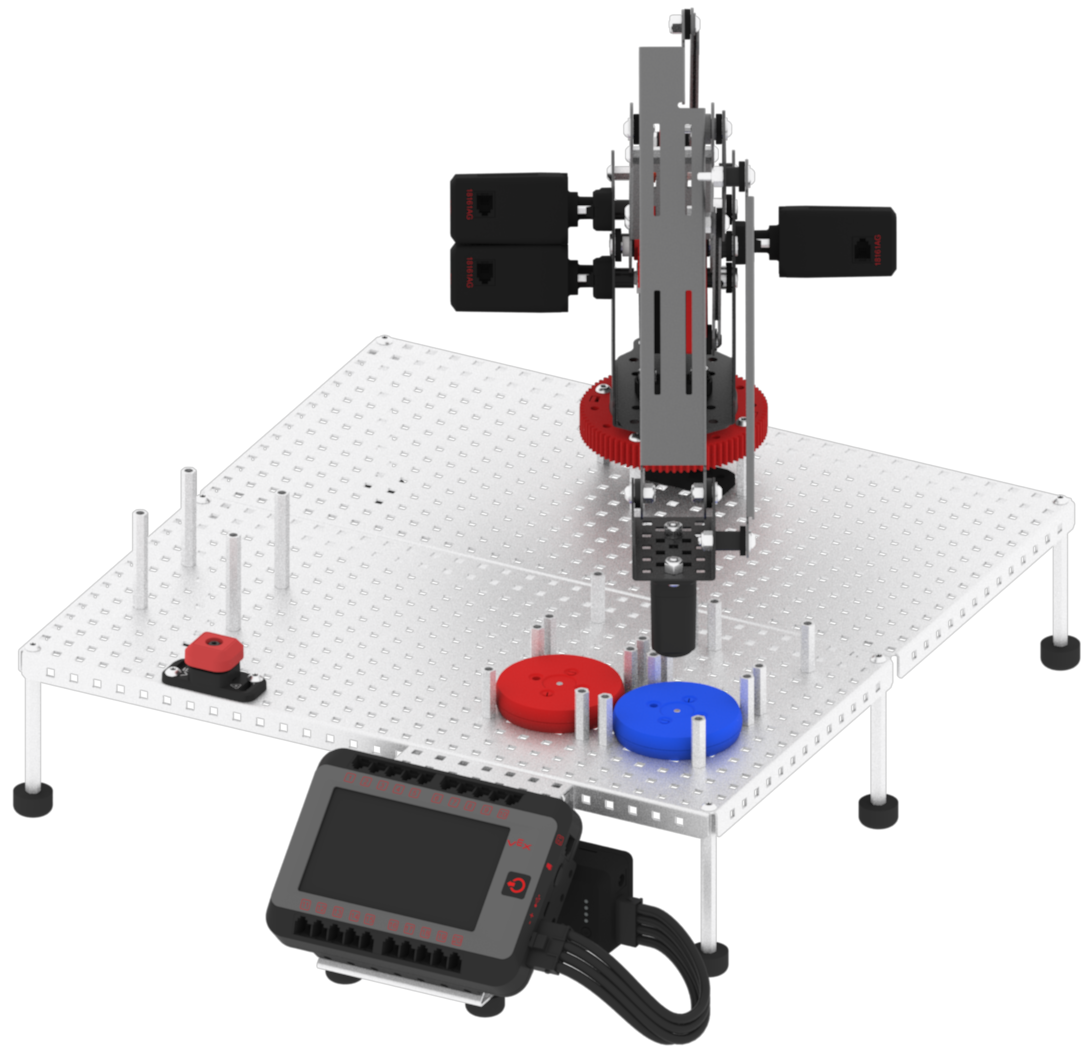
- Observe the arm mounted on the V5 Workcell move to the blue disk drop off location and drop the blue disk.
- Place a green disk in the disk pick up location. Press the white box to move to the disk pick up location.
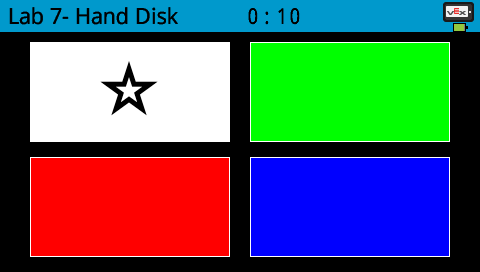
- Observe the arm mounted on the V5 Workcell move to the disk pick up location and pick up the green disk.
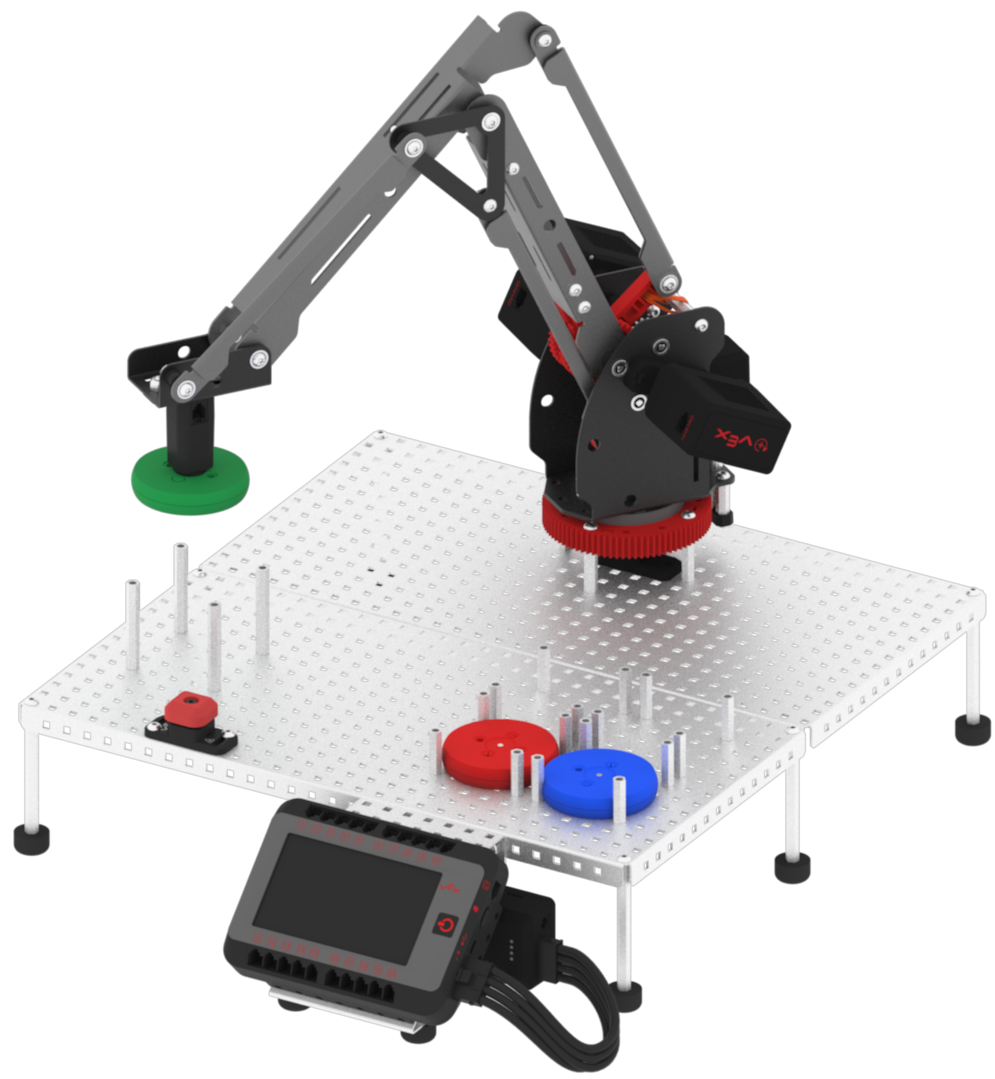
- Press the green box to move to the green disk drop off location.
- Observe the arm mounted on the V5 Workcell move to the green disk drop off location and drop the green disk.