
Arm Display Position Example
-
Launch VEXcode V5.

-
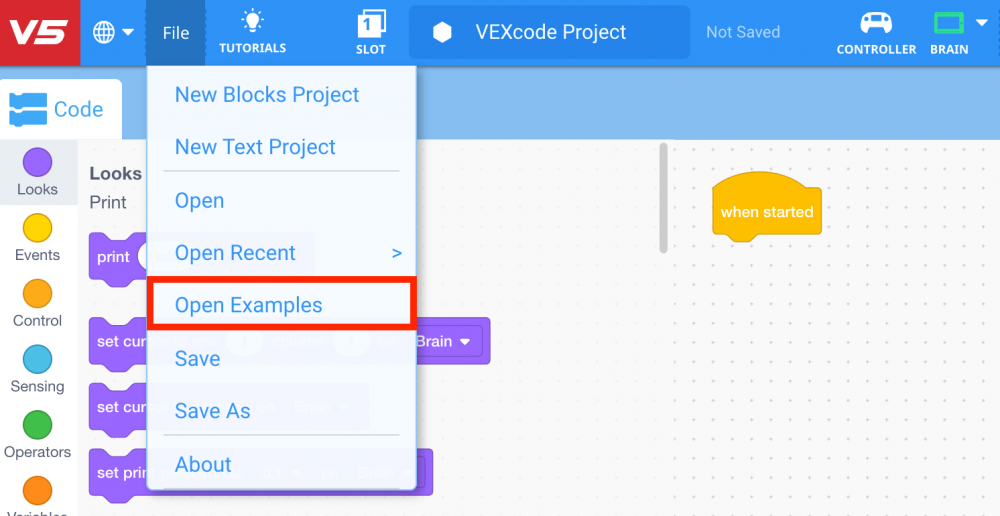
From the Toolbar in VEXcode V5, select ‘File’ and then ‘Open Examples.’
-
Select the ‘Arm’ category.

-
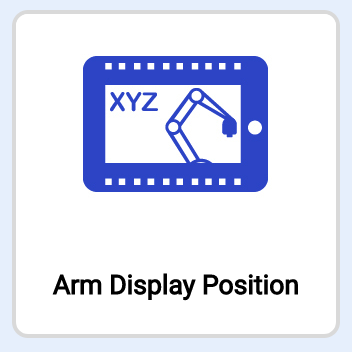
Select the ‘Arm Display Position’ example project.
-
Select the Project Name Box to name and save the project.

-
Name the project ‘Lab 3- Display Position.’
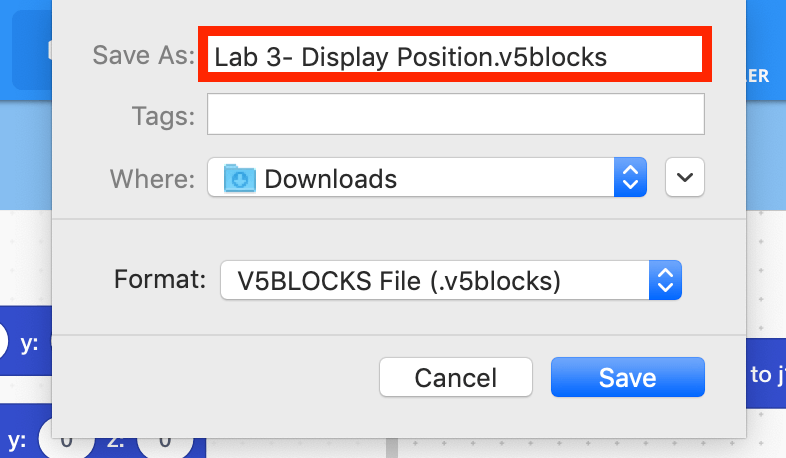
Note: for more information about saving, view the Save a Blocks Project (Chromebook, Windows, macOS) articles.
-
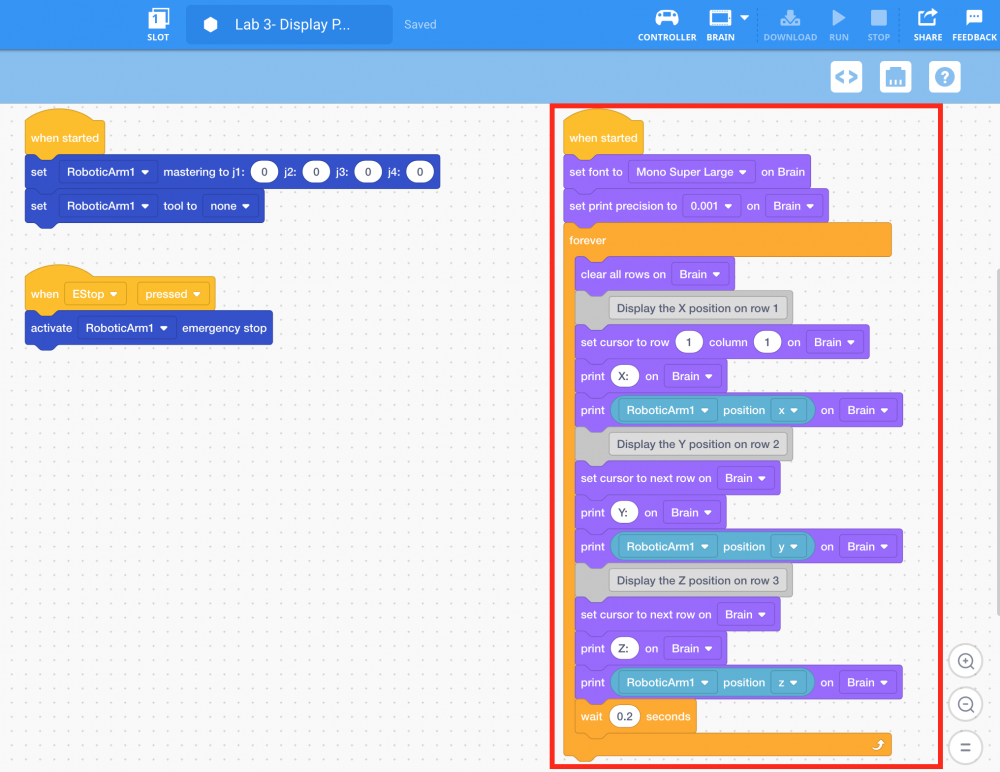
The Toolbar will now display the project as ‘Saved.’ Any subsequent changes to the project will be automatically saved.

-
Recall that the two left stacks of blocks were built in the Lab 2- EStop project. The new stack of blocks on the right will display the current (x, y, z) position of the arm mounted on the VEX V5 Workcell on the V5 Brain’s screen.
-
Input the mastering values into the [Set mastering] block.
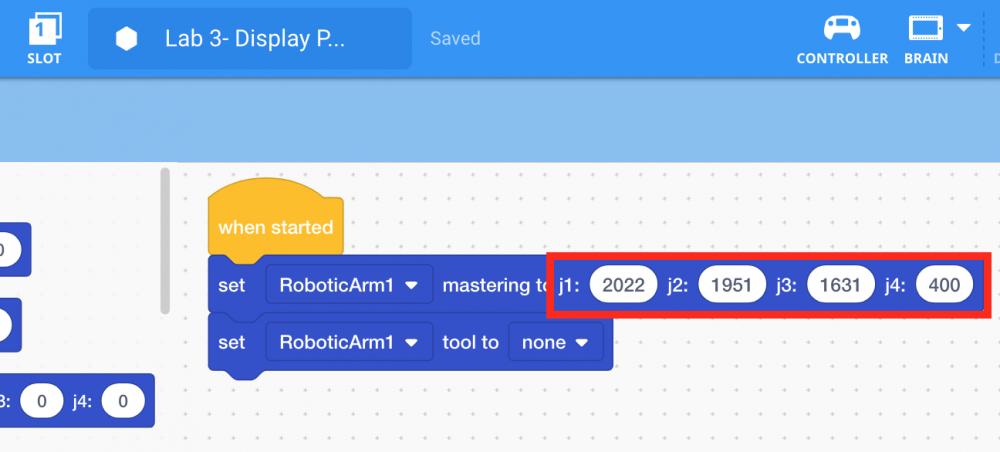
Note: The mastering values were documented from Lab 1.