
Add an E-Stop Device
-
Select the Robot Configuration button to open the Devices window.

-
Select ‘Add a device.’

-
Select ‘3-WIRE.’
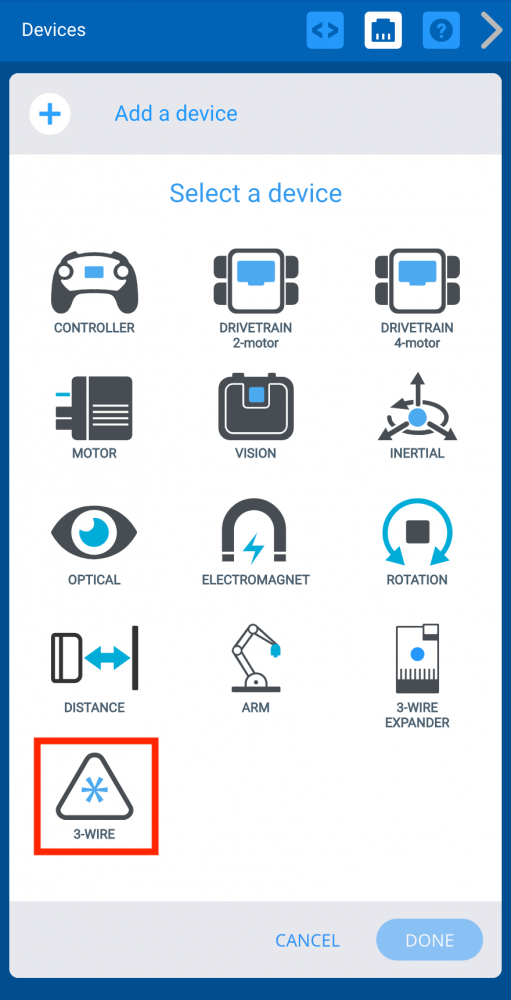
-
Select ‘BUMPER.’
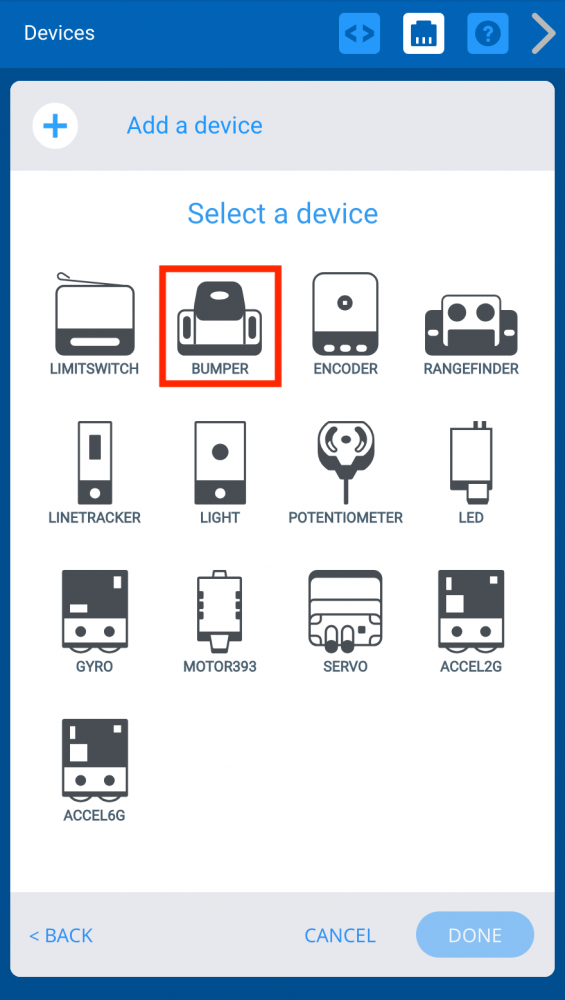
-
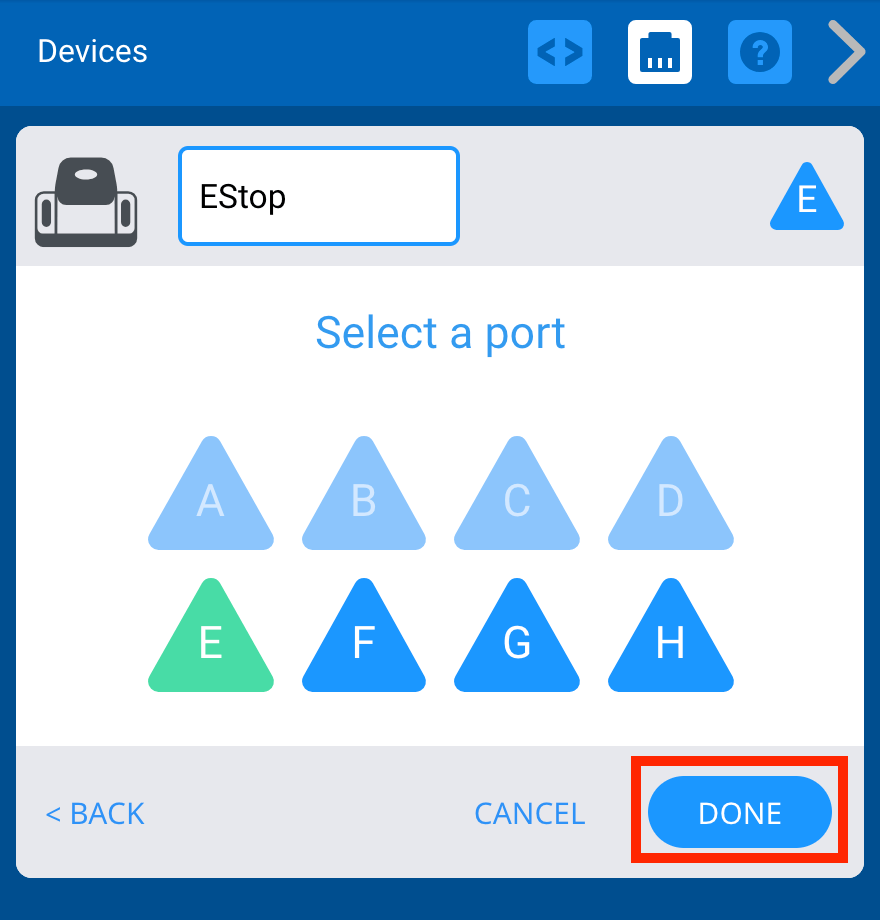
Select port 'E.'
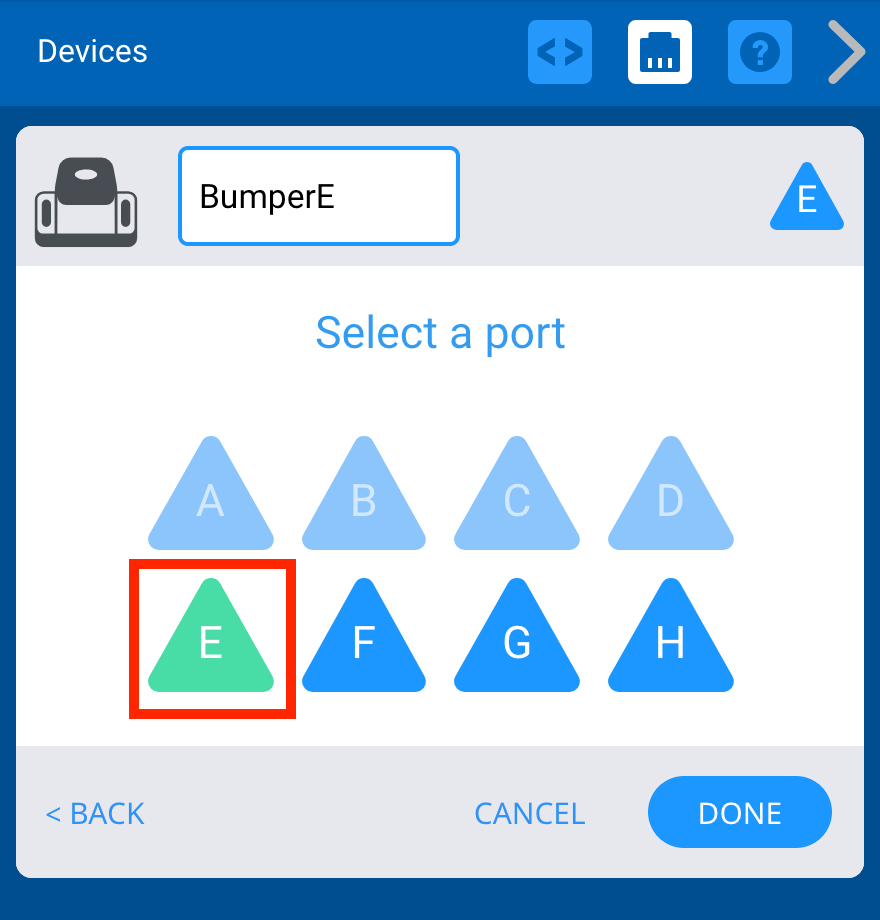
-
Select the name box to rename the device ‘EStop.’
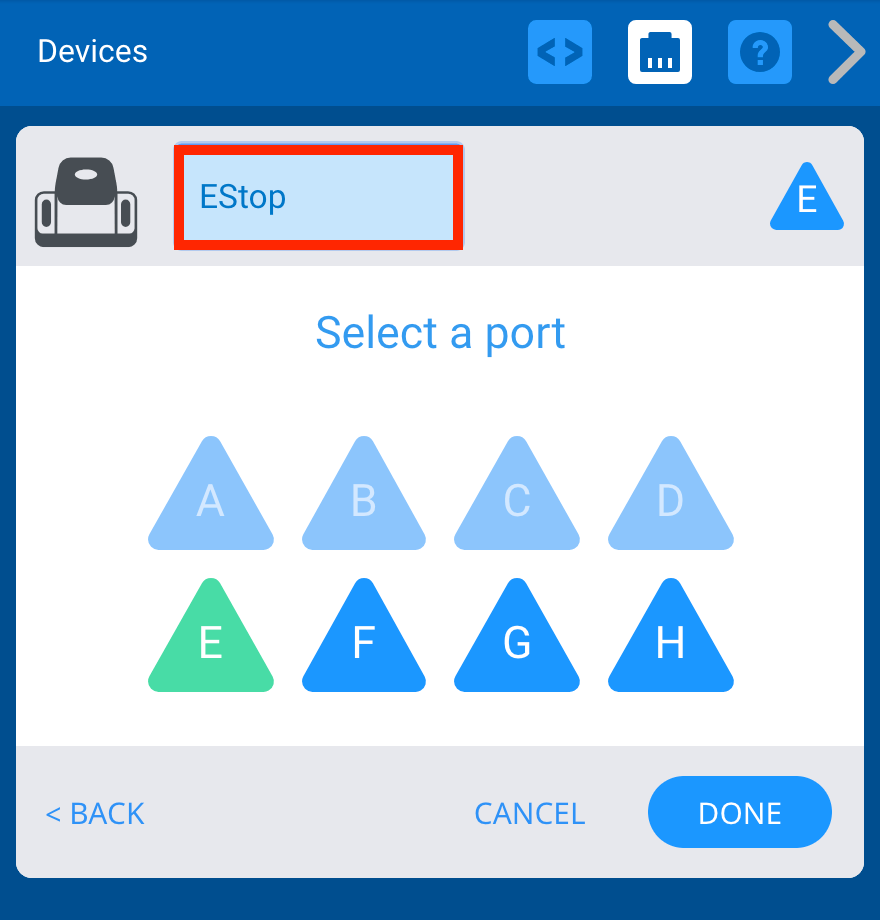
-
Select ‘DONE’ to add the EStop to the configuration.
-
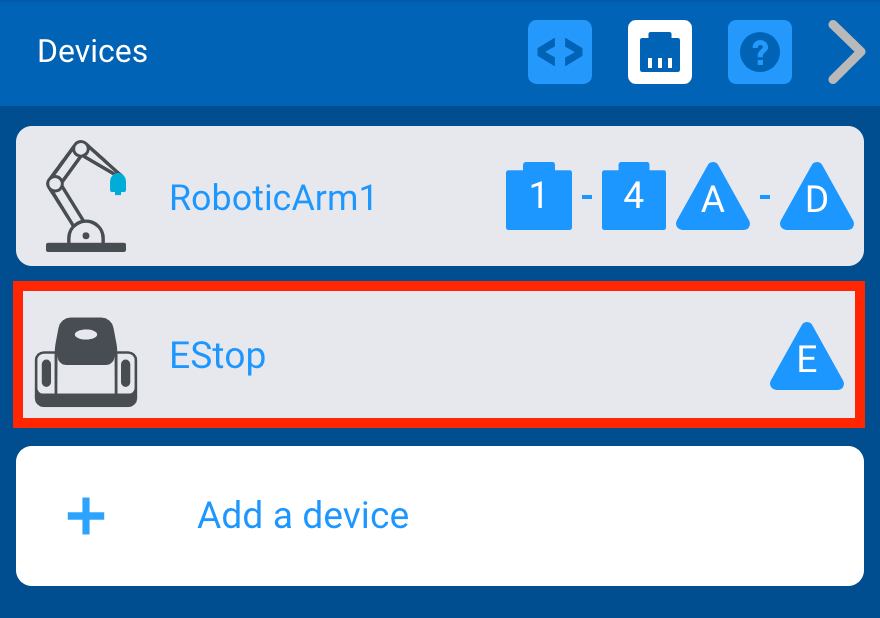
The EStop is now added to the configuration.
-
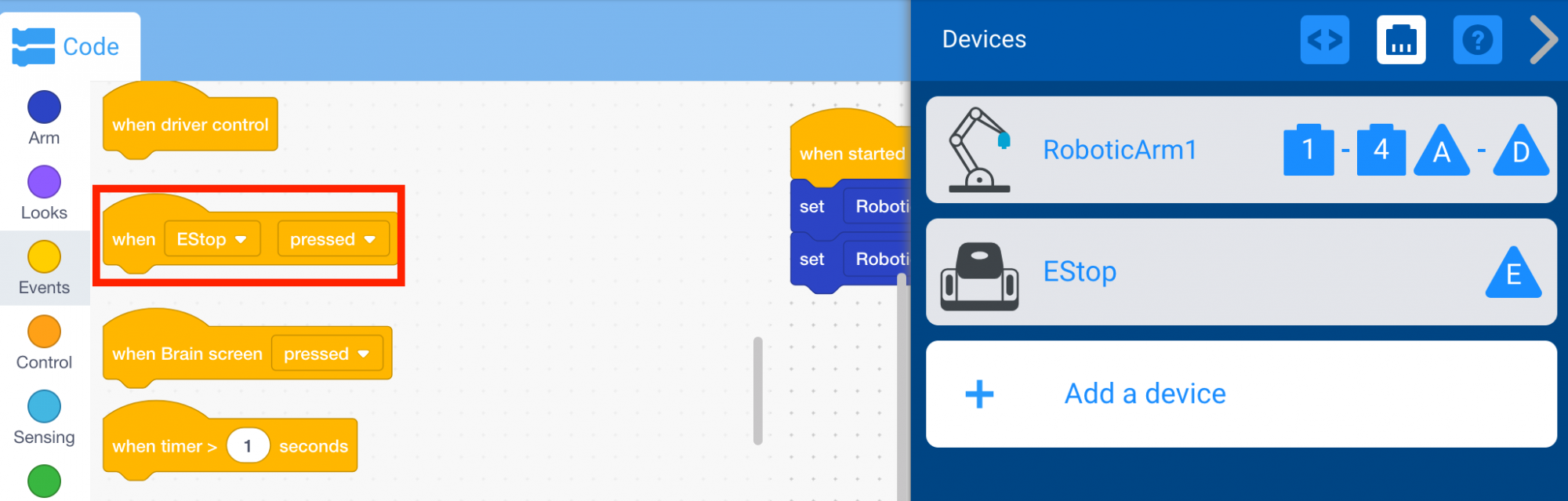
Notice that once the EStop was added to the configuration that the {When bumper} block now appears in the Toolbox.
-
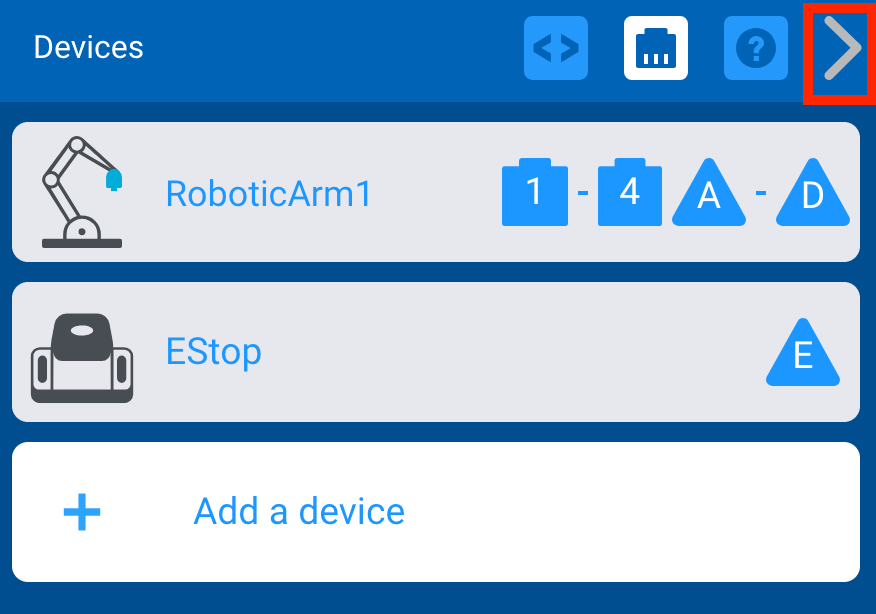
Select the arrow to collapse the Devices window.
Note: for more information about editing a 3-Wire device in the Robot Configuration, view the 3-Wire Devices article from the Knowledge Base.