
Program an Emergency Stop
| Quantity | Materials Needed |
|---|---|
| 1 |
Engineering Notebook |
| 1 |
VEX V5 Workcell |
| 1 | |
| 1 |
Device to run VEXcode V5 |
| 1 |
Micro-USB cable |
In this section, you will program an emergency stop (E-Stop) button using VEXcode V5.
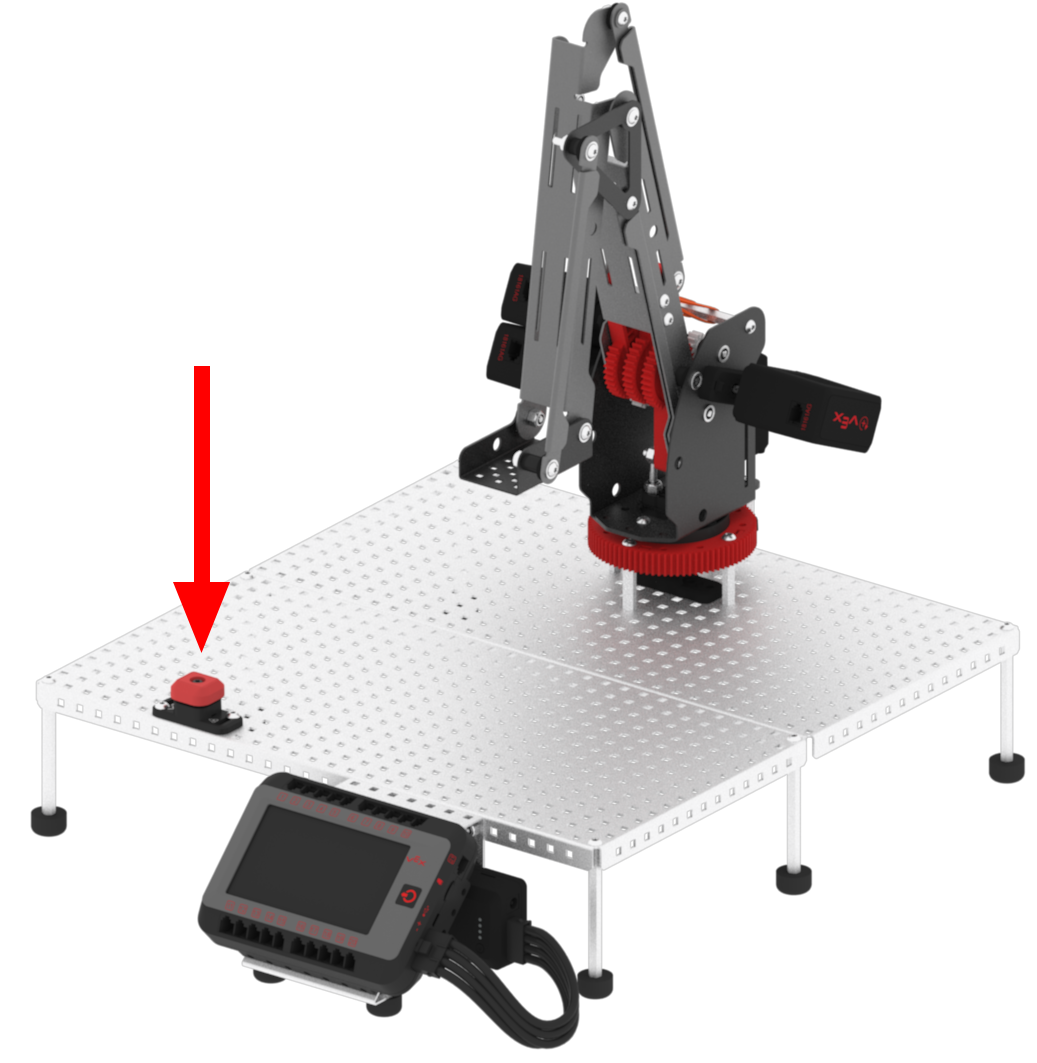
You will begin by creating a new project and adding the VEX V5 Workcell and Bumper Switch devices to the Robot Configuration in VEXcode V5.
Once the devices are added, you will program the Bumper Switch to act as an E-Stop button for the Workcell. Having an E-Stop in the Workcell is important to keep you and others around you safe when working with the arm mounted on the VEX V5 Workcell.
If the V5 Workcell begins to function in a way that was not intended, or you need to stop it from moving at any time, the E-Stop provides a quick and accessible way to stop the V5 Workcell.
Important
An emergency stop or E-Stop button/feature is used to ensure the safety of workers as well as the machinery. An E-Stop will act as a fail-safe if the machine's functioning becomes a hazard to individuals, other machinery, or itself. A proper safety-regulated E-Stop does not only shut down equipment, but also provides a guaranteed equipment shutdown and stops all hazardous mechanical motion.
For the V5 Robotic Arm and throughout every STEM Lab, the Bumper Switch added in the Workcell is not a proper safety-rated E-Stop and provides only a simulation of the functionality of an E-Stop. The Bumper Switch's software 'E-Stop' functionality will act more like a 'Control Stop' feature to halt a running VEXcode V5 project and shut off any V5 Smart Motors and Sensors connected to the V5 Brain.
After programming the E-Stop using VEXcode V5, you will complete the activity by testing the E-Stop button on the Workcell to observe how using the E-Stop button stops the function of the arm mounted on the V5 Workcell.
You will begin by creating a new project.