Create the Triangles Project
-
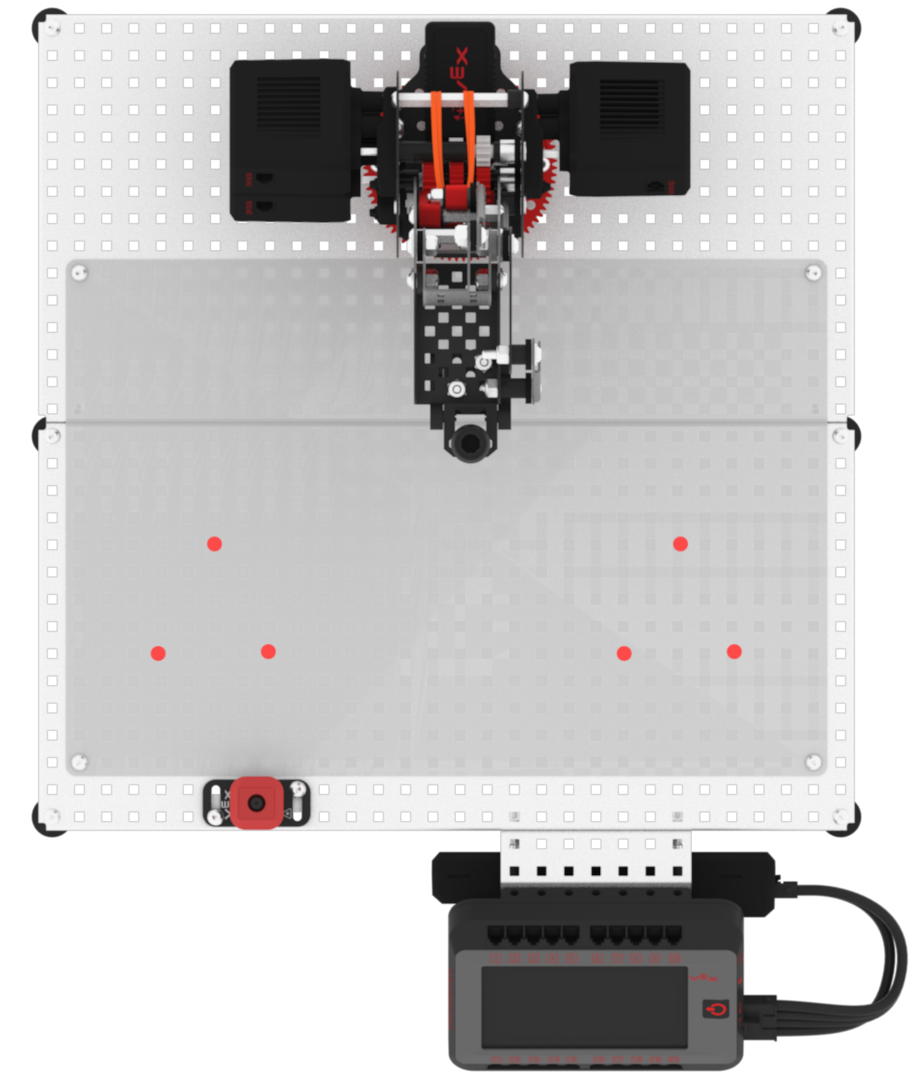
Remove the cap from the dry-erase marker. Six points will be drawn to outline two triangles. Each triangle will be outlined with three points. Draw these six points on the whiteboard using the dry-erase marker. The exact location of the points may vary, but should be far enough apart to view lines between them.
-
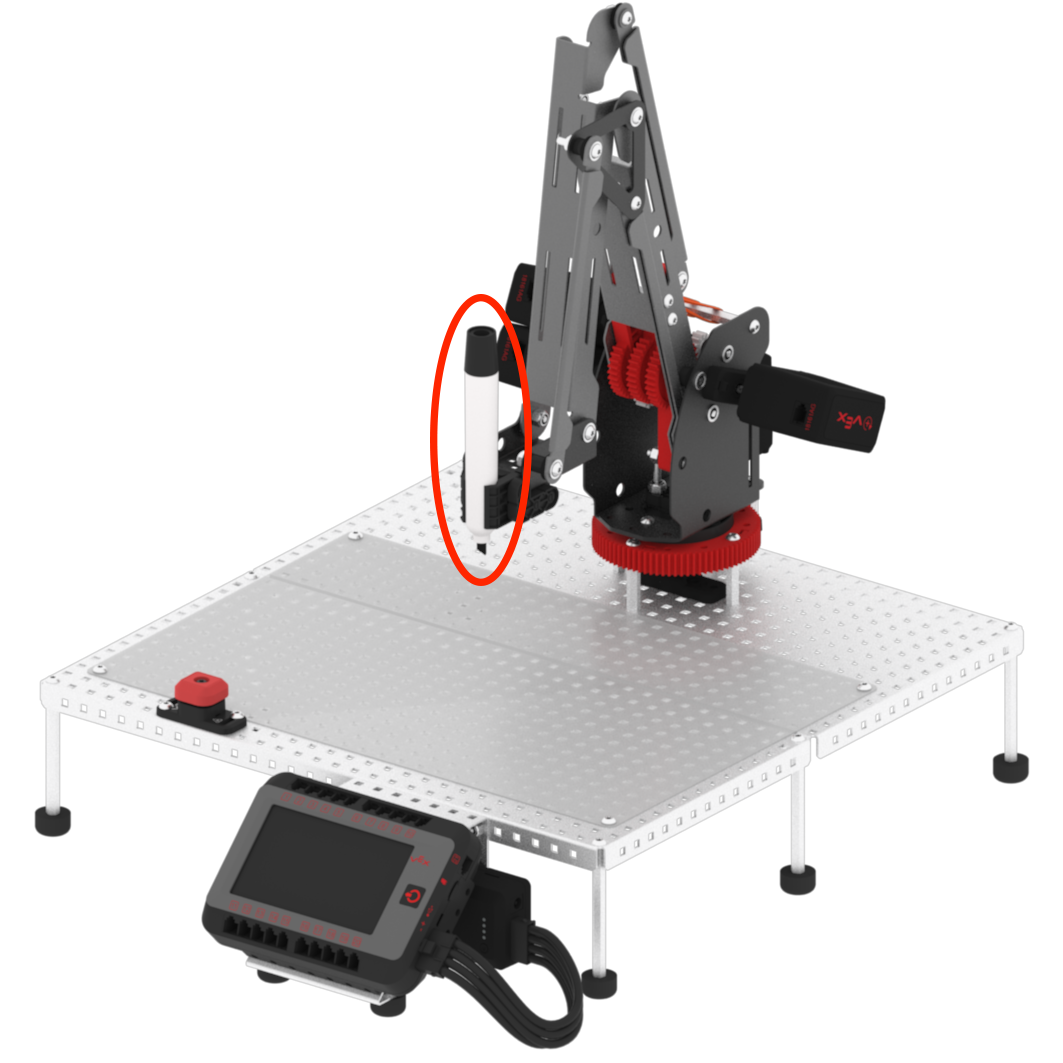
Attach the dry-erase marker to the arm mounted on the VEX V5 Workcell if you have not done so already.
-
Launch VEXcode V5.

-
Open the ‘Lab 3- Display Position’ project from a previous Lab.

-
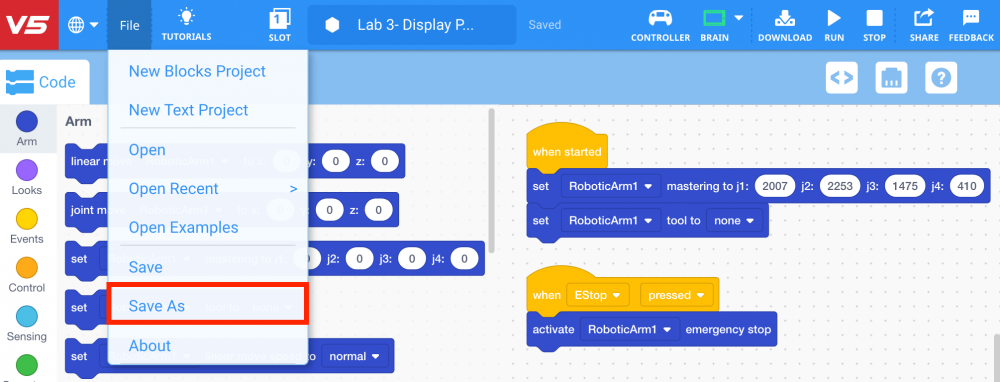
To save and rename the project for Lab 6, select ‘File’ and then ‘Save As’ from the Toolbar in VEXcode V5.
-
Name the project ‘Lab 6- Triangles.’
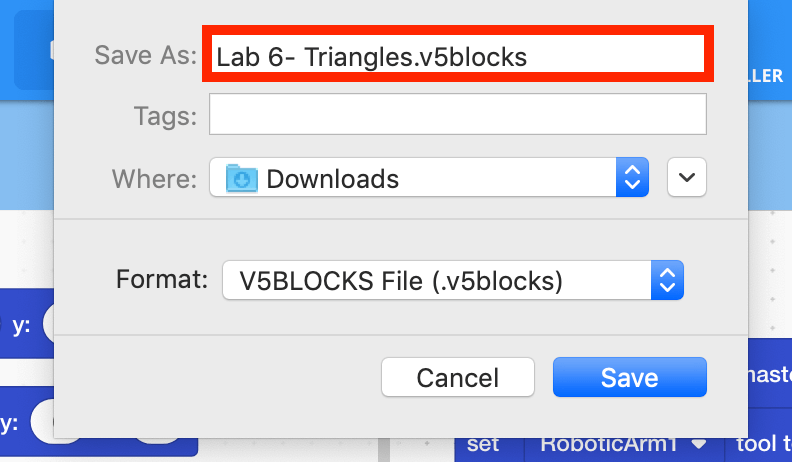
Note: for more information about saving, view the Save a Blocks Project (Chromebook, Windows, macOS) articles.
-
The Toolbar will now display the project as ‘Saved.’ Any subsequent changes to the project will be automatically saved.

-
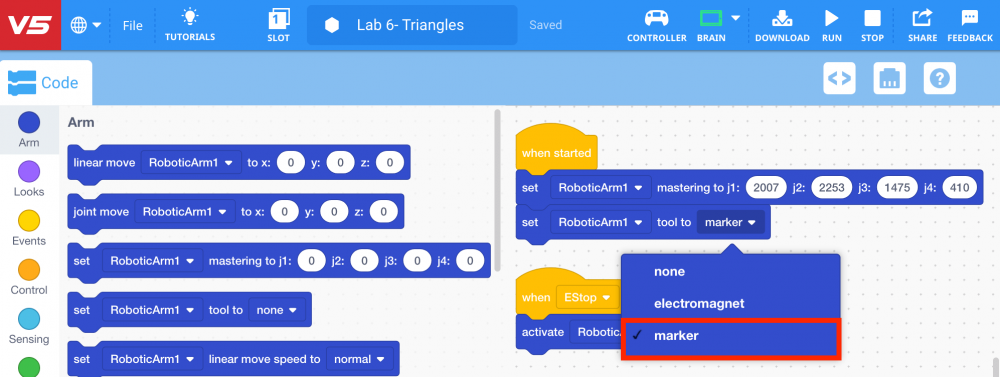
Set the parameter of the [Set tool] block to ‘marker.’