
Lesson 2: Drive to Number '5'
In this Lesson, the VR Robot will drive to the number ‘5’ and back to the number ‘1’ on the Number Grid Map Playground!
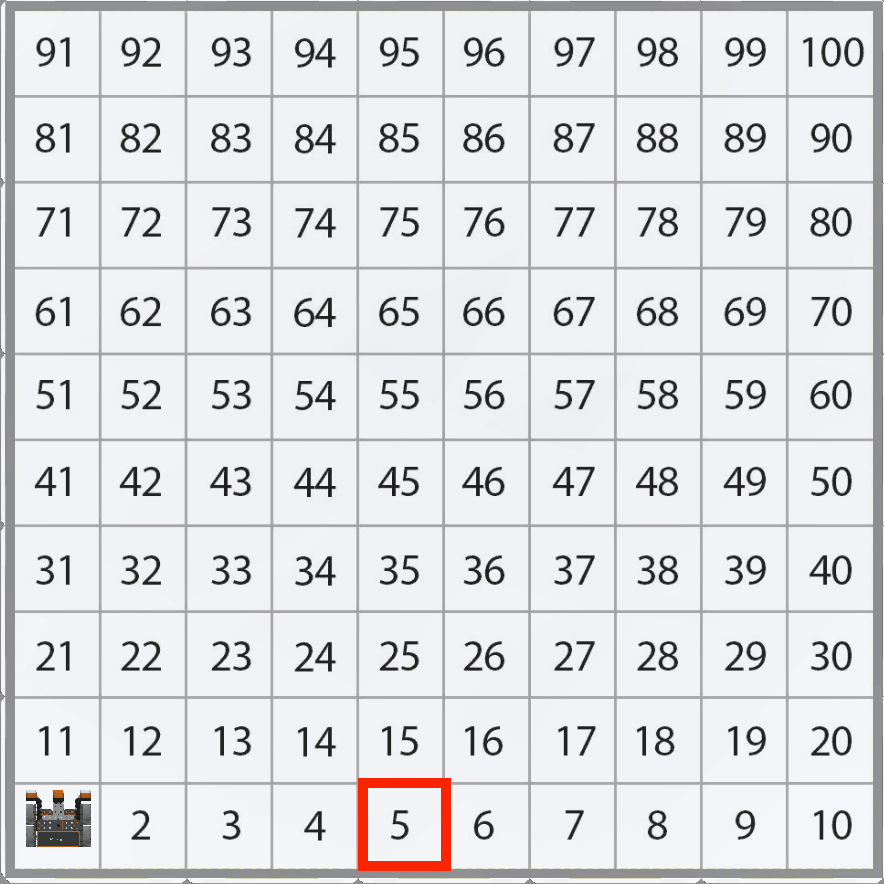
Notice that the VR Robot will be traveling along the X axis with X values increasing to move to the number ‘5’ on the Number Grid Map Playground.
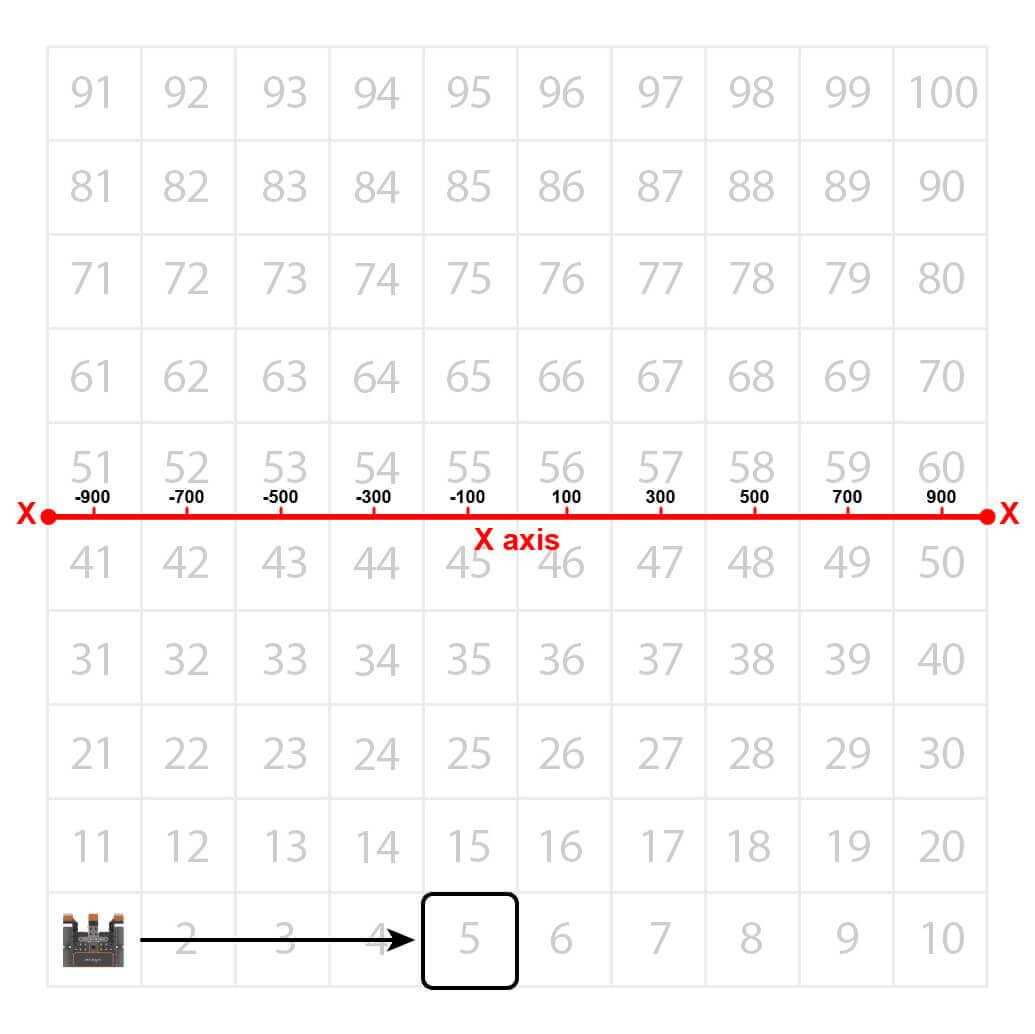
The VR Robot will drive to the location of the number ‘5’ on the Number Grid Map Playground. However, before the VR Robot can navigate to that number, the VR Robot has to be told where that number’s location is. Beginning at the center of the Playground, the coordinates of number ‘5’ are (-100, -900).
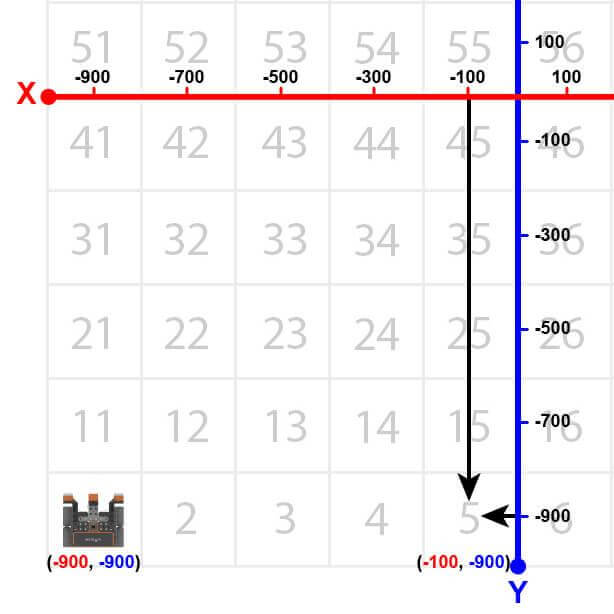
- To begin, the VR Robot needs to be facing the number ‘5.’ Drag in or type a turn_for command.
# Add project code in "main"
def main():
drivetrain.turn_for(RIGHT, 90, DEGREES)- Drag in a while loop under the turn_for command. Your project should look like this:
# Add project code in "main"
def main():
    drivetrain.turn_for(RIGHT, 90, DEGREES)

    while condition:
wait(5, MSEC)- Just like the Distance Sensor Unit, this project will use the condition of the Location Sensor position with a comparison operator to navigate the Number Grid Map Playground. Set the condition for the while loop to the position command in the X-axis less than -100 in millimeters (mm). Your project should look like this:
# Add project code in "main"
def main():
    drivetrain.turn_for(RIGHT, 90, DEGREES)

    while location.position(X, MM) < -100:
wait(5, MSEC)- Drag or type the non-waiting drive command inside the while loop. Your project should look like this:
# Add project code in "main"
def main():
    drivetrain.turn_for(RIGHT, 90, DEGREES)

    while location.position(X, MM) < -100:
        drivetrain.drive(FORWARD)
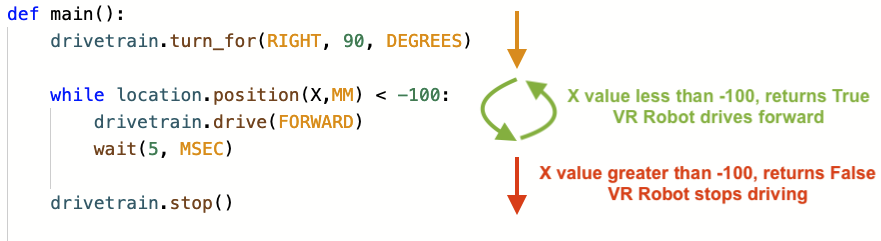
wait(5, MSEC)- Note that the less than operator is used instead of the greater than operator because the VR Robot is driving to the right from the left side of the Playground. The VR Robot is starting at an X-value of -900 millimeters (mm). As the VR Robot drives forward, the X-values increase, and thus the robot will keep driving forward while the X-value is less than -100.
For Your Information
You will need to choose which comparison operator to use in your project, depending on the direction you want the VR Robot to travel along the X or Y axis. When the VR Robot is driving towards a larger value, the less than (<) operator will be used with a while loop; and when the VR Robot is traveling towards a smaller value, the greater than (>) operator will be used with a while loop.
This aligns with left and right movements when looking at the Playground. If the VR Robot is moving from left to right or bottom to top (larger values), the less than operator is used to drive while the position is less than the target value.
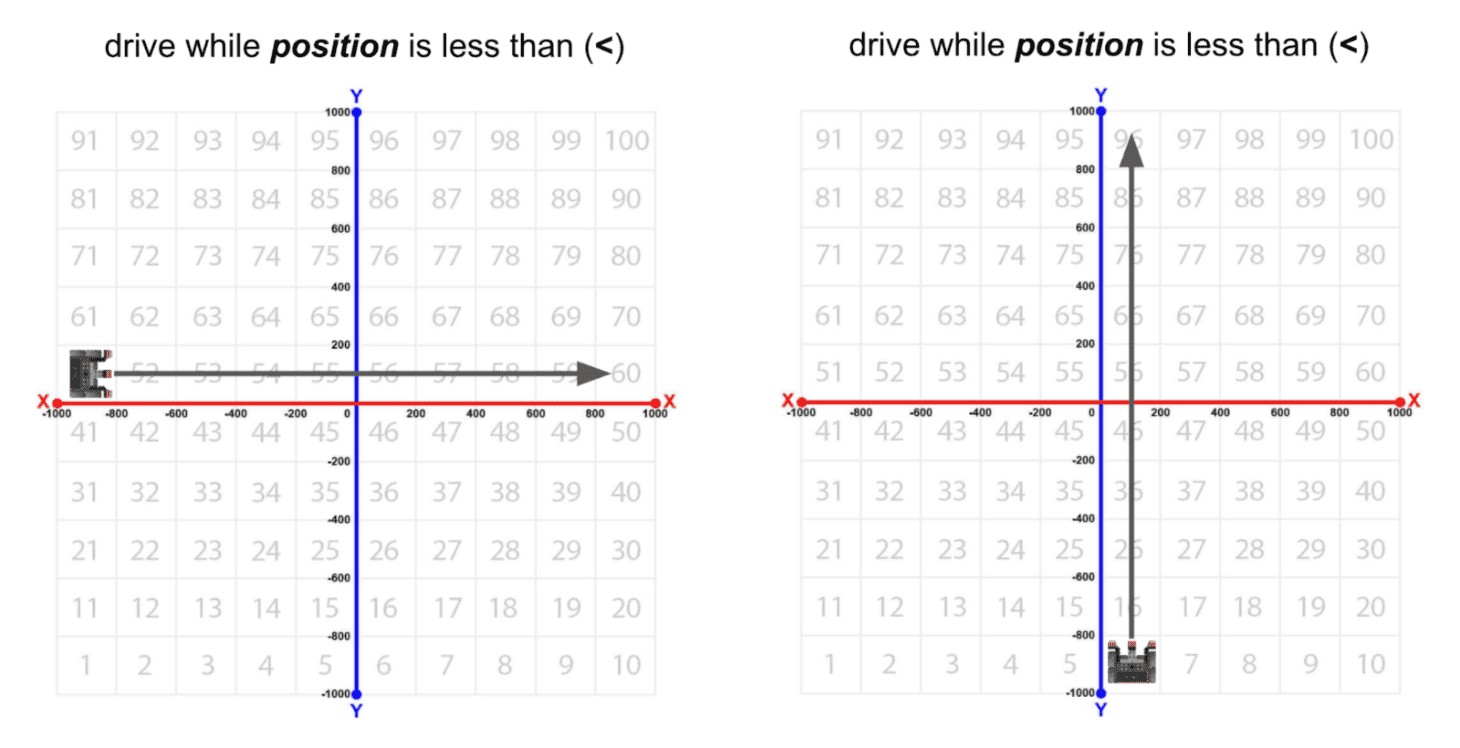
If the VR Robot is moving from right to left or top to bottom (smaller values), the greater than operator is used to drive while the position is greater than the target value.
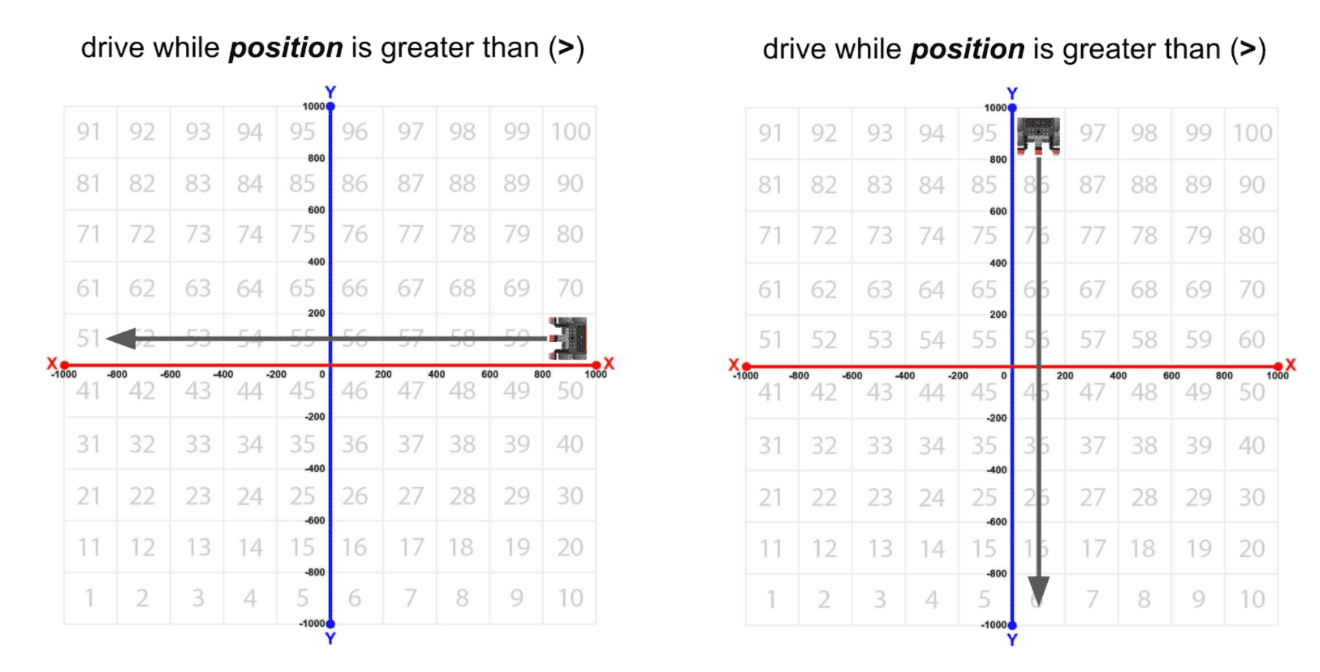
Using the comparison operators, the VR Robot will travel while the value reported by the Location Sensor is greater than (>) or less than (<) the threshold value. In this example, the VR Robot will navigate to positive 500 millimeters (mm) on the X-axis. The VR Robot will drive while the position on the X-axis is anywhere from 0 to positive 499. When the Location Sensor reports that the position is 501 or higher, the VR Robot will stop driving.
# Add project code in "main"
def main():
    monitor_sensor(location.position)
    drivetrain.turn_for(RIGHT, 90, DEGREES)

    while location.position(X, MM) < 500:
        drivetrain.drive(FORWARD)
        wait(5, MSEC)
    drivetrain.stop()
Notice that the value reported by the Location Sensor is not exactly 500 millimeters (mm). Like the Distance Sensor, the comparison operators are used because of the time it takes for the VR Robot to iterate through the project and report values.
- Drag or type a stop command outside the while loop. Your project should look like this:
# Add project code in "main"
def main():
    drivetrain.turn_for(RIGHT, 90, DEGREES)

    while location.position(X, MM) < -100:
        drivetrain.drive(FORWARD)
        wait(5, MSEC)
drivetrain.stop()- Open the Playground Window if it is not already open. Be sure the Number Grid Map Playground opens, and run the project.
- Watch the VR Robot drive to number ‘5’ on the Number Grid Map Playground.
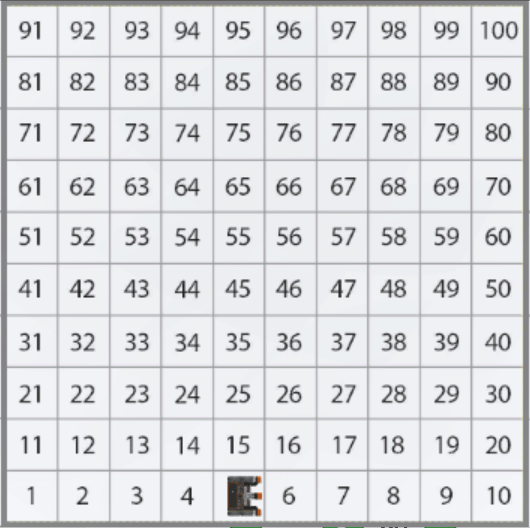
- In this project, the VR Robot drives to the number ‘5’ on the Number Grid Map Playground. The while loop is used so that the VR Robot will continue to drive forward while the X-value is less than the X-value of the coordinate that the indicated number is on.
- Once the X-value is greater than -100, the project moves to the next command outside the loop, which is a stop command. Since the X-value of the number ‘5’ is -100, the VR Robot will stop driving once the X-value is greater than -100.
For Your Information
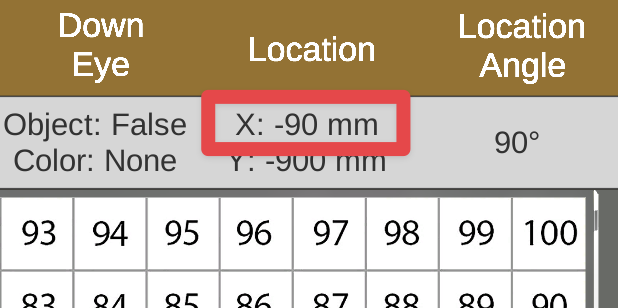
Notice that the value reported by the Location Sensor may not be exactly -100 millimeters (mm). Like the Distance Sensor, the comparison operators are used because of the time it takes for the VR Robot to iterate through the project and report values.
In VEXcode VR Python, you can use a greater than or equal to (>=) or less than or equal to (<=) comparison operator in your project to have additional precision in your movements.
# Add project code in "main"
def main():
    drivetrain.turn_for(RIGHT, 90, DEGREES)

    while location.position(X, MM) <= -100:
        drivetrain.drive(FORWARD)
        wait(5, MSEC)
    drivetrain.stop()
Depending on the velocity of the VR Robot, and how quickly the project iterates through the loop, you may see that the VR Robot is able to stop closer to the threshold value when the or equal to (<= or >=) is added to the operator.
Select the Next button to continue with the rest of this Lesson.