
When coding your robot to pick up and place objects, the orientation of your robot is key. In this lesson, you will learn to move and turn your robot with precision to pick up an object. You will also learn how to use the Place object block to deliver it to a specific location.
Watch the video below to learn about:
- How the orientation of your robot depends on the direction the robot's kicker is facing.
- How to code your robot to pick up and place objects with precision.
Now that you have watched the video, capture your thoughts in your journal. Answer these questions to guide your thinking and help you prepare for a whole-class discussion:
- What considerations do you think will be important when coding the robot to pick up and place objects? List at least two ideas.
- How do you think the robot needs to move in order to pick up an object with the magnet successfully? Be specific.
- What evidence do you have from the video that supports your ideas?
What are some questions you have about coding the robot to pick up and place objects?
Guided Practice
Now that you have watched and discussed the video, it is your turn to practice!
Step 1: Set up your field as shown in the image below.
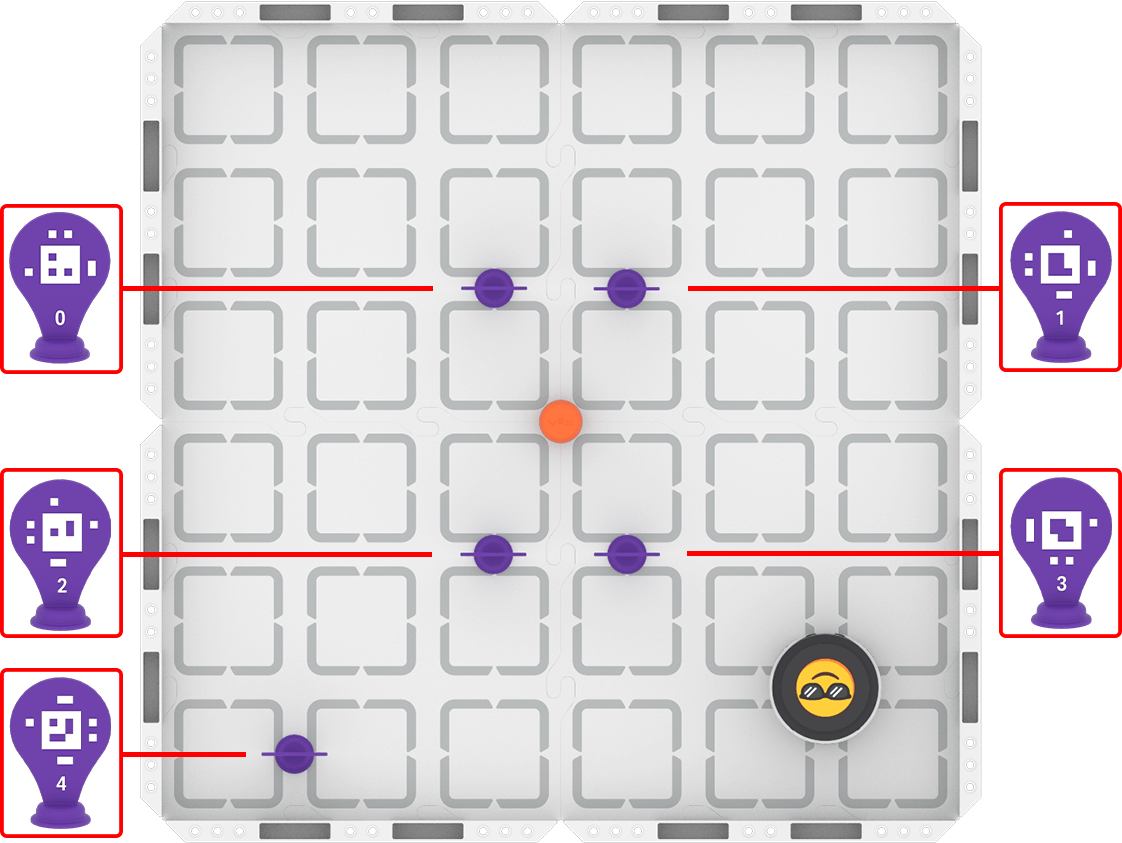
Step 2: Use Drive mode to model the movements your robot needs to make to complete the task.
- Your task is to drive the robot between the AprilTags to pick up the barrel and place it in front of AprilTag ID 4. Document your driving, then plan how to code that movement.
- Use this task card (Google / .docx / .pdf) to guide your practice.
- Pro Tip: Pay close attention to the way the robot must be oriented to successfully pick up the barrel, and to drop it off in front of AprilTag ID 4.
Step 3: Code the robot to complete the task.
- Your task is to use your path plan from Step 2 to code the robot to drive between the AprilTags to pick up the barrel, and then deliver it to AprilTag ID 4.
- Use this task card (Google / .docx / .pdf) to guide your practice.
- Pro Tip: Consider how you will code your robot to turn with precision in this challenge, using previous knowledge from the course.
Step 4: Use the Predict-Drive-Measure-Code process to iterate on and improve the precision of the robot's movements as it picks up and delivers objects.
- Predict
- Choose the first measurement you need to adjust. Make a group prediction about how to improve either the distance measurement or angle using this sentence stem, and record it in your journal:
- We think the distance/angle should be about ____________ millimeters/inches/degrees.
- Choose the first measurement you need to adjust. Make a group prediction about how to improve either the distance measurement or angle using this sentence stem, and record it in your journal:
- Drive
- Test your prediction by driving your robot. Document any observations you make while driving that could help you to improve your precision.
- Measure
- Place your Robot Protractor under the robot, or use a ruler to measure the point at which the robot stopped driving.
- Code
- Use you adjusted measurement in your coding project! Run it to test. Does the adjustment you made improve improve your precision and make picking up and placing the barrel easier? If not, repeat the process and try again. Be sure to record your measurements and observations in your journal as you go.
Resources for Practice:
The articles linked here are available if you need additional support while completing the activity.
Wrap-Up
Now that you have practiced, it is time to share what you learned. Answer the following questions in your journal to help you reflect on your learning and prepare for a whole-class discussion:
- What was your strategy for picking up and placing the barrel to complete the challenge? Be thorough in your explanation. Why do you think your strategy was successful?
- How did you use both Drive mode and VEXcode to complete the task? How did your group collaborate on both parts of practice?
- What advice would you give to someone learning to code the robot to pick up and place objects for the first time? Why do you think your advice would be helpful?
Select Next > to move on to the next lesson.