
Lesson 1: Drawing with the Pen
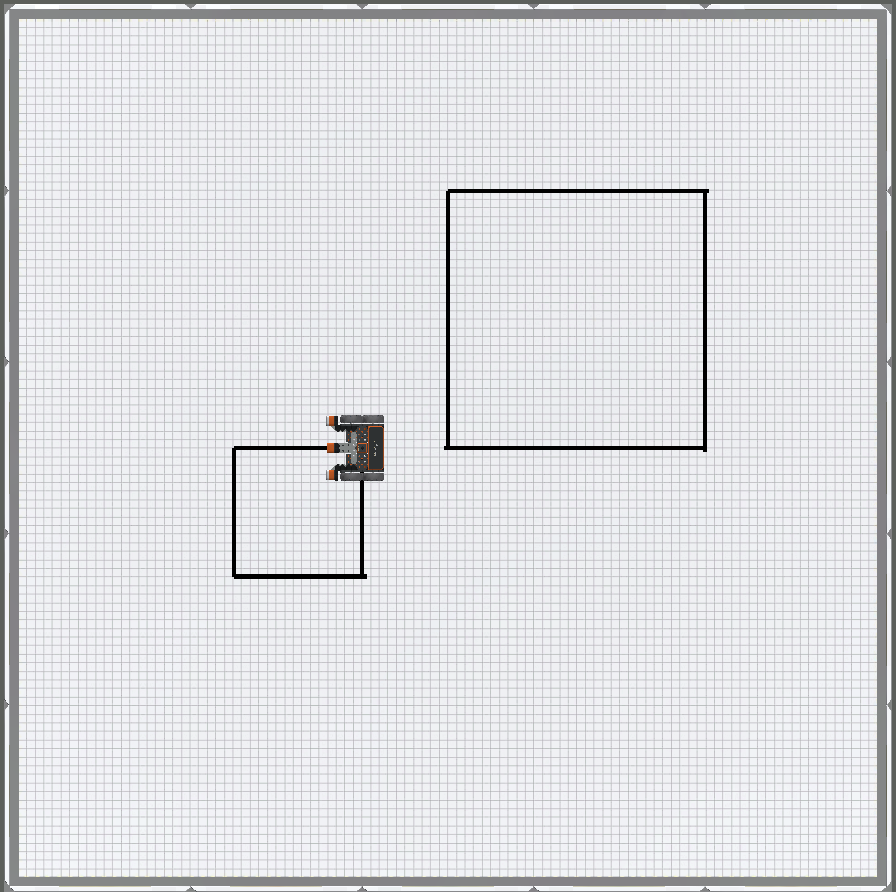
In this Lesson, you will create a text project that uses the Pen tool on a VR Robot to draw two different sized squares on the Art Canvas Playground!
Learning Outcomes
- Identify how to set the Pen position using the move command.
- Identify how to use the set_pen_color command to change pen colors to create black, red, green, or blue lines.
Create a New Project
A new text project must be created before beginning Unit 3 Lesson 1.
Follow these steps to create a new VEXcode VR Python text project.
- Launch VEXcode VR at vr.vex.com.
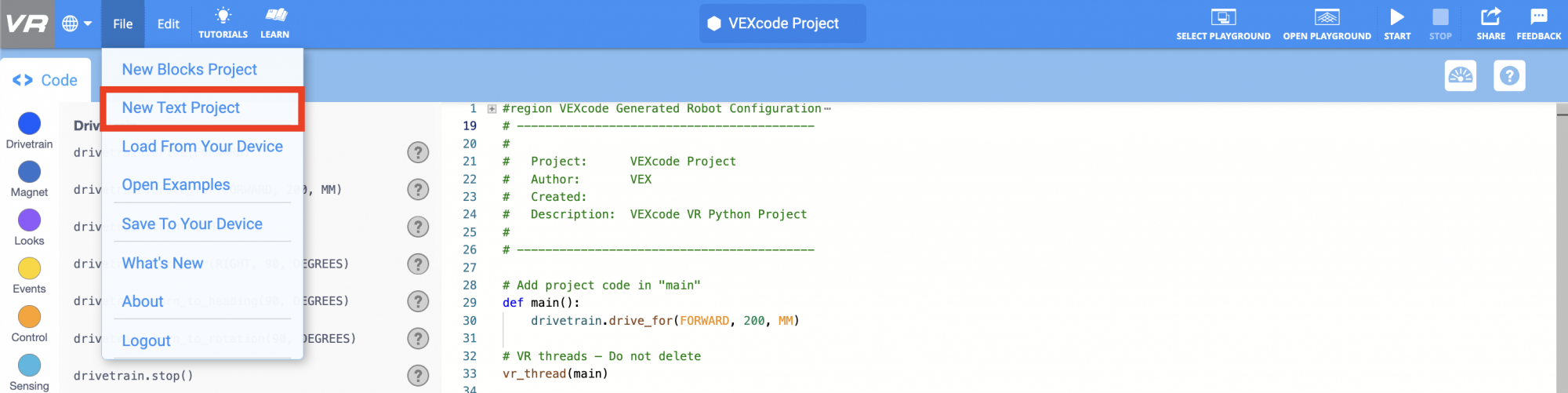
- Once you launch VEXcode VR, select "File", then "New Text Project."
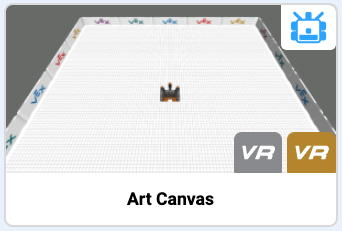
- You will be prompted to 'Choose a Python Playground'. Select the Art Canvas Playground.
Name Your Project
- To name your project, select the project name box.
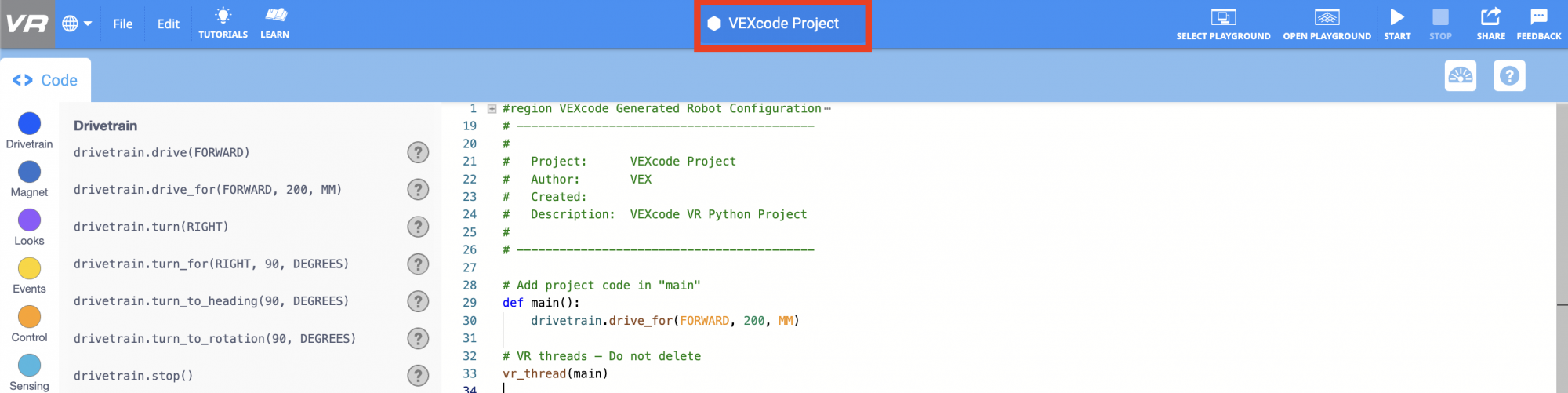
- Enter the new project name Unit3Lesson1, and select “Save.”

Select the Next button to continue with the rest of this Lesson.