
Engage
Launch the Engage Section
ACTS is what the teacher will do and ASKS is how the teacher will facilitate.
| ACTS | ASKS |
|---|---|
|
|
Engage
-
InstructInstruct
students that there is a process they can use when they are trying to fix bugs in their projects. This is called debugging, and it has three steps: Identify, Find, and Fix. They are going to use this process to debug projects, but first they need to learn what each step of the process is.
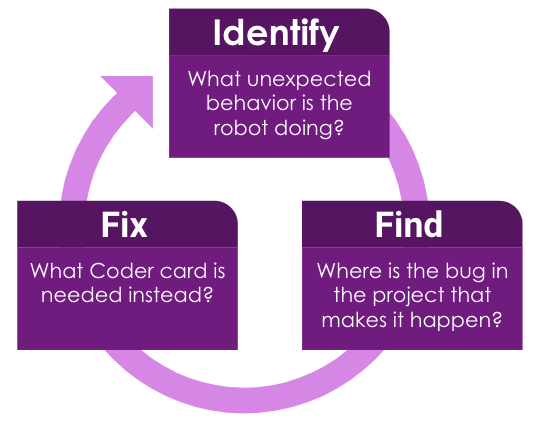
The Debugging Process -
DistributeDistribute
just one 123 Robot, one Field Tile and one Coder for demonstration purposes. Make sure that all students can see the Field, the 123 Robot, and the Coder. You will distribute materials to student groups after the demonstration is complete. Load the project below into the Coder to use to demonstrate the debugging process for students.
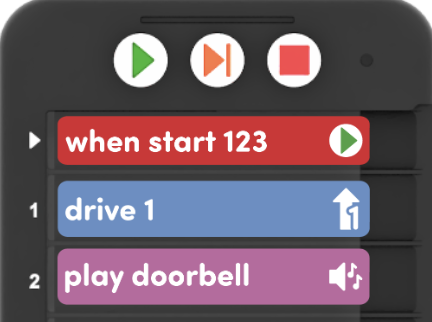
Project with the "play doorbell" card as a bug. - Wake the 123 Robot by pushing the wheels along a surface until you hear the startup sound, as shown in the animation below. Turn on sound for this animation. For more information about the 123 Robot, see the Using the VEX 123 Robot STEM Library article.
Video file- Then, turn on the Coder and connect the 123 Robot to a Coder. To connect the 123 Robot, press and hold the Start and Stop buttons on the Coder, and the Left and Right buttons on the 123 Robot for at least 5 seconds, until you hear the connected sound, and the indicator lights flash in time, as shown in the animation below. Turn on sound for the animation. For more information about the Coder, see the Using the VEX 123 STEM Library article.
Video file -
FacilitateFacilitate
student understanding of each step of the debugging process for students, using the simple project with a bug you added to your Coder. Refer to the Identify, Find, Fix Debugging Graphic as you go.
- First, tell the students what you intended your project to do (Drive one and play honk.)
- Then tell students, the image tells us the first step of the process is to Identify if there is an unexpected behavior.
- Have students watch the behavior of the 123 Robot as you run the project, and raise their hands when they identify an error in the behavior.
- Students should share their observation to identify the bug in the behavior.
- Remind students that the second step is Find. Ask students where they would find the bug. Is it in the robot? No, it is in the Coder! Let's look at the Coder cards and find the bug.
- Encourage students to look closely at the Coder cards, demonstrating each one with the robot. (without running the project)
- Ask them to choose the Coder card that is the bug in the project
- Run the project again if necessary.
- Once students have completed the Find step, remind them the third step in the process is Fix!
- Show students a group of 2-3 Coder cards that includes the correct card.
- Ask students which Coder card they think is the right one to fix the project.
- Replace the incorrect card with the correct card the students choose, and run the project again.
- Let them know they just debugged their first project by using the Identify, Find, Fix debugging process!
- OfferOffer students positive reinforcement for careful observations and thoughtful responses.

Teacher Troubleshooting
- Students may need to be reminded to push the Coder cards all the way into the slot, and that a red light beside a card indicates that the card is not inserted into the slot correctly.
- Be sure to distribute only the Coder cards students need for this Lab, in order to keep the students focused and the sets of Coder cards organized.
Facilitation Strategies
- If your students have been using the Coder for some time, they may need a slightly more challenging project to debug. You can adjust the length or complexity of the project as needed, or challenge students to find two bugs in a project.
- If students are having trouble choosing the correct Coder card to fix the bug, encourage them to draw, act out, or walk through the possible solutions with the 123 Robot in order to test different solutions.
- To help students verbalize what is happening in the Identify step of the debugging process, you can use a sentence starter such as "I wanted the robot to _______________, but instead, it ________________.