
Lesson 2: Change Parameters in the Drive for Command
The VR Robot did not touch the center castle in the last project. It needs to travel farther. Adjust the parameters, test it, and watch the VR Robot knock over the center castle!
-
Set the distance the VR Robot will move by entering the value "800" as the second parameter in the drive_for command. Your project should now look like this:
# Add project code in "main"
def main():
    drivetrain.drive_for(FORWARD, 800, MM)
For Your Information
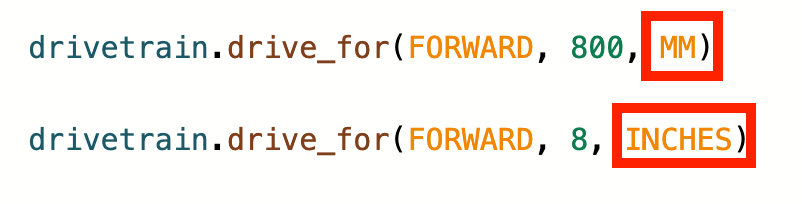
The drive_for command can accept both whole numbers (integers) and decimals (floats). The units can also be changed from millimeters (mm) to inches.
- Start the project.

-
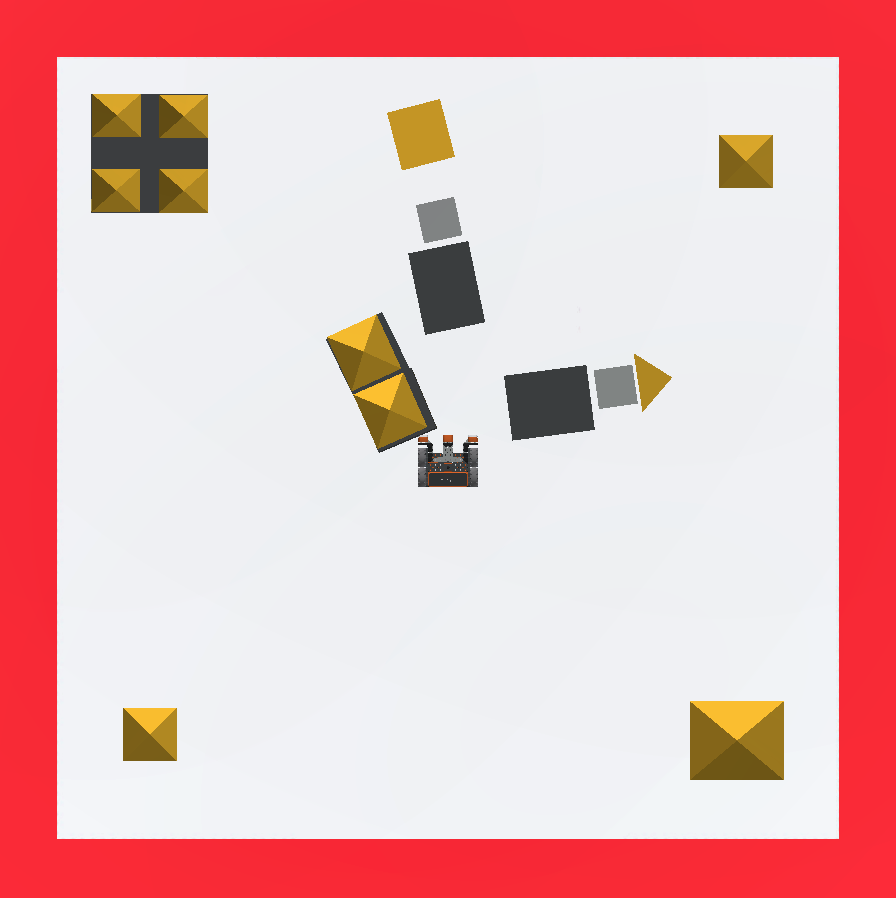
The VR Robot will collide with the center castle and knock parts of it over.
- Select the “Reset” button to reset the Playground.
The VR Robot now needs to return to the starting position. Use an additional drive_for command and change the parameters to make it drive in reverse to return to the starting position. -
Add a second drive_for command to the VEXcode VR project, and change the direction from “FORWARD” to “REVERSE.” Your project should now look like this:
# Add project code in "main" def main(): drivetrain.drive_for(FORWARD, 800, MM) drivetrain.drive_for(REVERSE, 200, MM) -
Make sure the distance value is the same as the first drive_for command, 800 millimeters (mm), in order for it to return to the starting position. Your project should now look like this:
# Add project code in "main" def main(): drivetrain.drive_for(FORWARD, 800, MM) drivetrain.drive_for(REVERSE, 800, MM) - Select the “Start” button and run the project.

- The VR Robot will move forward and backward for 800 millimeters (mm), returning to the starting position.
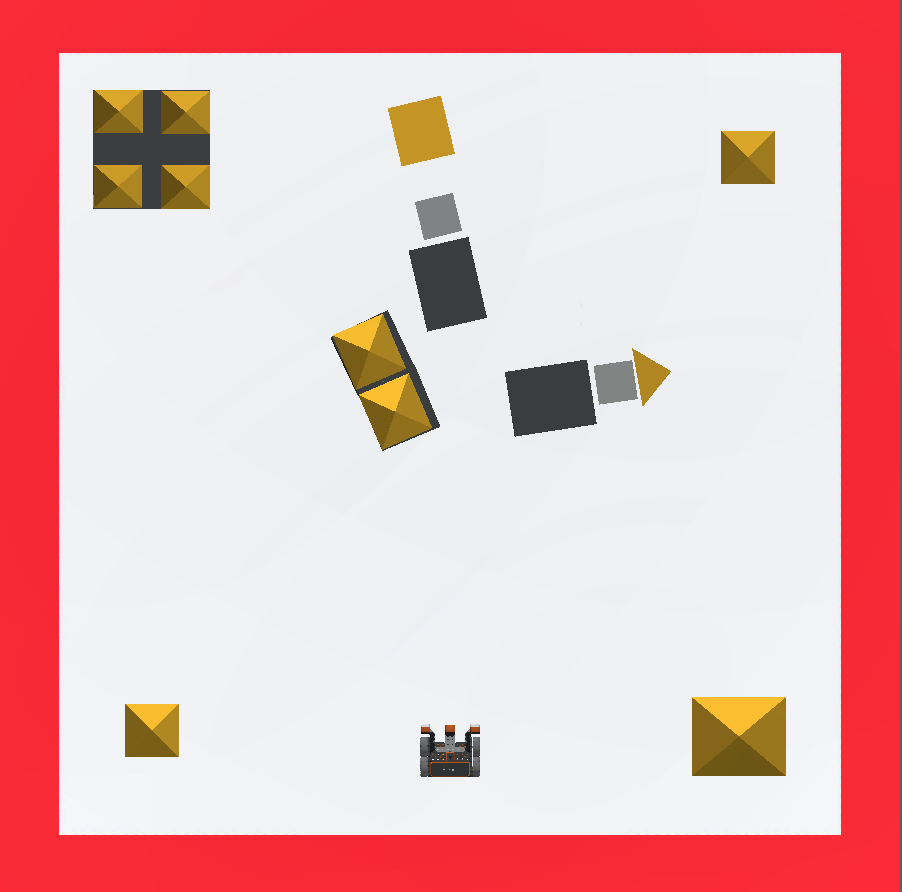
Note: You have successfully completed the first part of the Castle Crasher Challenge! Even if all four parts of the center castle are not completely knocked over, if they are slightly displaced, that is acceptable.
For Your Information
To make a VR Robot drive forward and reverse at different speeds, the drive velocity can be increased or decreased using the set_drive_velocity command. The set_drive_velocity command accepts a range from 0 - 100 for the velocity parameter. The default velocity is 50%. Changing velocity will apply to any subsequent Drivetrain commands.
drivetrain.set_drive_velocity(50, PERCENT)Save Your Project
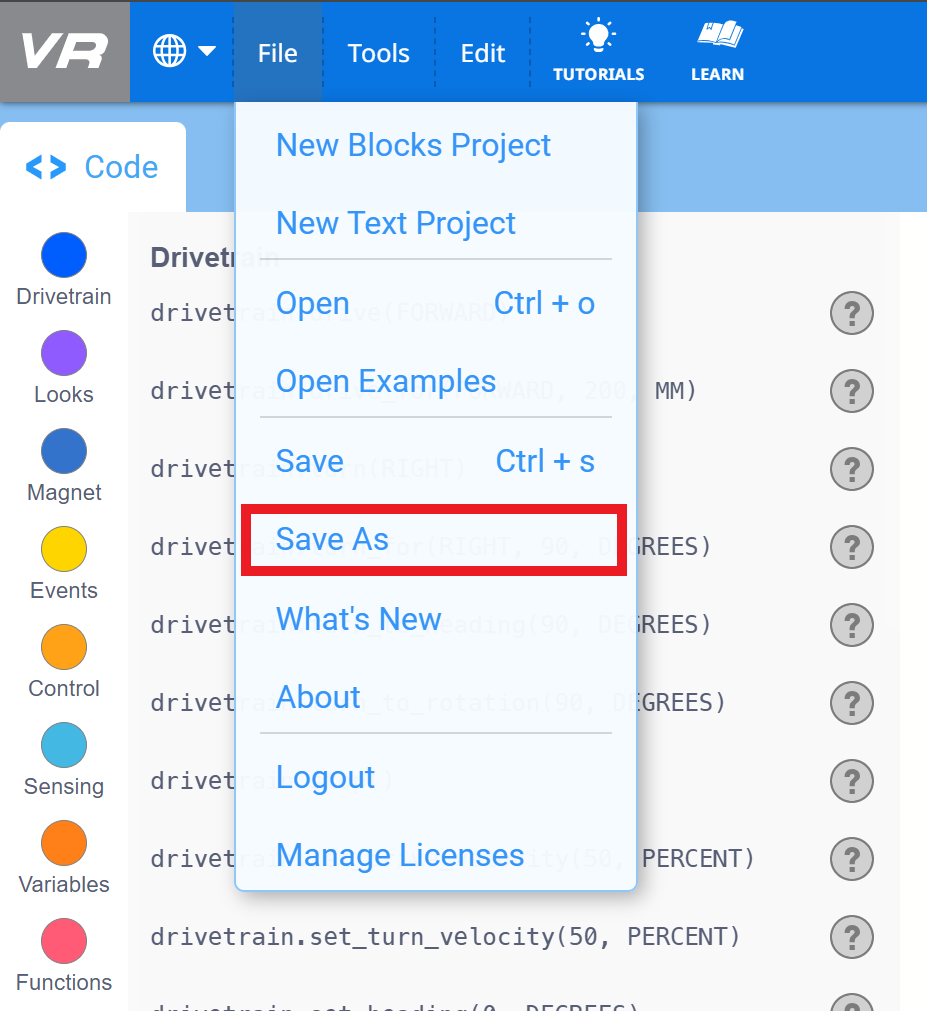
To save your project, select “Save As" in the “File” drop-down menu.
Once saved, the project will appear in the Downloads folder of your device as a .vrpython file.