
Lesson 2: Driving for Distance - Moving Forward and in Reverse
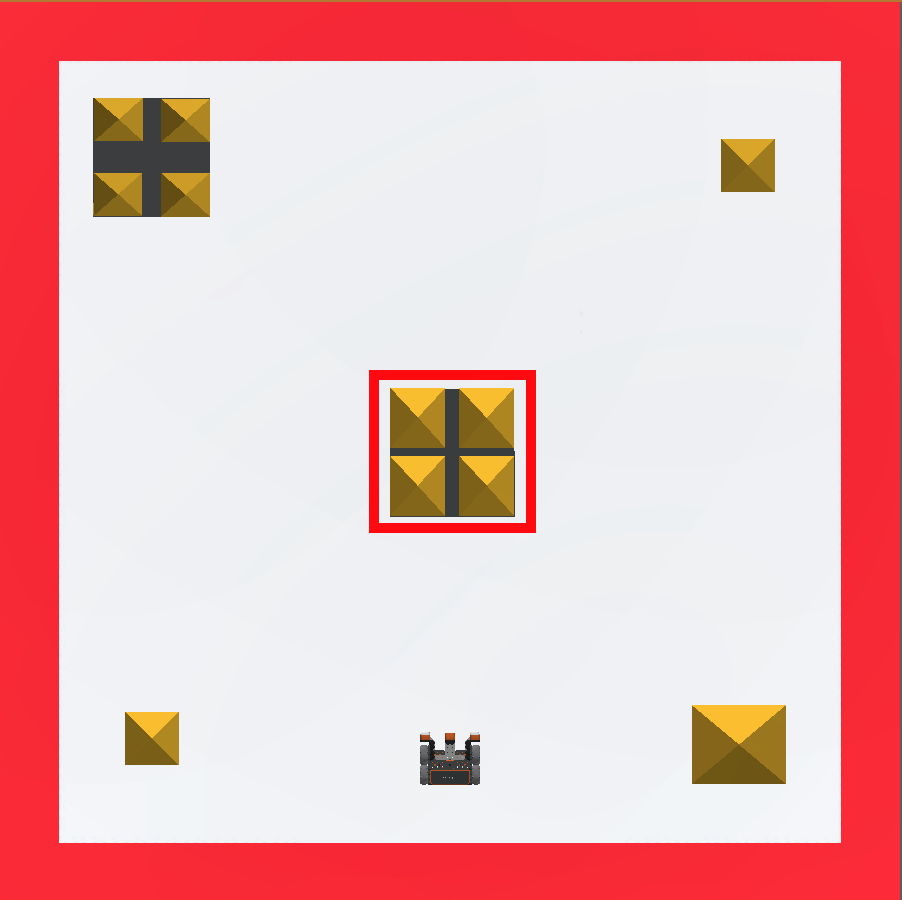
In this Lesson, you will create a project that uses Drivetrain commands to knock down the first castle in the Castle Crasher Playground!
Learning Outcomes
- Identify how to use the drive_for command to drive the VR Robot a specific distance.
- Identify how to change the parameter in the drive_for command to move the VR Robot forward and reverse.
- Identify how to use the set_drive_velocity command to set the speed of the drivetrain.
- Identify the range of values used in the set_drive_velocity command.
Create a New Project
A new text project must be created in order for the VR Robot to move forward in order to collide with the first castle in the Castle Crasher Playground, then drive in reverse to return to the starting position.
Follow these steps to create a new Python text project.
- Launch VEXcode VR at vr.vex.com.
- Once you launch VEXcode VR, select "File", then "New Text Project."

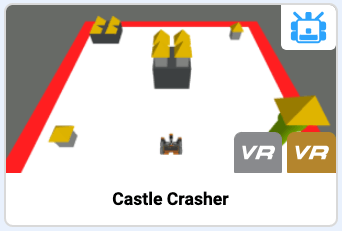
- You will be prompted to Choose a Python Playground. Select the Castle Crasher Playground.
Name Your Project
- To name your project, select the project name box.
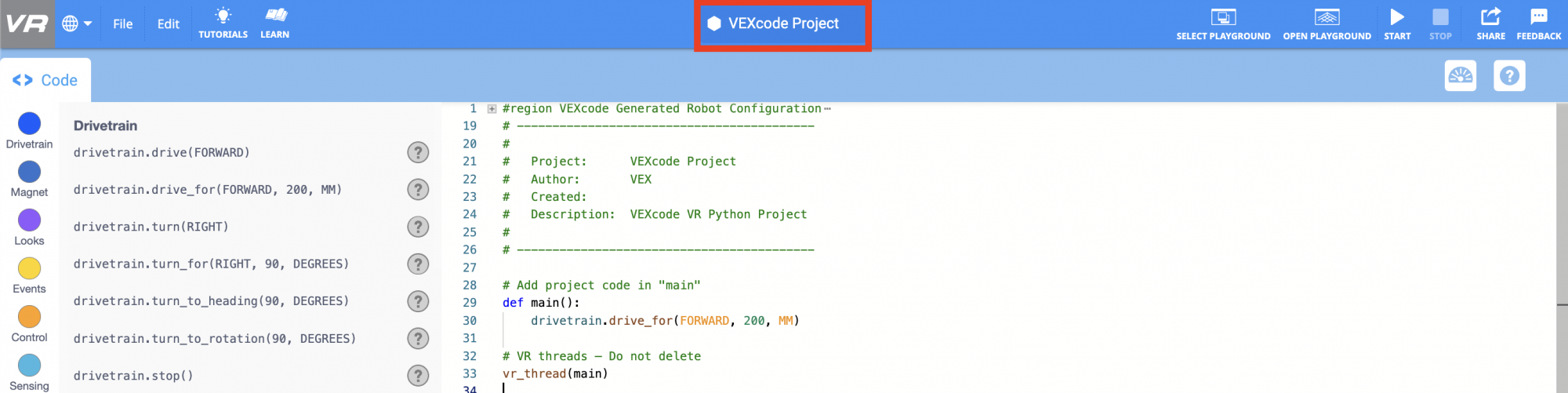
- Enter the new project name Unit2Lesson2, and select “Save."

Drive Forward and in Reverse
Use the drive_for command to program the VR Robot to move forward to knock over the first castle on the Castle Crasher Playground.
-
Notice, the drive_for command is already in the project, as part of the new project template. If it is not already in your project, drag the drive_for command into the workspace and place under the main definition.
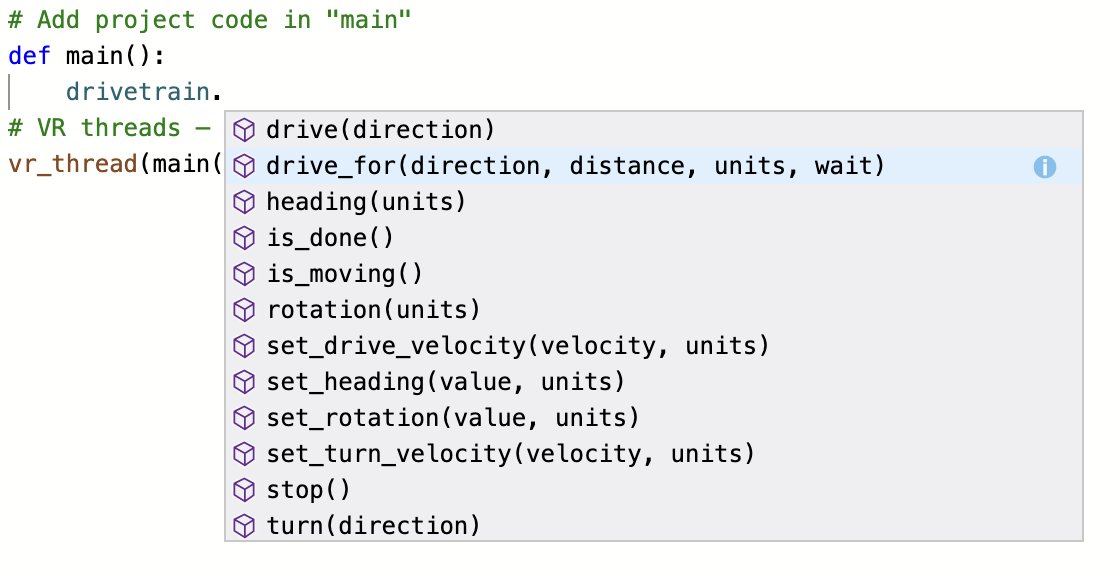
# Add project code in "main" def main(): drivetrain.drive_for(FORWARD, 200, MM) - Or, begin typing the command in the workspace. Autocomplete functionality will help prevent errors while typing commands.
- Select the “Open Playground” button to open the Playground Window if it is not already open.

- Check to make sure that the Castle Crasher Playground is open.
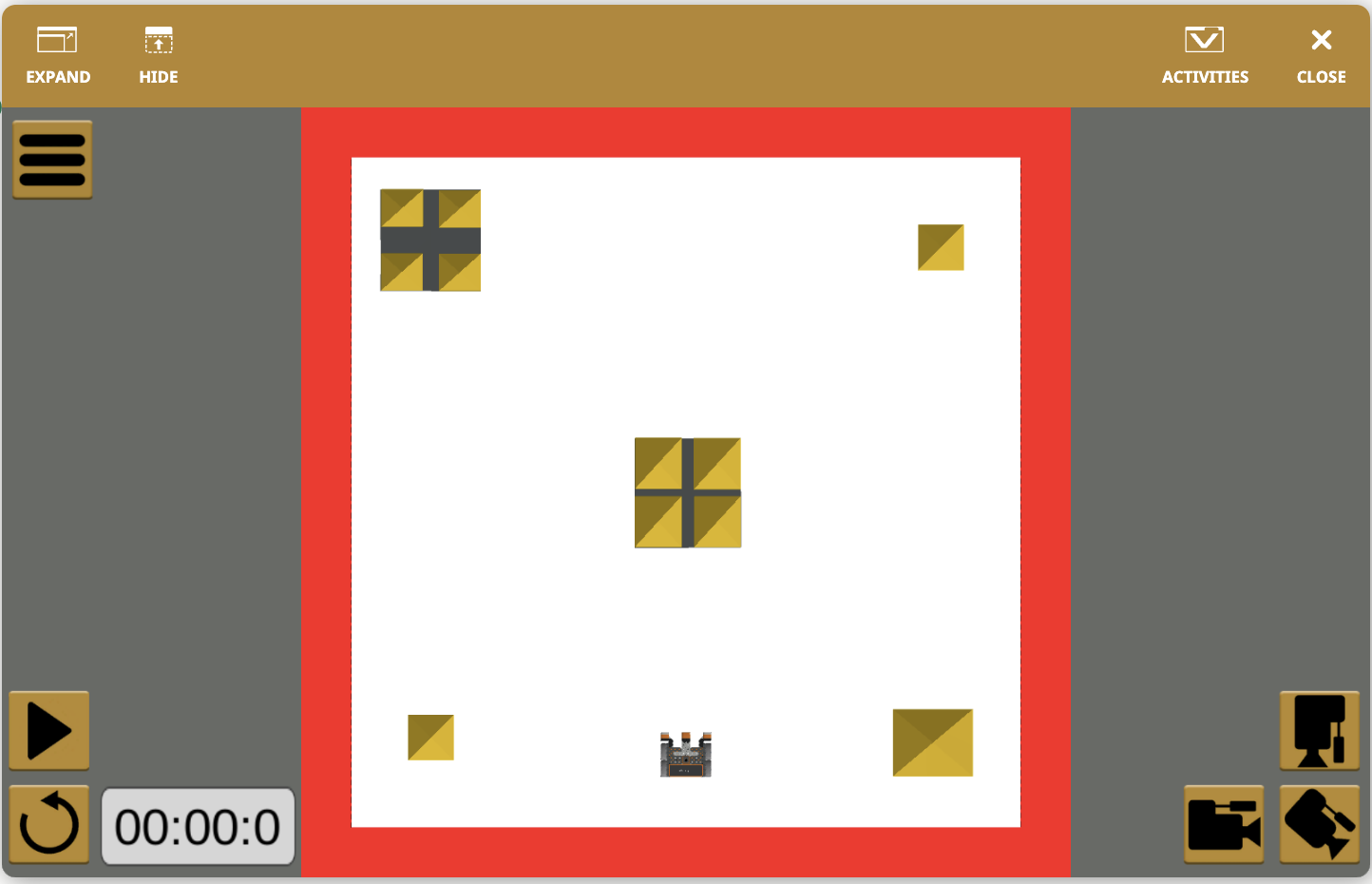
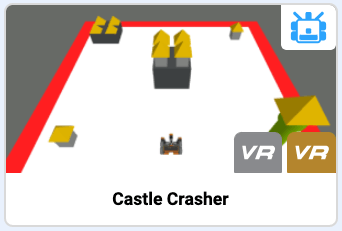
- If a different Playground opens, change the Playground to Castle Crasher. To change Playgrounds, select the 'Select Playground' button.

- Select the Castle Crasher Playground.
- Select the “Start” button to test the project.

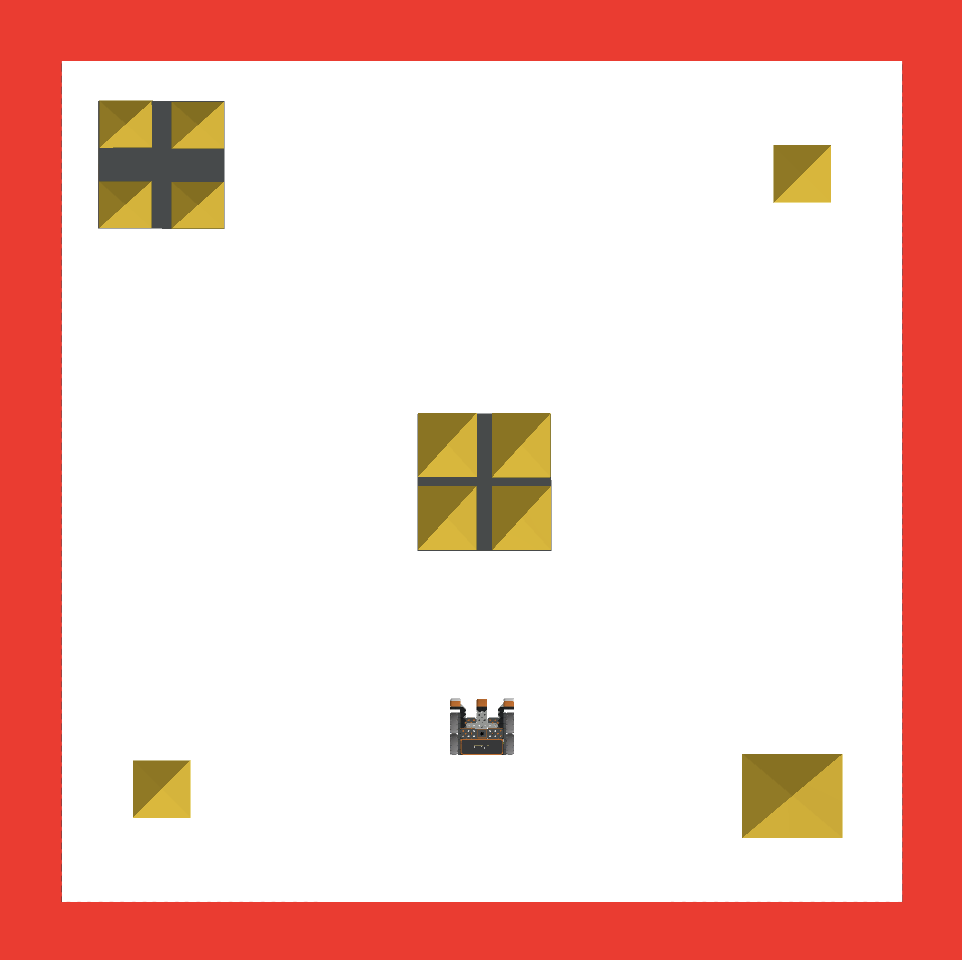
- The VR Robot will drive forward for 200 millimeters (mm) on the Castle Crasher Playground. Note that the VR Robot did not touch the center castle. The parameters in the drive_for command need to be adjusted so the VR Robot can drive further.
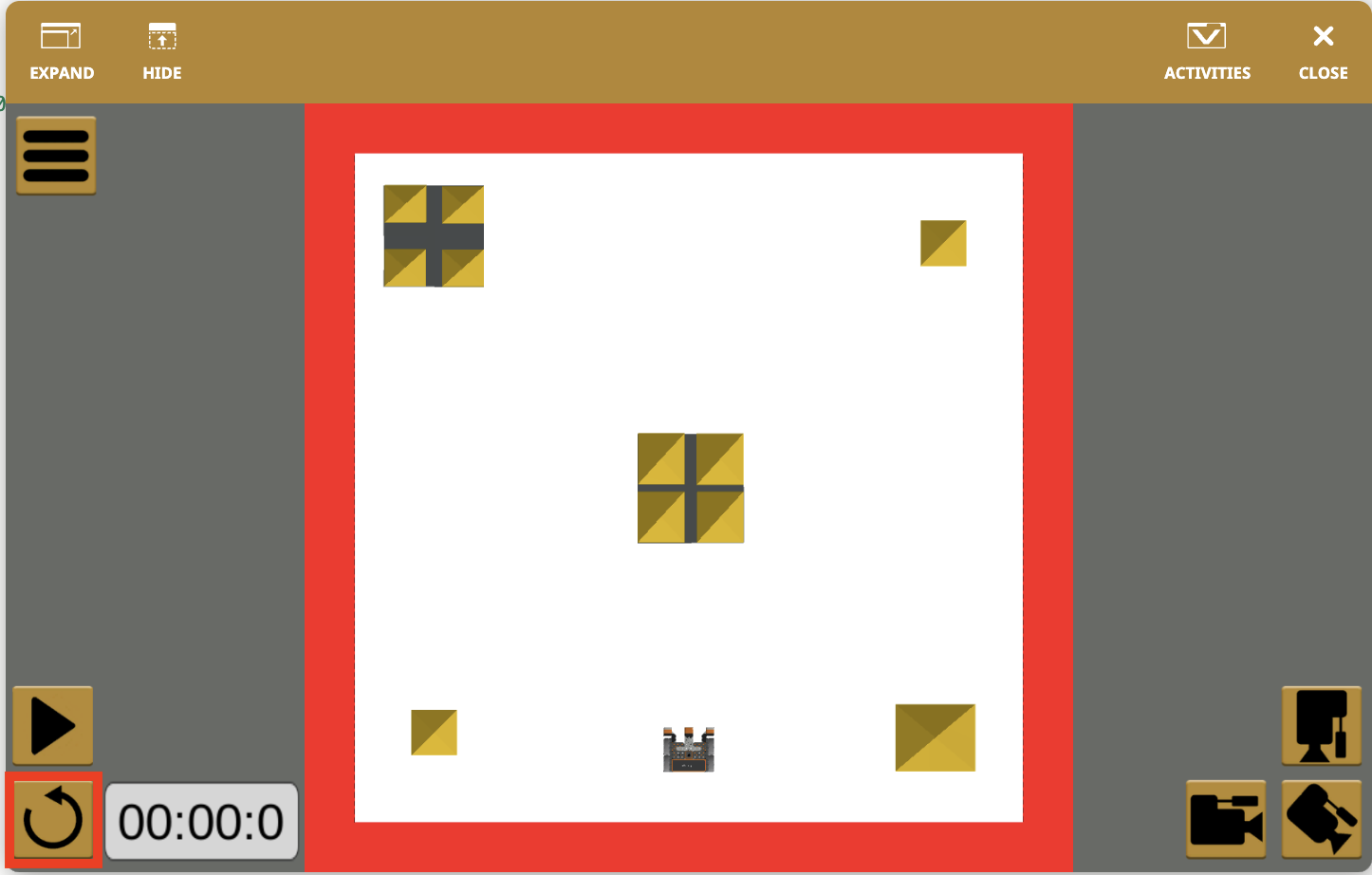
- Select the “Reset” button to reset the Playground and move the VR Robot back to the starting position.
Select the Next button to continue with the rest of this Lesson.