
So far in this unit you've learned about coding your VEX AIM Coding Robot to make decisions and repeat behaviors in a project. What if you could code those same decisions while driving your robot? In this lesson you will learn about how to apply what you've learned in a VEXcode AIM project so that you can customize your One Stick Controller. This will help you as you get ready to participate in the driving portion of the Capstone challenge competition.
Watch the video below to learn about:
- How the Move with controller block works in a project.
- How to customize the buttons on the controller.
- The difference between the If block and the If else block.
Now that you have watched the video, capture your thoughts in your journal. Answer these questions to guide your thinking and help you prepare for a whole-class discussion:
- Think about previous driving tasks you've completed. Would customizing your controller have been helpful? Why or why not?
- How do you envision using custom controls in the Capstone challenge?
- What evidence do you have from the video that supports your ideas?
- What questions do you have about coding the controller?
Guided Practice
Now that you have watched and discussed the video, it is your turn to practice!
Step 1: Set up your field as shown in the image below, placing an AprilTag ID randomly in each corner. 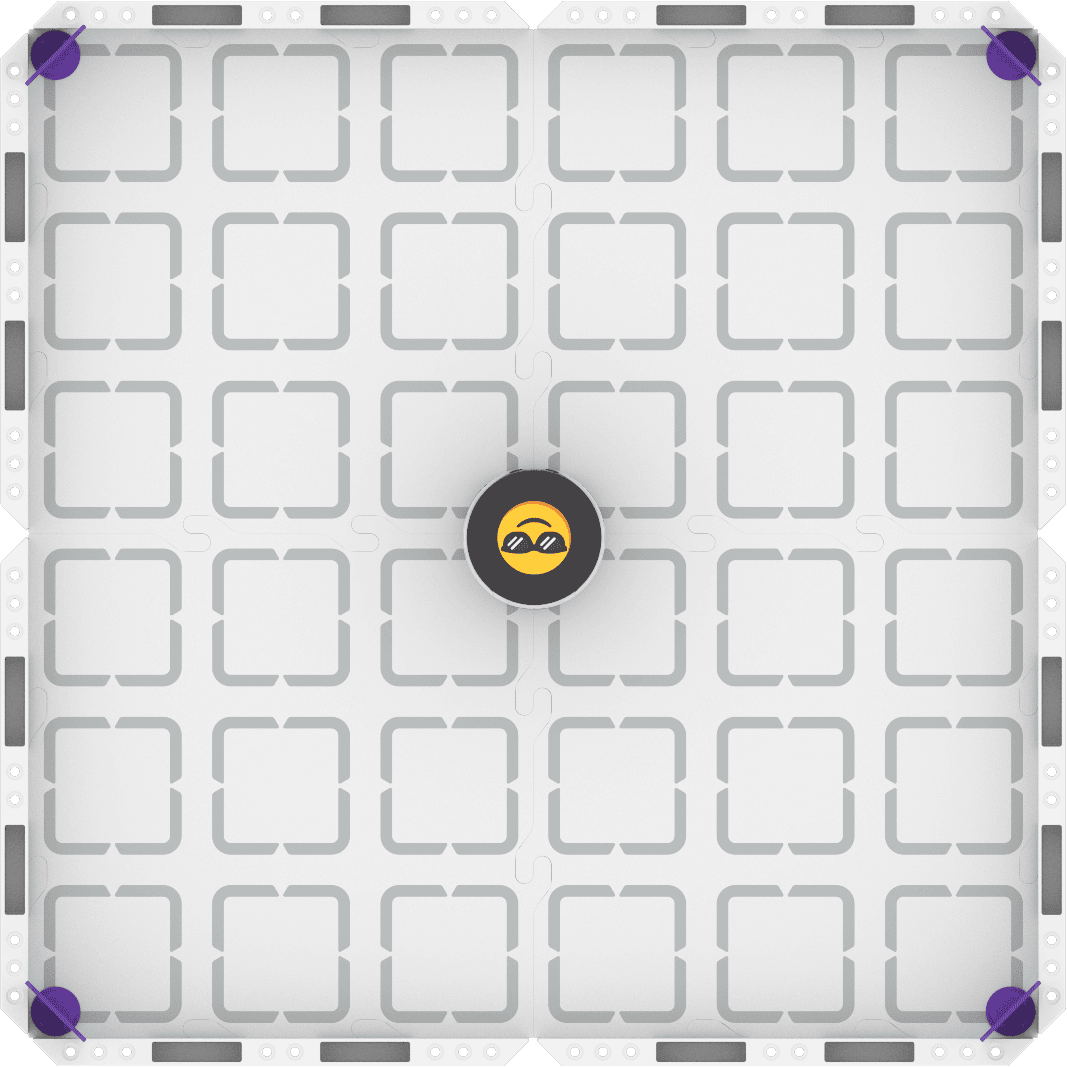
Step 2: Use Drive mode to model the movements and plan the reactions your robot will have to each of the four AprilTag IDs.
- Your task is to drive the robot to detect and react to each of the AprilTag IDs, showing a different reaction for each AprilTag ID. Document your driving and plan for how you will trigger each of your reactions with custom button controls.
- Use this task card (Google / .docx / .pdf) to guide your practice.
- Pro Tip: As you drive, note which buttons would make it easier to complete the task for each member of the group. Decide whether you will use the same custom buttons as one another, or if you would rather have separate controls.
Step 3: Code your robot to complete the task.
- Your task is to use your plan from Step 2 to build a project that lets you drive the robot to detect and react to each of the AprilTag IDs, showing a different reaction for each AprilTag ID.
- Use this task card (Google / .docx / .pdf) to guide your practice.
- Pro Tip: Build and test your project for one AprilTag ID reaction at a time. Working incrementally will make it easier to find and fix errors as you are working, and ensure your project is working as intended.
Step 4: Explore! Move between driving and coding to iterate on your project and improve it.
- Think about how you are using the custom controller buttons. Is there another way to accomplish the task?
- Test out different coding strategies to find the one that works best for you.
- Remember to document your iterations and rationale for your coding choices in your journal.
For Your Information
You can save multiple projects to your robot by downloading them to different slots. By default, VEXcode AIM projects are downloaded to Slot 1. Select the Slot icon in the Toolbar, beside the project name dialog box, to change the slot.

Select your desired slot from the dropdown menu.
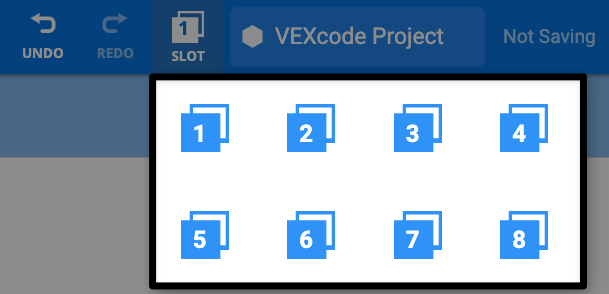
Now, when you download your project, it will be downloaded to your selected slot.
Wrap-Up
Now that you have completed the activity, it is time to share how you applied what you learned about coding custom controller buttons to this challenge. Answer the following questions in your journal to help you reflect on your learning and prepare for a whole-class discussion:
- Describe your project. Include the coding strategy you used to customize your controls.
- Why do you think that strategy was successful? Give evidence from your observations and journal.
- How did your project change over the course of practice? Why did you make those changes?
- Do you think custom controller code will be useful in the Capstone challenge? Why or why not?
Select Return to Units > to return to all units.