
Lesson 4: Tips and Tricks with VEXcode VR Python
This lesson contains a series of tips and tricks for you to utilize while using VEXcode VR Python.
Learning Outcomes
- Describe how to adjust the font size in the Workspace and the benefits of doing so.
- Describe how to interpret an error message when a project will not run in VEXcode VR Python.
- Identify and describe how to use the built-in Help in VEXcode VR Python.
Adjusting Font Size in the Workspace
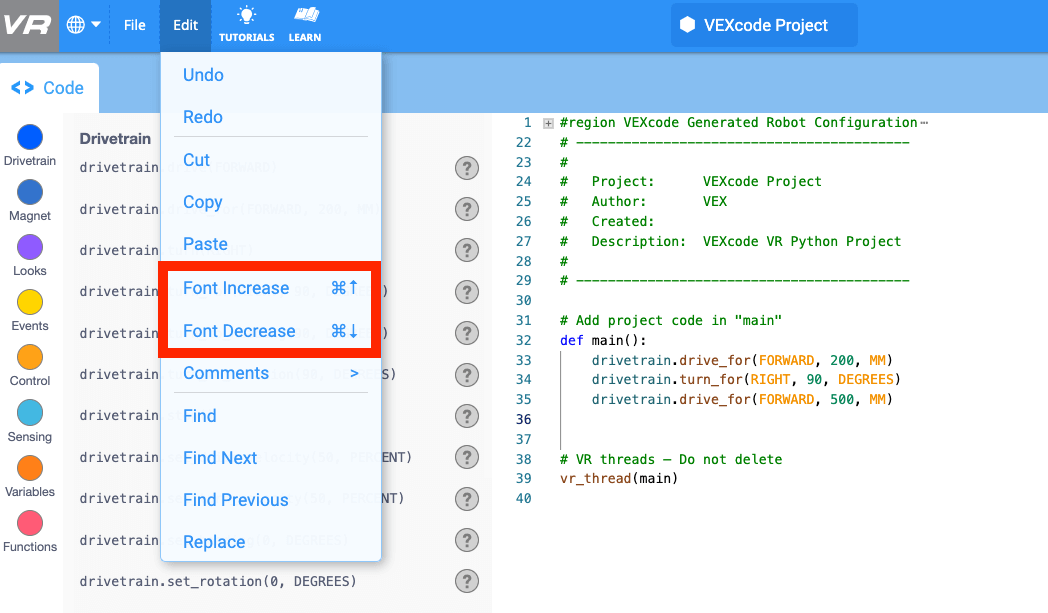
Changing the font size in VEXcode VR Python can be important for many reasons. For example, you may want your text to be easier to read, or you could be trying to get all of the code for a large project on your screen at once. The font size can be made larger, or smaller, incrementally, using the 'Edit' menu.
- To make the font larger, select 'Edit' in the Toolbar. Then select 'Font Increase'. Repeat this process until the font size in the Workspace reaches your desired size.
- To make the font smaller, select 'Edit' in the Toolbar. Then select 'Font Decrease'. Repeat this process until the font size in the Workspace reaches your desired size.
- In the video clip below, the Edit menu is opened a total of six times. The first three times, ‘Font Increase’ is selected, and the text in the Workspace increases in size each time. The second three times, ‘Font Decrease’ is selected, and the text in the Workspace decreases each time.
Error Messages When a Project Will Not Run
At times, you may have an error in your project that prevents it from running in VEXcode VR Python. That is ok! There are error messages and visual cues that you can use to help you troubleshoot in this scenario. For instance, you may have a misspelling, or a syntax error, like the extra colon (:) at the end of the first drive for command in this project. 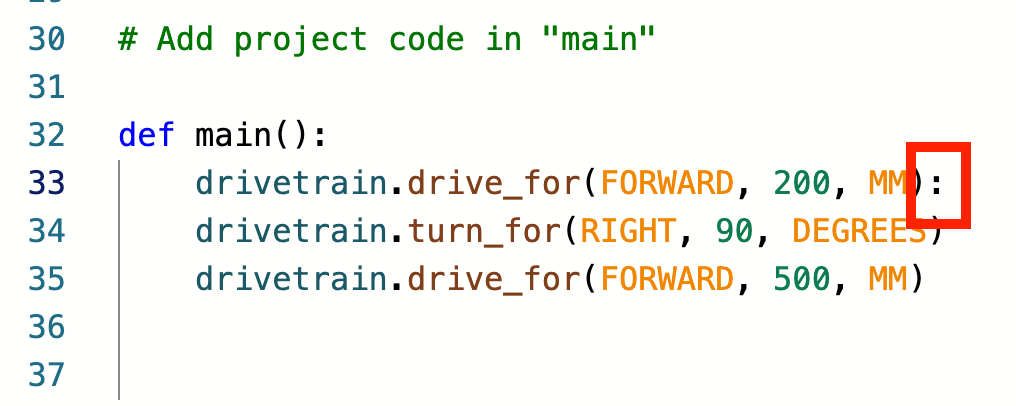
When you select 'Start' to test this project, the first thing that you will see is a grayed out VEXcode VR Python window, with a prominent error message.
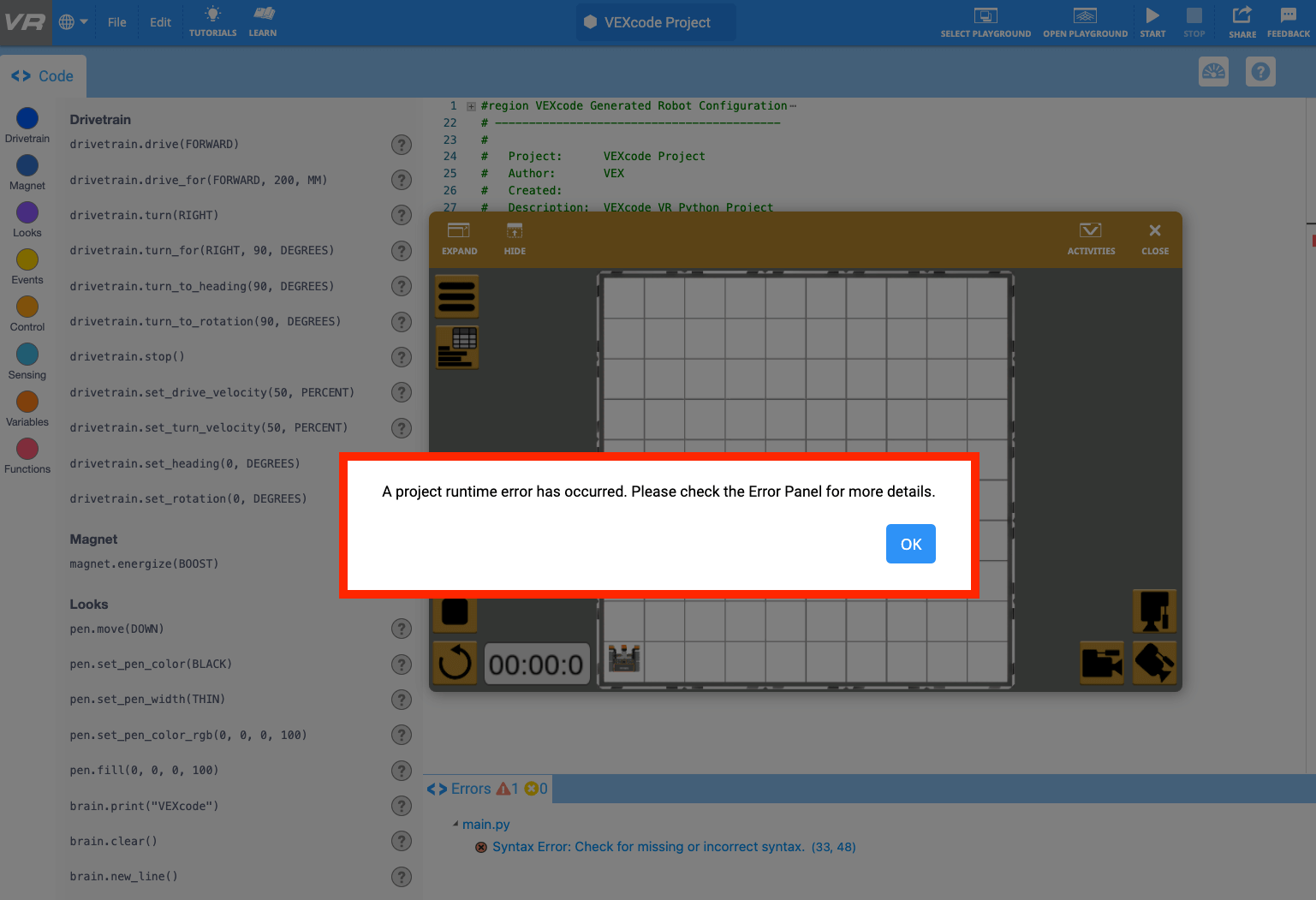
Select 'OK' to return to VEXcode VR Python, so that you can troubleshoot your project. Here you will see a more detailed error message in the Error Panel in the lower portion of VEXcode VR Python. In addition, the line number with the error in the Workspace with the error will be darkened.
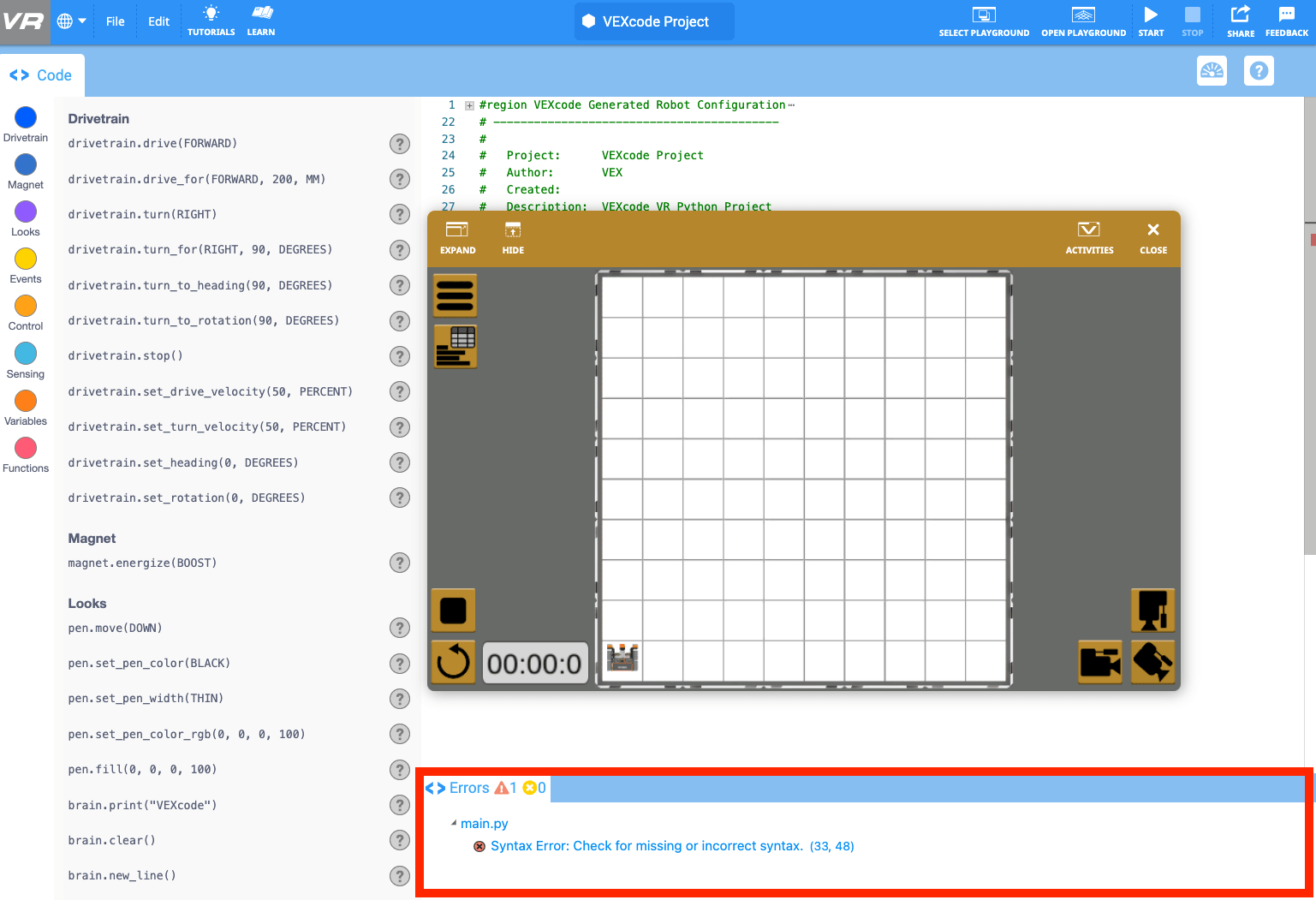
Within the Error Panel, you can identify the line number of the project that has the error, and the type of error that it is. In this case, there is a Syntax Error in line 33.
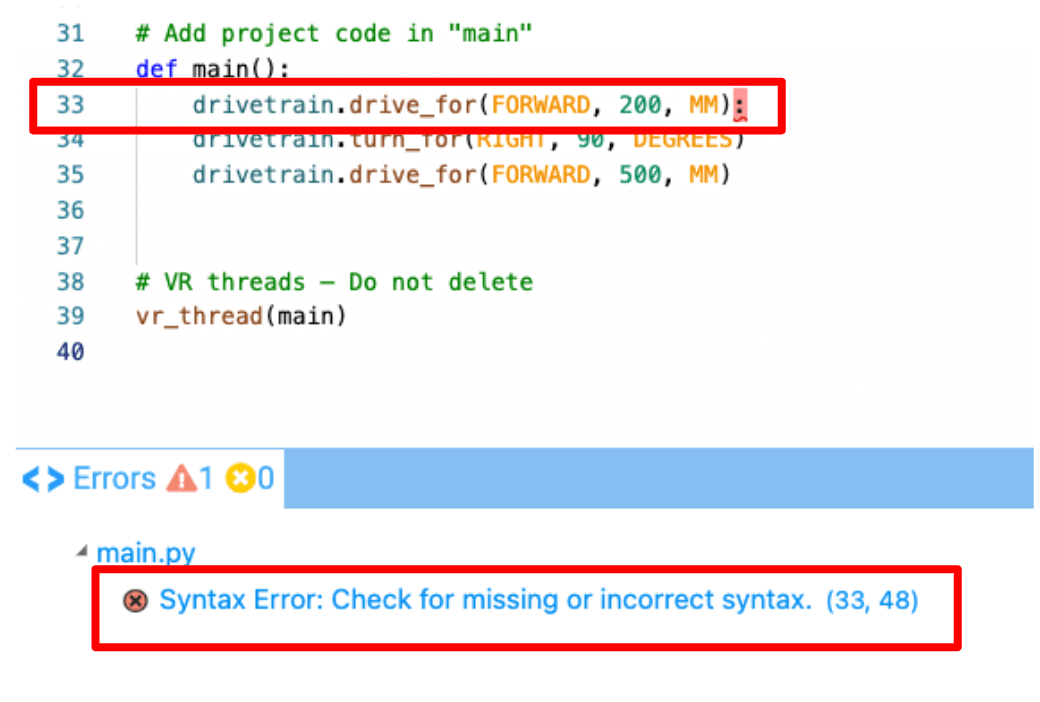
These cues can help you to identify the location and type of error, so that you can more easily correct it and run your project successfully.
Using the Built-in Help for Additional Support
You may also need to troubleshoot a project that can be executed by VEXcode VR, but does not run as you intended it to. To learn more about how each command or code element in the Toolbox functions within a project, the built-in Help is a great resource.
You can access the Help at any time while working in VEXcode VR Python by selecting the Help icon beside any command in the Toolbox. View the video clip below, or read this article, to review how to access Help, and hide the Help window when you are finished.