
Alternate Coding Methods
Adapt this Unit to Use an Alternate Coding Method
This STEM Lab Unit is written for use with the Coder and Coder Cards. However, you can use the buttons on the 123 Robot to touch to code, or use VEXcode 123 to implement the Unit. This flexibility can help you meet the individual needs of your students. For example, if your students are familiar with VEXcode 123, they can complete all the coding activities with VEXcode 123. The Summary section of each Lab contains additional information that can help you modify the individual Lab to use VEXcode 123 or the buttons on the 123 Robot.
VEXcode 123 Adaptation
If using VEXcode 123 with this Unit, students can use the following blocks to drive the 123 Robot in the coding activities. For more information on how to work with VEXcode 123, see the VEXcode 123 Section of the VEX Library.
| VEXcode 123 Block | Behavior |
|---|---|
 |
The [Drive for] block moves the 123 Robot forward or in reverse a given distance. Set how far the 123 Robot will move by entering a value into the oval. |
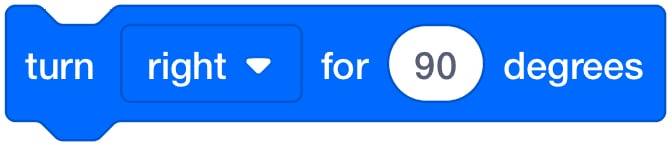 |
The [Turn for] block turns the 123 Robot in place to the left or right for a specified number of degrees. |
- In Lab 1, students will sequence commands to create a dance move for the 123 Robot. Here is a possible solution for Lab 1, Play Part 2.
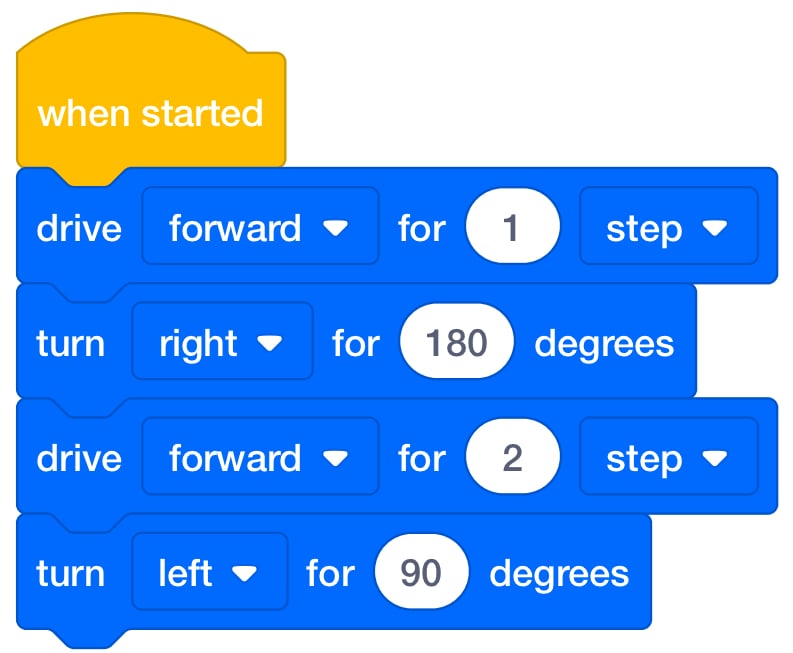
- In Lab 2, students will create a project to to make the 123 Robot reach the treasure on a treasure map. Here is a possible VEXcode 123 solution for the example in Play Part 1.
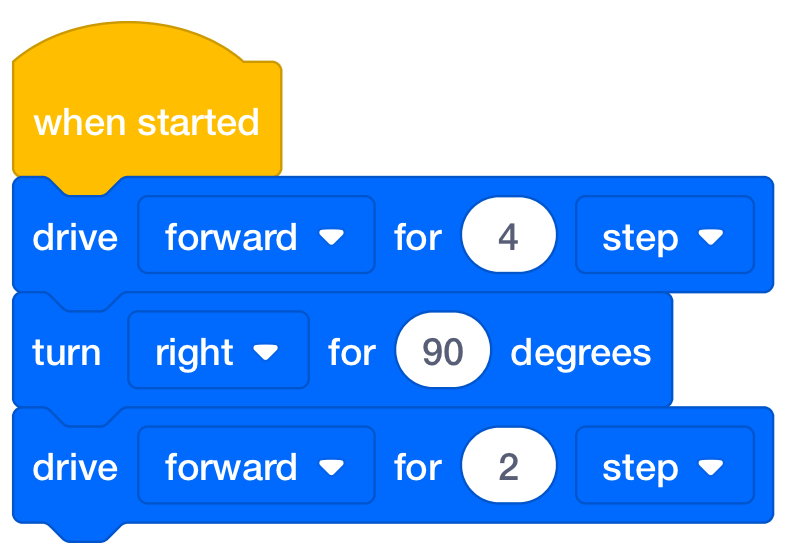
Touch Adaptation
You can also adapt this Unit to use the buttons on the 123 Robot to complete the activities in these Labs. Students should understand that each press of a button equals 1 movement of the 123 Robot, and that they can create a project with a series of button presses. For more information about how to use the 123 Robot, see the Using the 123 Robot VEX Library article. For more information on how to coding using the Touch buttons on the 123 Robot, see the Coding with the Touch Buttons on the 123 Robot VEX Library article.
- To adapt Lab 1, focus on the button icons in the Engage section, and how the symbols on the buttons represent 123 Robot behaviors.
| Button | Name | Behavior |
|---|---|---|
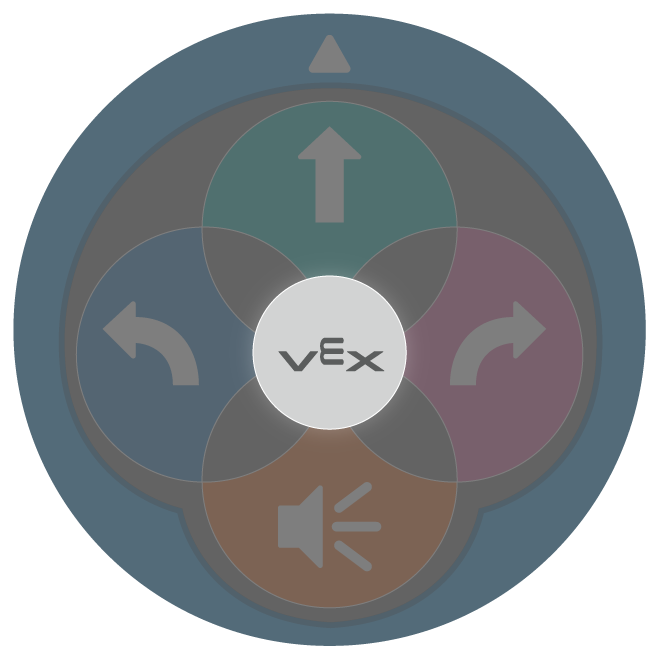 |
Start | Starts the project when pressed. |
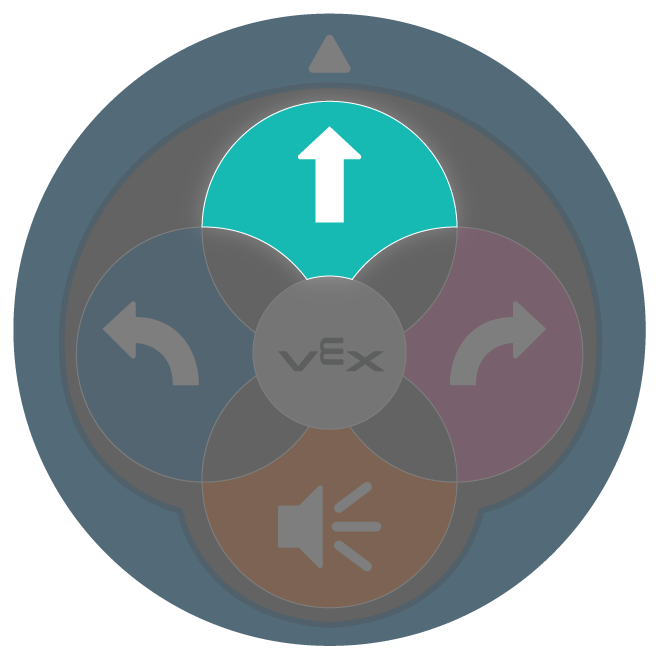 |
Move | 123 Robot will drive forward for 1 robot length, or 1 square on the 123 Field. |
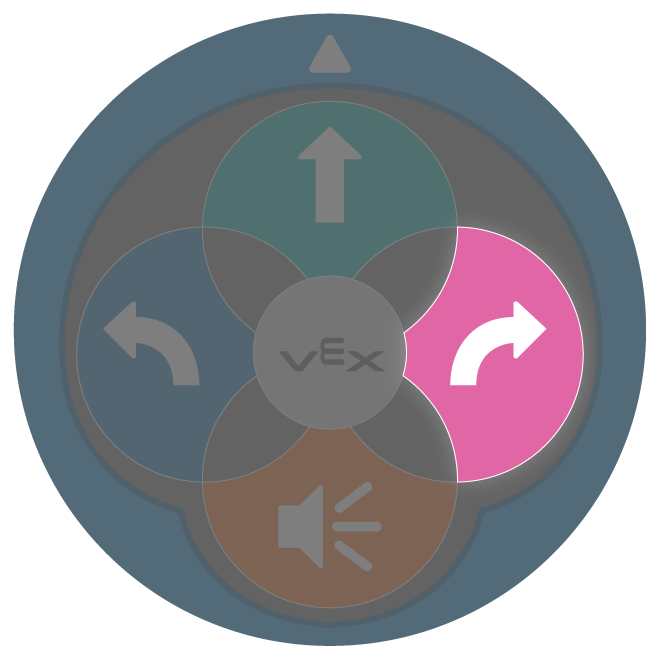 |
Right | 123 Robot will turn in place 90 degrees to the right. |
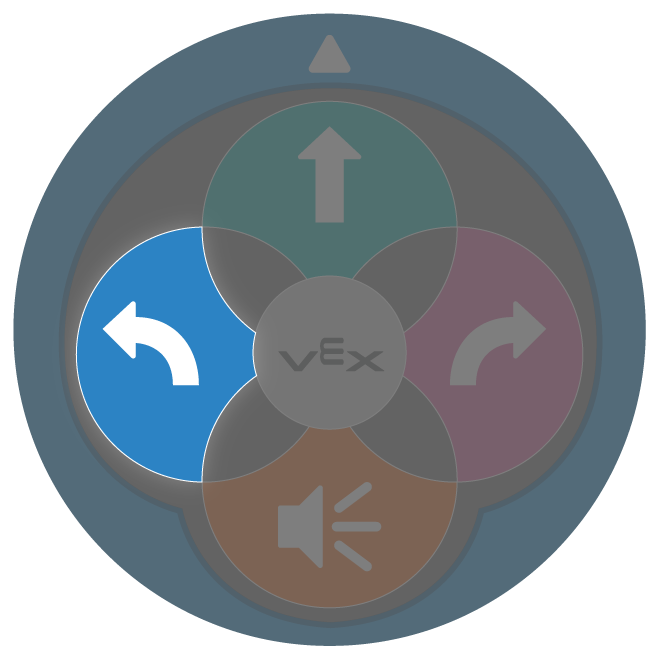 |
Left | 123 Robot will turn in place 90 degrees to the left. |
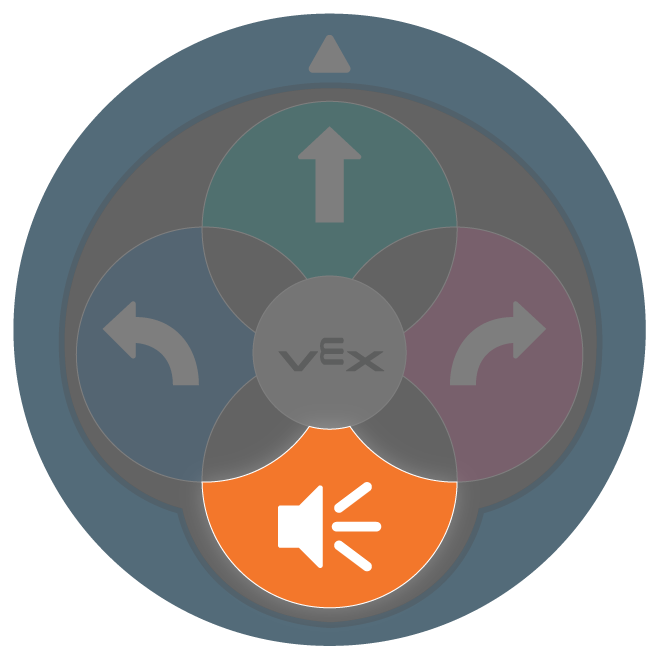 |
Sound | 123 Robot will play a honk sound. |
- In the Play sections of Lab 1, students practice creating projects that move the 123 Robot on a 123 Field. In the Play Part 2 activity, students create a project to have the 123 Robot perform a dance move. This is an example of a possible solution for a dance move project for Lab 1. Sequence of button presses are from left to right.
| 1 | 2 | 3 | 4 | 5 | 6 |
|---|---|---|---|---|---|
|
|
|
|
|
|
- Sequencing is the focus of Lab 2. Students should identify that the order in which they press the buttons is the order in which the 123 Robot will execute behaviors. To adapt Lab 2, have students sequence button pressed to code the 123 Robot to move from start to the treasure on their map. Here is a possible solution for reaching the treasure in the Engage and Play Part 1 example Treasure Map. The example below shows the sequence of button presses from left to right.
| 1 | 2 | 3 | 4 | 5 | 6 | 7 |
|---|---|---|---|---|---|---|
|
|
|
|
|
|
|