
Engage
Launch the Engage Section
ACTS is what the teacher will do and ASKS is how the teacher will facilitate.
| ACTS | ASKS |
|---|---|
|
|
Engage
-
InstructInstruct
students that they are going to observe a project with a bug in it two times – first, using the "Start" button to run the project; then using the "Step" button. Use the same setup as Lab 1, Play Part 2 and remind students of how the 123 Robot should move to line up in spot number 2 on the Tile.

Step button on the Coder - Remind students that they will not be touching the 123 Robot or Coder yet, that this is just a time to watch what it does, so they can learn a little more about how the Step button works.
-
DistributeDistribute
just one 123 Robot and Coder for demonstration purposes. Make sure that all students can see the Tile, the 123 Robot, and the Coder. You will distribute 123 Robots, Coders, and Coder cards to student groups after the demonstration is complete.
- First, wake the 123 Robot by pushing the wheels along a surface until you hear the startup sound, as shown in the animation below. Turn on sound for this animation. For more information about the 123 Robot, see the Using the VEX 123 Robot STEM Library article.
Video file- Then, turn on the Coder and connected to the 123 Robot to a Coder. To connect the 123 Robot, press and hold the Start and Stop buttons on the Coder, and the Left and Right buttons on the 123 Robot for at least 5 seconds, until you hear the connected sound, and the indicator lights flash in time, as shown in the animation below. Turn on sound for the animation. For more information about the Coder, see the Using the VEX 123 Coder STEM Library article.
Video file-
Set the 123 Robot in its starting position, as you did in Lab 1.
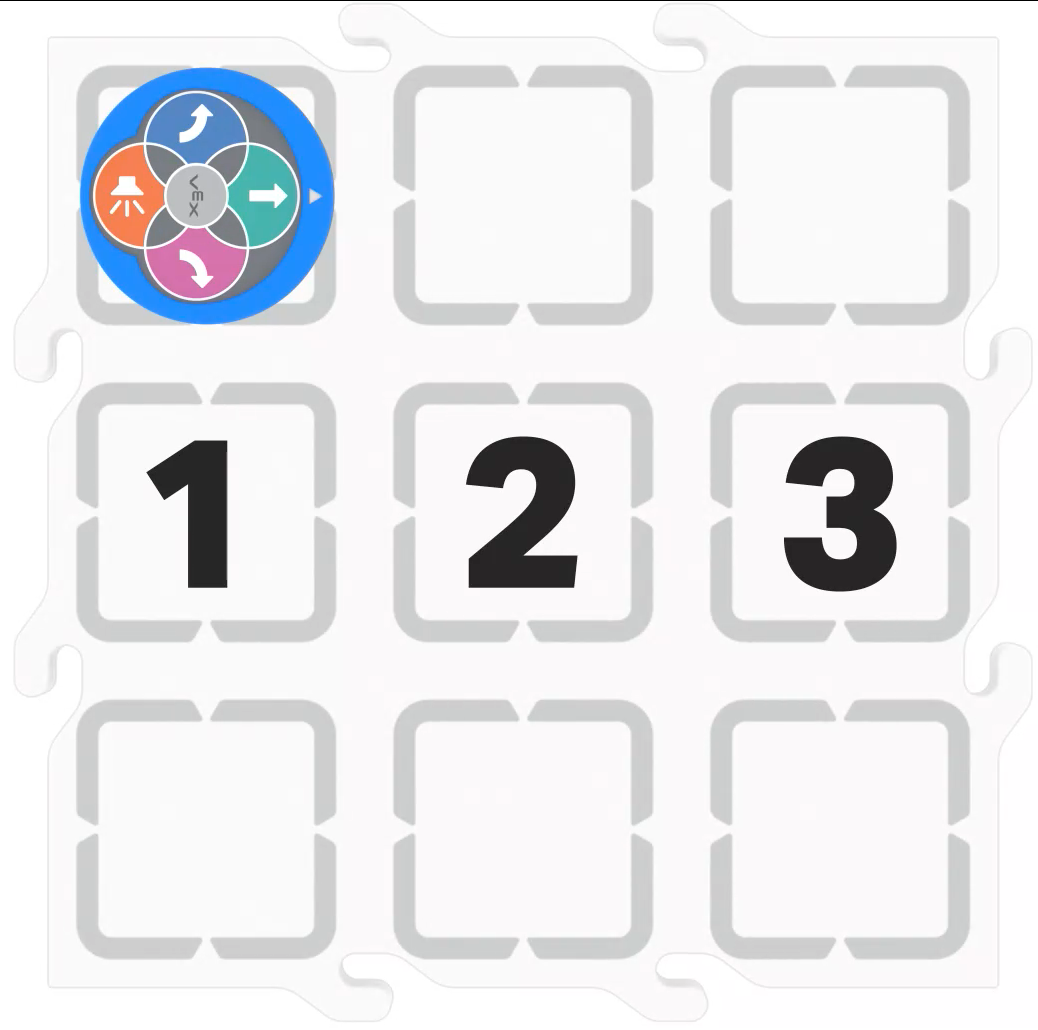
Tile setup for driving the 123 Robot to line up -
Build the bugged project in the Coder, as shown here, and show students the project.
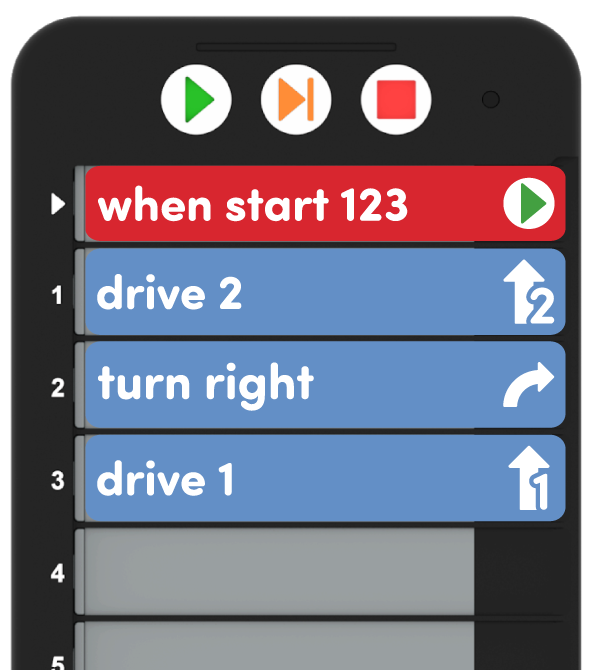
Bugged project from Lab 1 Play Part 2 -
Press the "Start" button, and have students observe the behavior of the 123 Robot, as shown in the animation below. The number 2 is one space forwards and one space to the right of the 123 Robot, and the project reads Drive 2, Turn Right, and then finally Drive 1.
Video file -
Then, reset the 123 Robot, and press the "Step" button to run the project one Coder card at a time, as shown in the animation below. You will need to press the "Step" button after each behavior is complete, in order to run the next Coder card in the project. Continue stepping through the project until all behaviors are complete. For more information about stepping through a project with the Coder, see this STEM Library article.
Video file- When using the Step button, the Coder card that is being run will show green in its highlight, and when that behavior is complete, the next Coder card in the project will show yellow. Show students these lights as you step through the project, so they can use these visual cues when they step through a project themselves.
-
FacilitateFacilitate
a conversation about the difference between using the "Start" and "Step" buttons to run the project. Guide students to recognize that the Step button slows down the behavior of the 123 Robot to aid in debugging using prompts like:
- The 123 Robot drives the same path with both buttons, but something is different about using the Step button. What do you see that was different?
- Does the 123 Robot move faster or slower when we used the Step button? Why do you think that is?
- Why would slowing down the robot behavior help us with debugging?
- How do you think you could use the Step button to help you find a bug in your project?
- OfferOffer positive reinforcement for careful observation and kind conversation skills, like keeping your hands to yourself, listening to others, and raising your hand for a turn to talk.

Teacher Troubleshooting
- Pay attention to the Coder – Make sure that students are inserting Coder cards into slots completely and in the correct orientation. The Coder will show a red light beside a slot if the Coder card has an error, like being inserted upside down. Have students hold up their Coders with their projects in them so that you can have a quick visual check to make sure the project should run as intended. Make sure that students know what the red light means as well, so that they can grow more independent in their troubleshooting skills.
- Watch the lights when stepping – When using the Step button to run a project, the highlight will show green on the Coder card being run, and then will highlight the next step with a yellow light. Pressing the Step button again, will turn that light green as it is run, and the yellow light will move to the next Coder card in the project. This is a good visual cue for students of which Coder card is being run, and which comes next.
Facilitation Strategies
- Take Turns - Help students to take turns in their groups throughout the Lab. Suggestions to facilitate this include:
- To get started with the 123 Robot and Coder, one student can wake up the 123 Robot, while the other pairs the Coder.
- During Play Part 1, have students alternate between inserting Coder cards in the project, and setting up the 123 Robot and Tile.
- During Play Part 2, have students take turns pressing the Step button to find the bug, and stepping through the project to test the debugged project.
- Celebrate debugging – Finding and fixing bugs in a project is not a bad thing! Some students may struggle with making mistakes, so use debugging as an opportunity to make the iterative nature of coding a fun and exciting process. You may want to give students things like bug stickers, or create a growing bug (like a caterpillar) around your classroom that you add to each time you have a successful debugging experience, in order to highlight that this is an expected and valuable part of coding.
- Find another way – For groups who finish early and need additional challenges, have them try to find another solution to move the 123 Robot to the desired location. For instance, if they have a "Drive 2" Coder card, ask what other Coder cards they could use instead, and have them step through that project to notice any differences in behavior. There are often several ways to solve the same problem in a coding project, so encourage students to be open to alternatives or to trying other people's ideas in addition to their own.
- Try a new starting position – For students who need extra challenges, change the starting position of the 123 Robot on the Tile, and have them code and debug a project to drive the robot to the desired location. Changing the starting location, or even just the starting orientation, can offer a simple way to scaffold students to build more complex projects or open the door for them to see how many ways they can solve the same problem. Students may need access to additional drive and turn Coder cards in order to successfully build longer projects, so be sure they have the Coder cards necessary.
- Use printables as manipulative to support project planning - In addition to the Bug Printable (Google Doc/.docx/.pdf) that students can cut out and use while debugging, see the printable resources available in the STEM Library, and use them with students as they are debugging their Coder projects. You could use the fill-in project and motion planning sheets for students to document their bugged and/or debugged Coder cards and the desired path of the 123 Robot. You can also use the fill-in Coder sheet for students to write or draw their Coder cards to "save" their debugged projects.
- Use Coder card posters to reinforce learning with the Coder - Highlight specific Coder cards, or refer to cards as you are teaching with the Coder card posters. Students can use these posters to review terminology as they are working with VEX 123. See the Using Coder Cards Posters in the Classroom article to access these printable posters and to see more strategies for using them in your learning environment.