
Play
Part 1 - Step by Step
- InstructInstruct students that they will listen to another story prompt and decide on a matching emotion code in their groups. Students can choose from the emotion codes they created during Lab 1, or create new emotion codes. The animation below shows what students will see the 123 Robot do in the Act Angry emotion code example. The robot honks, turns around, and then drives forward one space.
Video file
- ModelModel for students how to turn on their 123 Robots and connect the Coder.
-
To wake the 123 Robot, push the wheels along a surface until you hear the startup sound, as shown in the animation below. For more information about the 123 Robot, see the Using the VEX 123 Robot VEX Library article.
Video file -
To connect the 123 Robot and Coder, press and hold the Start and Stop buttons on the Coder, and the Left and Right buttons on the 123 Robot for at least 5 seconds, until you hear the connected sound, and the indicator lights flash in time, as shown in the animation below. Turn on sound for this animation. For more information about the Coder, see the Using the VEX 123 Coder VEX Library article.
Video file -
All groups should have the Looks, Sound, and Motion Coder cards listed in the Environment Setup.
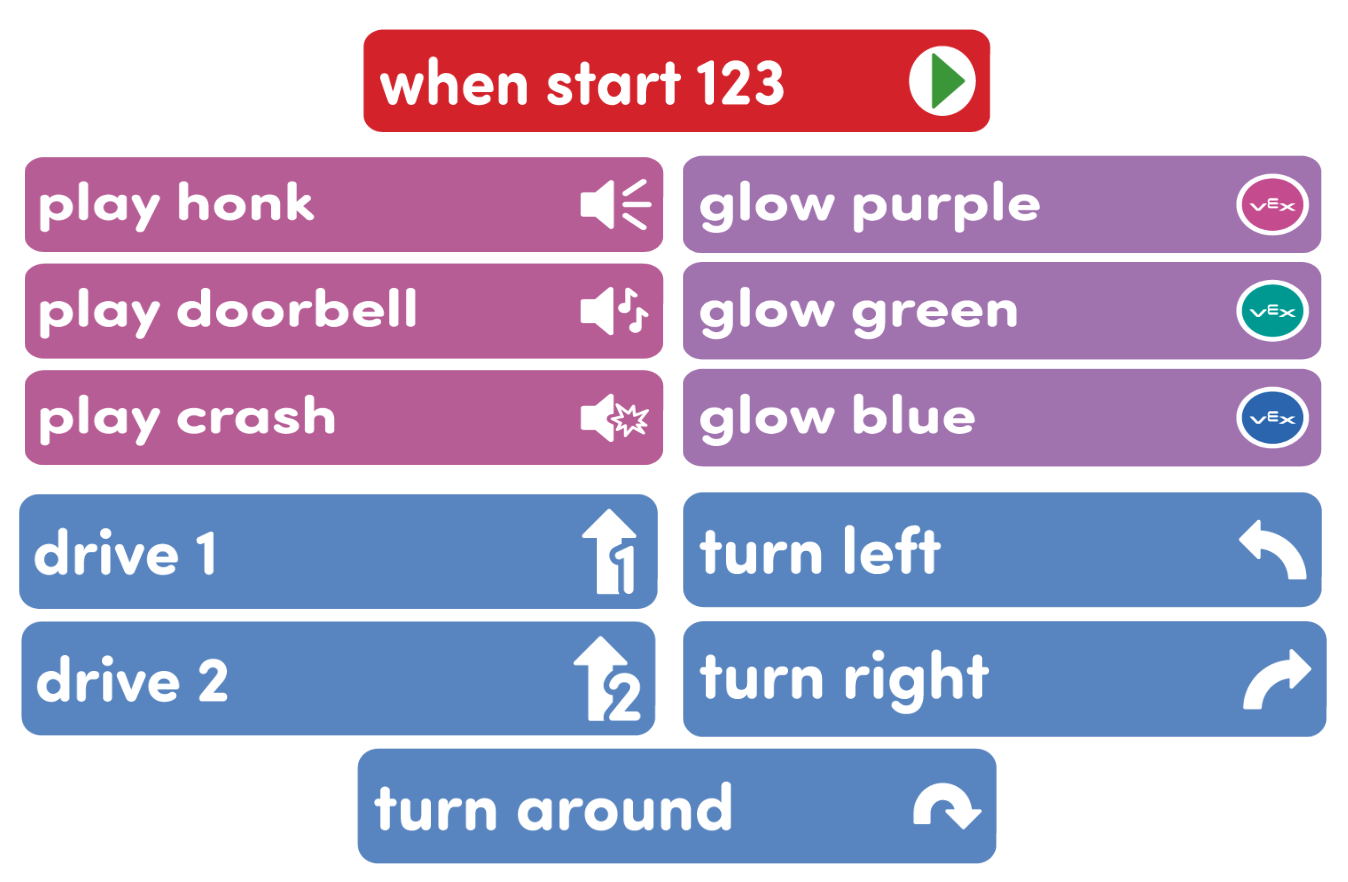
Coder cards needed -
Ensure students also have access to the images of the Emotion Codes the class created in Lab 1. These can be printed and distributed to students or posted or projected on the board.
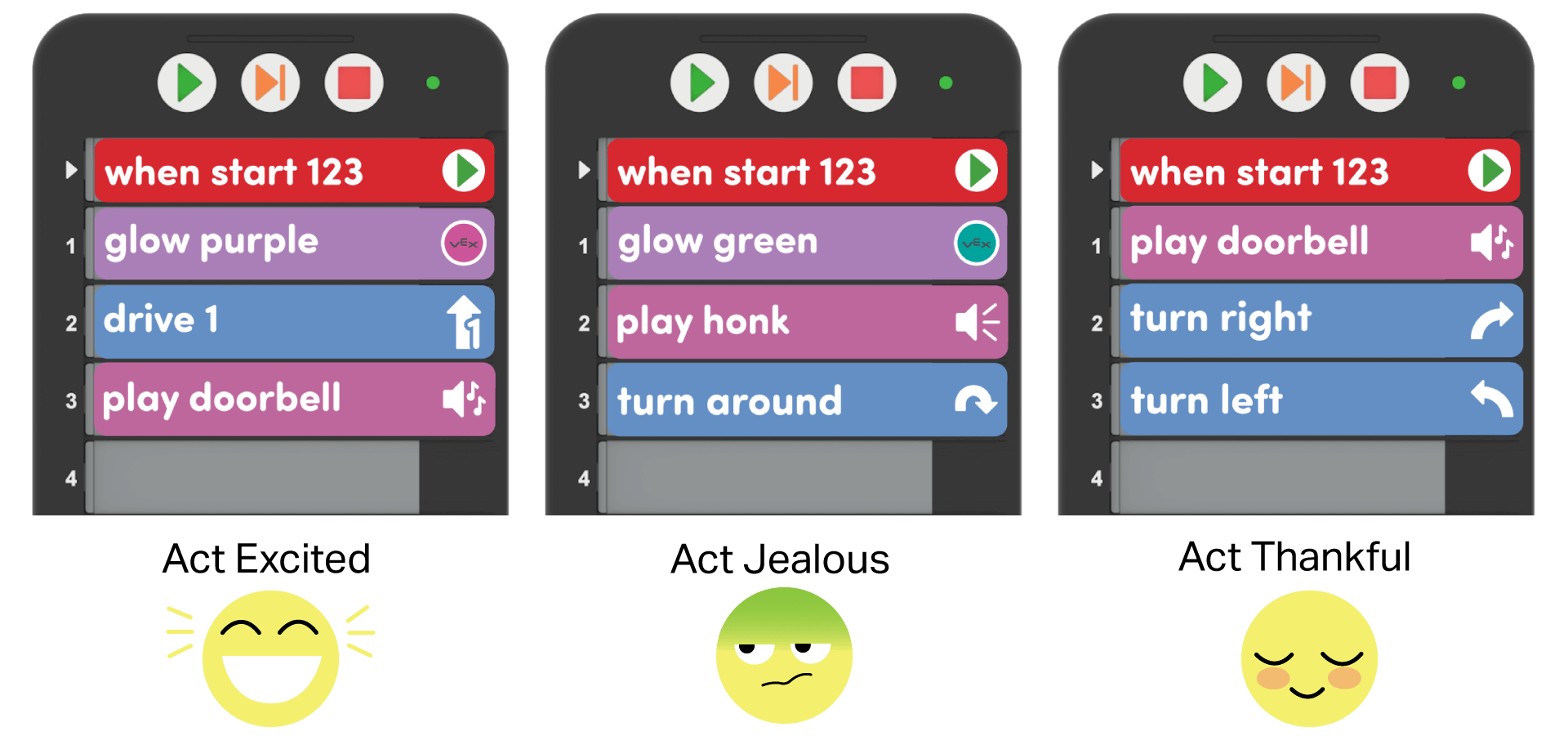
Example Emotion Codes - Read another short story to the class from the Story Prompts.
- Ask groups to talk together and decide which emotion they think the character is feeling.
- Once they have decided on an emotion, groups can choose an emotion code from Lab 1, or build a new project for a different emotion. Limit emotion codes to three Coder cards.
-
After their project is created, groups should place the 123 Robot on the Field and press “Start” on the Coder to test their emotion codes.
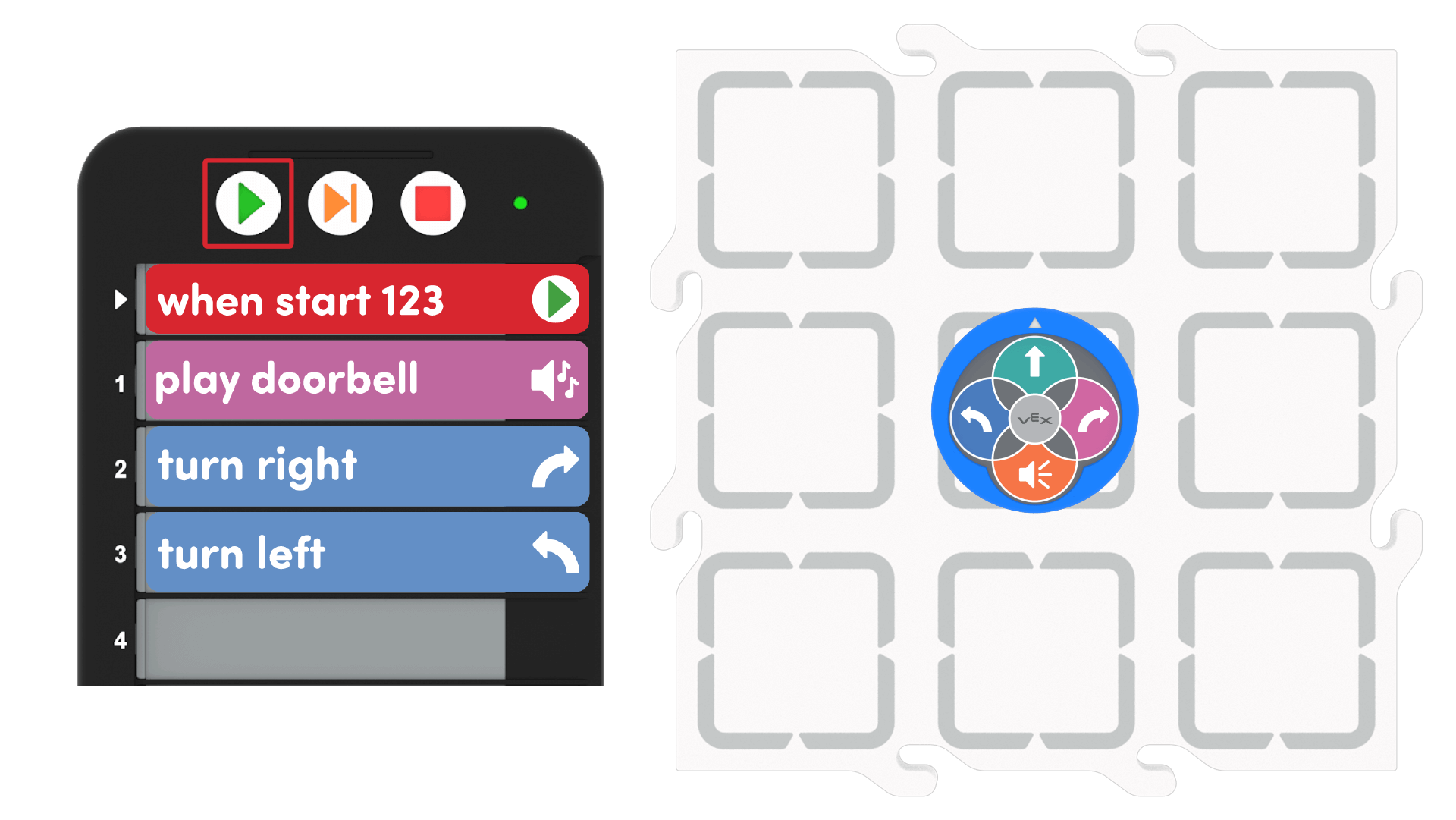
Get Ready to Test - For students who finish early, have them create a project to match the emotion of the other character in the story.
-
- FacilitateFacilitate a conversation with students as they build their projects.
- How do you think the main character feels in this story? Why?
- If this story happened to you, how would you feel? How do you think the other character in the story feels?
- How will the 123 Robot move when you start the project?
- What Coder cards are you using to create your emotion code? Why?
- RemindRemind students to talk with their group to decide on the emotion of the character in the story. Students may discover that they feel differently than their partner would feel. To help students problem-solve which feeling to choose, have the group flip a coin to decide between two emotions.
- AskAsk students about how they can tell how their friends are feeling. Do they look for the expression on their face or how their body moves? How can they tell when their friend is sad? Bored?
Mid-Play Break & Group Discussion
As soon as every group built and tested their emotion codes, come together for a brief conversation.
- What emotion did your group choose? Why?
- Did everyone in the class choose the same emotion? If they did, ask students why they think everyone chose the exact same emotion. If they did not, ask students why they think people had different reactions to the same story.
Part 2 - Step by Step
- InstructInstruct students that they will now make their own stories, and match emotion codes to it. For younger students, you may want to provide groups with additional stories from the Story Prompts document. By the end of Play Part 2, students should have a story prompt created, and an emotion code in their Coder that the 123 Robot will do, as shown in the animation below. The robot glows purple, drives forward one space, and then plays a doorbell sound.
Video file
- ModelModel how to write or draw a short story for their project on a piece of paper.
-
Help students focus their stories by prompting them with recent classroom scenarios or things that have occurred in stories you've read together. Students should write about characters, and not directly about others in the class.
- Example: Samantha got a special treat for lunch and that made her excited.
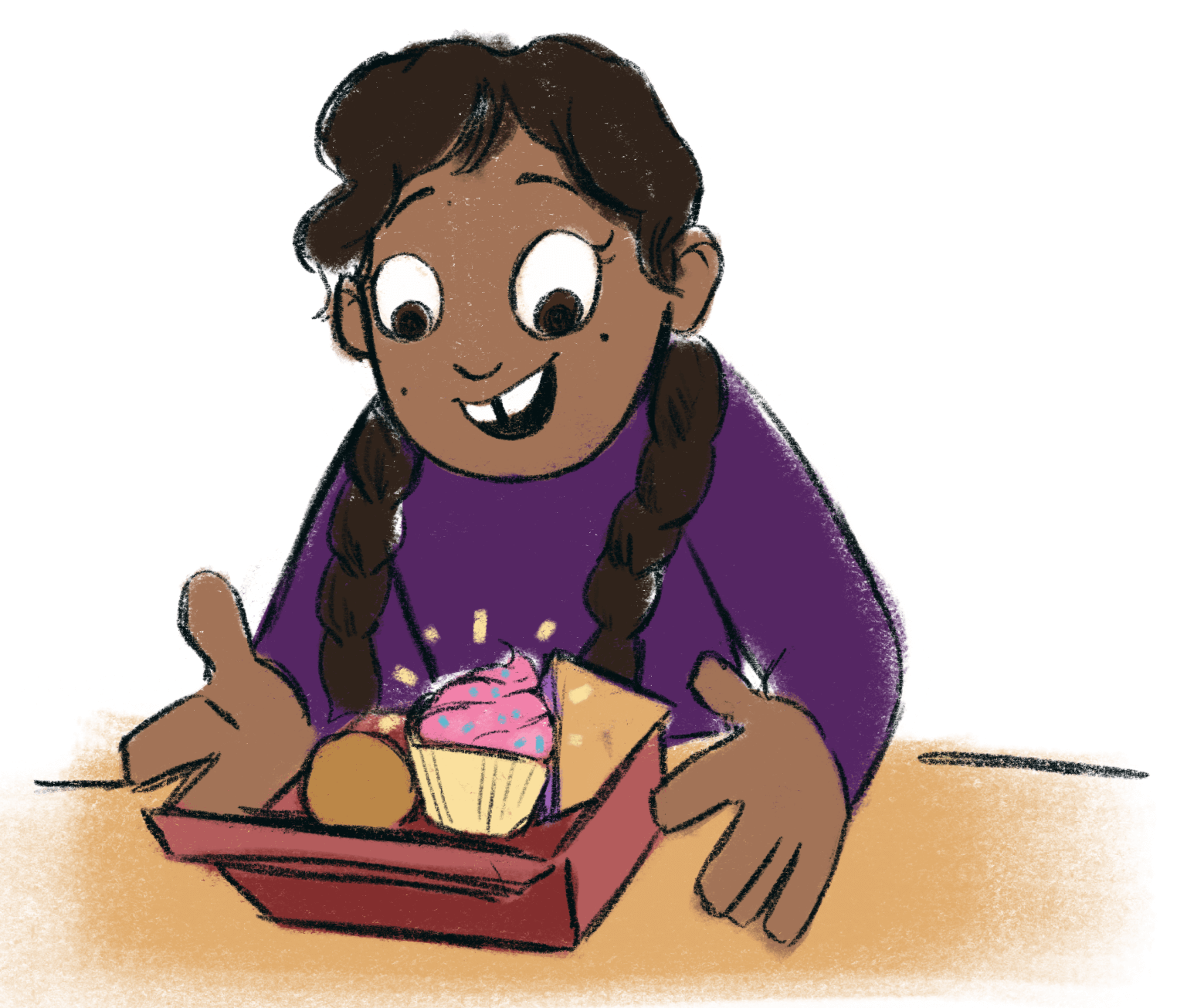
Story Sketch - Once students have their stories created, have them begin to plan out their project so the 123 Robot can act out that emotion. Students should lay out their Coder cards to plan the behaviors the 123 Robot will complete to match the emotion they chose.
-
After their project is planned, groups can add their cards into the Coder, then press “Start” to test their emotion codes, as shown in the animation below. The Coder cards Glow Purple, Drive 1, and Play Doorbell are added to the Coder project one by one.
Video file - For students who finish early, have them create an additional story and emotion code to match the feelings of the main character.
-
- FacilitateFacilitate a conversation with students while they create their stories and new emotion codes.
- What story did your group create? Which character in the story is the 123 Robot acting as?
- What emotion did you choose to match your story? Why?
- How does the 123 Robot move when you start your project?
- RemindRemind students that they can use the emotion codes created in Lab 1, or in Play Part 1, as ideas for their projects. Leave images of these previous projects posted for students to reference during the Lab. The image below shows several example emotion codes that can be used.
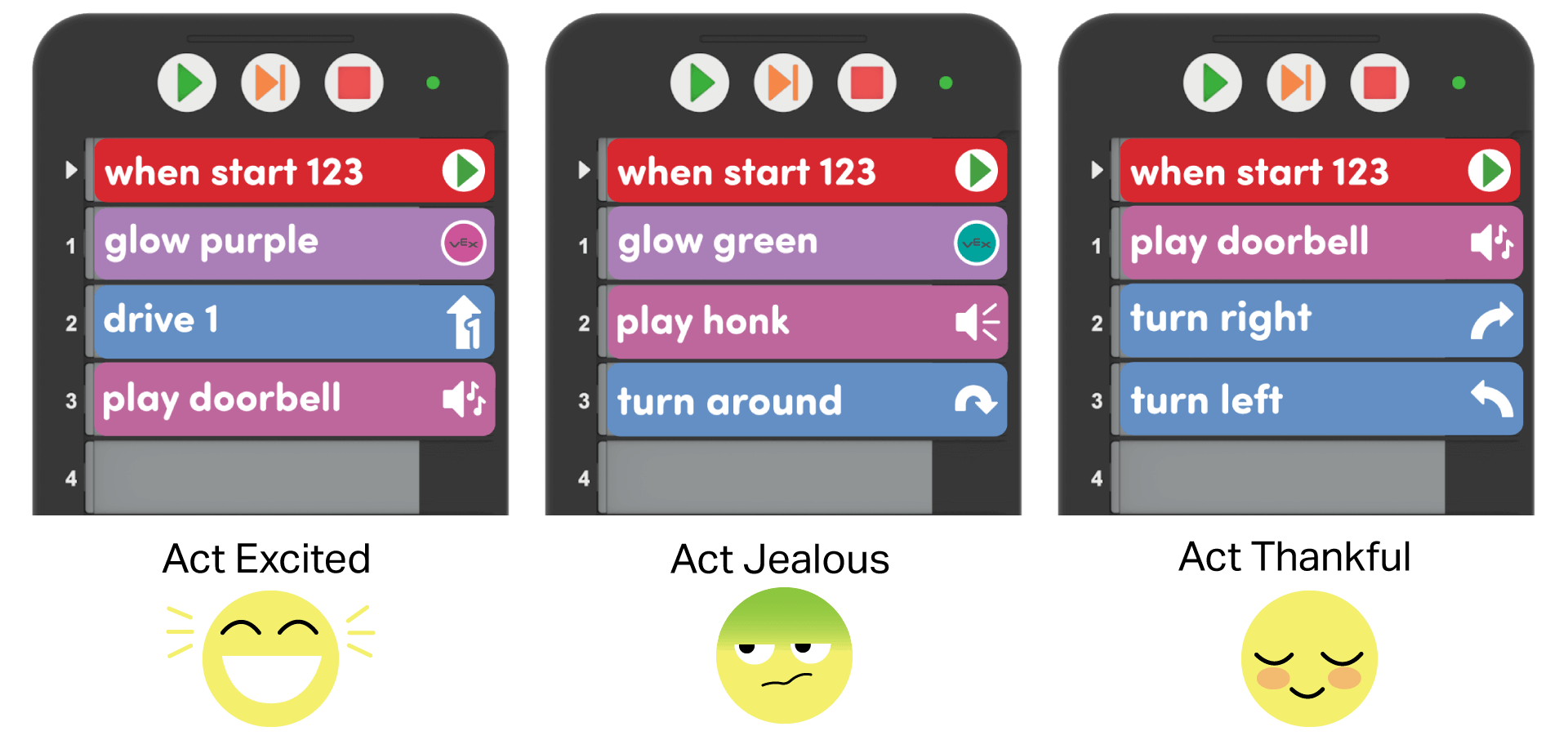
Example Emotion Codes - AskAsk students what other situations they can think of that match the emotion they chose for their story. If their emotion was excited, then what other stories can they think of where the main character would feel excited? What are situations where they’ve seen a friend or family member excited?