Session 3: Driving Your Robot
Before You Begin Your Session
In this session, your team will practice driving their Hero Bot! By doing driving tests of the different controller configurations, everyone on the team will get to practice both driving and collecting data about their driving. In a VIQRC match, there are two drivers that handoff the controller mid-match. The goal of this session is for students to be able to make a data-based decisions about their driving preferences, so the team can identify drive team partners who can work well together in a match.
Think about how you will keep all students engaged during the driving tests. Since there is only one robot on your team, students will take turns driving it. Consider having roles like:
- Driver - driving the robot
- Timer - using a stopwatch or timer to time how long it takes the driver to complete the task
- Documenter - completes the engineering notebook documentation about driver, configuration, time, and notes for the test
- Robot resetter - replaces the robot in the same starting position for the next test
- Field resetter - replaces the Pins in their starting position for the next test
- Judge - makes sure the task is completed accurately (ie. Pins are stacked vertically; driver navigates the Field correctly)
Rotate students through each role so all team members have something to do if it is not their turn to drive. The recommended team size for VIQRC is 4-6 students. If you have more students than that on your team, think about how you will keep all students engaged while only one is driving at a time.
Have your Hero Bot and VIQRC Competition Field ready for the session before you begin. You will need the following:
- A VIQRC Competition Field and Mix & Match Game Elements:
- First, build your competition Field and perimeter
- Then assemble this season’s VIQRC Competition Field using these build instructions
- A Hero Bot (built in the previous session)
- Charged controller and batteries
- An engineering notebook
Review strategies for implementing this STEM Lab with your team.
- Use the Implementing a Competition 101 STEM Lab article to help you prepare and facilitate this session.
- The Strategies for Introducing a VIQRC Game article provides suggestions for introducing scoring tasks in a scaffolded way.
- Read the Making Competition 101 STEM Labs Work For All Students article for ways to adapt, or differentiate, session content to meet varying student needs.
- Review the considerations in the Cultivating a Positive Team Culture article to support your teams' growing collaboration skills.
Congratulations—your Hero Bot is built and ready to go! Now it’s time to practice driving! In this session, you will test out different ways to control your Hero Bot. You will collect data about each configuration to discover which one works best for you. Have fun exploring what your robot can do! 
Before you begin, make sure you have the following ready:
- An assembled VIQRC Mix & Match Competition Field
- A built Hero Bot
- Charged controller and batteries
- An engineering notebook
Congratulations—your Hero Bot is built and ready to go! Now it’s time to practice driving! In this session, you will test out different ways to control your Hero Bot. You will collect data about each configuration to discover which one works best for you. Have fun exploring what your robot can do! 
Before you begin, make sure you have the following ready:
- An assembled VIQRC Mix & Match Competition Field
- A built Hero Bot
- Charged controller and batteries
- An engineering notebook
In this session, students will test each of the controller configurations and collect data on their performance. While a sample table is provided on the task card, students should record their findings in the team’s engineering notebook. The engineering notebook is meant to capture the team’s progress throughout the season and is an important factor in competition awards, like the Excellence Award. Building documentation into team activities can help support students to develop good notebooking habits. Be sure that when students are not actively driving, they are practicing documenting.
You may want to provide blank tables that students can use and add to their engineering notebooks, so that their focus remains on accurately recording their data, and not on how it should look.
Using the Driver Control Program
There is a program already built into the Brain that allows you to drive the Hero Bot using the controller without having to write any code. In this session, you're going to test out all of the different controller configurations in the Drive program to figure out which one works best for you.
Watch the video below to learn about how to use the Drive program. In this video you will learn:
- How to open the Drive program on the Brain
- How to change the controls
- That the four configurations are: Tank Drive, Split Arcade, Left Arcade, and Right Arcade
There is a program already built into the Brain that allows you to drive the Hero Bot using the controller without having to write any code. In this session, you're going to test out all of the different controller configurations in the Drive program to figure out which one works best for you.
Watch the video below to learn about how to use the Drive program. In this video you will learn:
- How to open the Drive program on the Brain
- How to change the controls
- That the four configurations are: Tank Drive, Split Arcade, Left Arcade, and Right Arcade
This video shown here is a shortened version of the video in this article about the Driver Control program. Note that while the video and article reference the Clawbot or BaseBot, the same information applies to the Hero Bot, Huey. This article also goes into more detail about the Driver Control program and the options within it, and can be a useful resource when your team is ready to explore further customization.
Students will be building their own documentation of each driver configuration, like the table shown in the article, as they are documenting their testing during this session's activities.
Activity: Driving Test
Now that you know how to run the Drive program and change the drive configurations, you're ready to drive Huey! You will practice driving the Hero Bot on the Field to test out the different driver configurations and find out which works best for you.
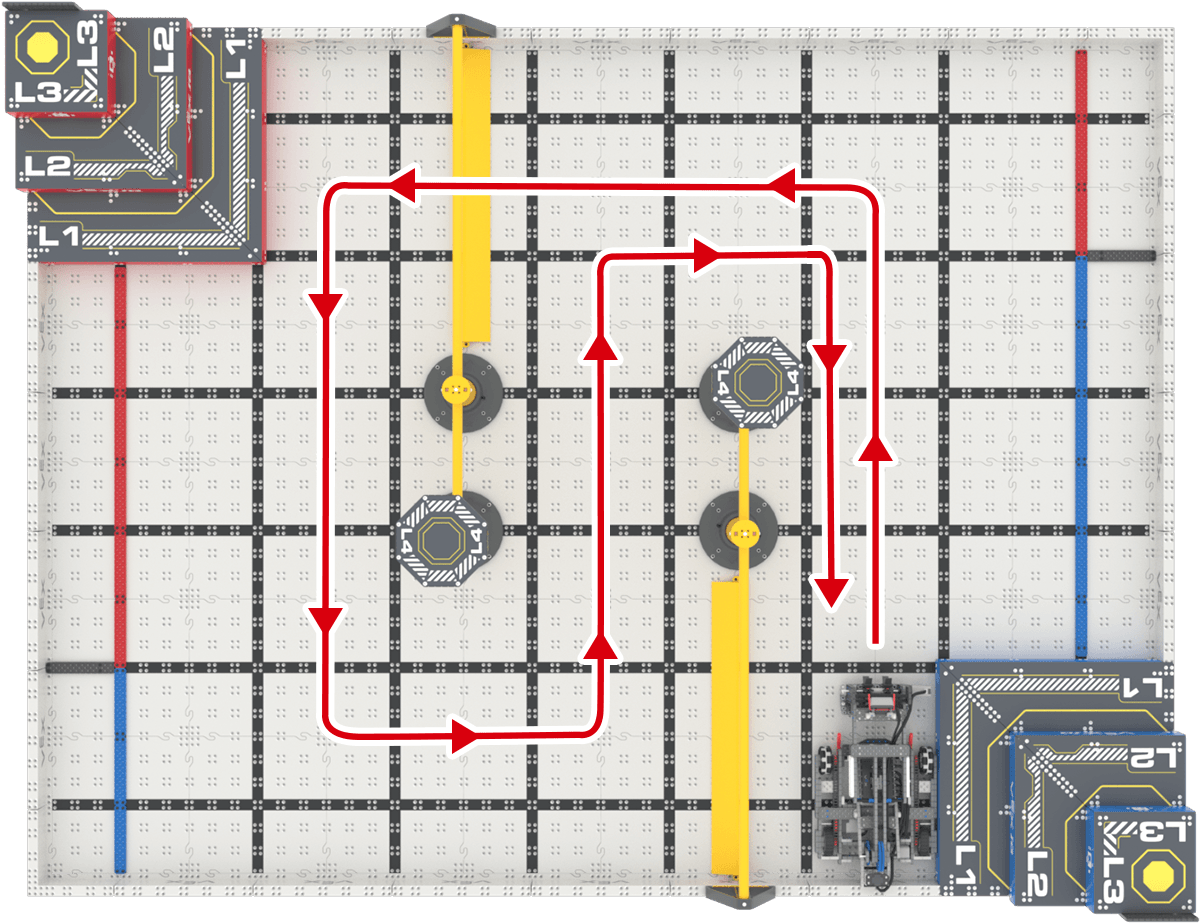
Use the task card (Google doc / .pdf / .docx) to guide you through the driving test and data collection.
- You will drive Huey in a figure eight around the Standoff Goal and one Pin on the Field.
- In your engineering notebook, you will record data about the drive configuration and how long it took to drive the path.
- You do not need any other Pins on the Field for this activity. You can remove the other Pins and Beams to keep driving the focus.
- If you need help changing the drive configuration, follow the steps in this article.
Each team member should get at least one chance to try driving the figure eight in each of the four Controller configurations!
Now that you know how to run the Drive program and change the drive configurations, you're ready to drive Huey! You will practice driving the Hero Bot on the Field to test out the different driver configurations and find out which works best for you.

Use the task card (Google doc / .pdf / .docx) to guide you through the driving test and data collection.
- You will drive Huey in a figure eight around the Standoff Goal and one Pin on the Field.
- In your engineering notebook, you will record data about the drive configuration and how long it took to drive the path.
- You do not need any other Pins on the Field for this activity. You can remove the other Pins and Beams to keep driving the focus.
- If you need help changing the drive configuration, follow the steps in this article.
Each team member should get at least one chance to try driving the figure eight in each of the four Controller configurations!
The goal of this activity is to get students comfortable driving the Hero Bot, while also practicing data collection. By the end of the session, students will use their notebooks to help them make data-based decisions about drive team partners that could work best together based on each student’s preferred driver configuration.
Only put the 1 Pin students need on the Field for this activity. Clearing the majority of the Field can help students focus on the driving task at hand. Other tips for facilitating these activities include:
- Make sure students understand the path they are meant to drive around the Field. You may want to use tape to mark the pattern on the Field.
- To keep things moving, have all students test one configuration at a time. For example, once everyone has tested Tank Drive then change the configuration, and carry out the test for everyone with Split Arcade. This will minimize students' time between their driving turns to help keep them engaged.
- Make sure that students are taking turns between driving and carrying out the other roles. You may want to post the order students will drive, and the rotation of non-driver jobs, so that students know when it will be their turn.
- All students are responsible for recording data in the engineering notebook.
If time allows, repeat the test so everyone has more than one chance to drive each configuration. Encourage non-drivers to pay attention to the drivers to note strategies, ask questions, and think about adjustments they might make on their next turn. Prompt students to discuss what worked well and how they could improve their time or efficiency, and to make note of these ideas in their data collection.
Activity: Stacking Test
Now that you've tested driving around the Field, you're ready to try stacking Pins! You will practice driving Huey and using the Lift and Claw to pick up and stack Pins on the Field. 
Use the task card (Google doc / .pdf / .docx) to guide you through the stacking test.
- You will drive Huey to lift up the preloaded Pin and stack it onto another Pin on the Field.
- In your engineering notebook, you will record data about the driver configuration and how long it took to make the stack.
- Make sure the Pins are in the same place for each test.
- If you need help changing the driver configuration, follow the steps in this article.
Each team member should get at least one chance to try to stack Pins using all four Controller configurations!
Now that you've tested driving around the Field, you're ready to try stacking Pins! You will practice driving Huey and using the Lift and Claw to pick up and stack Pins on the Field. 
Use the task card (Google doc / .pdf / .docx) to guide you through the stacking test.
- You will drive Huey to lift up the preloaded Pin and stack it onto another Pin on the Field.
- In your engineering notebook, you will record data about the driver configuration and how long it took to make the stack.
- Make sure the Pins are in the same place for each test.
- If you need help changing the driver configuration, follow the steps in this article.
Each team member should get at least one chance to try to stack Pins using all four Controller configurations!
The goal of this activity is for students to collect additional data about their driving, using a task where precision is key.
Only put the two Pins that are needed to create a stack on the Field for this activity. Clearing the majority of the Field can help students focus on the task at hand, and ensures that everyone is testing with the same setup. Other tips for facilitating this activity include:
- Make sure the two Pins are reset in the same positions each time, to ensure accurate data collection.
- Communication is key! Encourage students to help one another figure out where they need to position the robot in order to align the Pins for the Stack.
- To keep things moving, have all students complete a test with one driver configuration at a time. For example, once everyone has tested Tank Drive, then change the configuration, and carry out the test for everyone with Split Arcade. This will minimize students' time between their driving turns to help keep them engaged.
- You can keep the same rotation of drivers and other roles as the previous activity. Ensure that students know when it will be their turn, and that all students have a chance to document.
If time allows, repeat the test so everyone has more than one chance to drive each configuration. Encourage non-drivers to pay attention to the drivers to note strategies, ask questions, and think about adjustments they might make on their next turn. Prompt students to discuss what worked well and how they could improve their time or efficiency, and to make note of these ideas in their data collection.
Wrap-up
Once everyone has completed both driving tests in all configurations, come together to decide on drive team partners.
In a VIQRC match, each team has two drivers at the Field. One driver starts the match and drives for 25-35 seconds, then hands off the Controller and the second driver finishes the match. Now that you have some practice with driving, and data about your driving, you are ready to make data-based decisions about drive team partners.
- Record all of the drive team partners, and the rationale for these decisions in your engineering notebook.
Pro Tip:
- You cannot change drive configurations mid-match, so choosing a partner whose preferred configuration matches your own is a helpful place to start. Don’t worry—you can revisit and adjust your drive teams in future sessions as you progress.
Once everyone has completed both driving tests in all configurations, come together to decide on drive team partners.
In a VIQRC match, each team has two drivers at the Field. One driver starts the match and drives for 25-35 seconds, then hands off the Controller and the second driver finishes the match. Now that you have some practice with driving, and data about your driving, you are ready to make data-based decisions about drive team partners.
- Record all of the drive team partners, and the rationale for these decisions in your engineering notebook.
Pro Tip:
- You cannot change drive configurations mid-match, so choosing a partner whose preferred configuration matches your own is a helpful place to start. Don’t worry—you can revisit and adjust your drive teams in future sessions as you progress.
If your students are struggling to make decisions about drive teams, or using their data to support their thinking, check out this collaborative decision-making video to support students in using data to guide their choices. It offers practical strategies and examples you can share with learners who need extra help interpreting results and making team-based decisions.
Remember, as the coach your role is to support students to make these decisions themselves. You cannot dictate drive teams, but you can guide students thinking by doing things like:
- Having students group themselves by favorite or fastest configuration to get started.
- Pair students with complimentary skills - like someone who was fast at stacking paired with an agile driver.
- Ask questions about the data to support students' ideas - Does your drive time data support your partner choice? Why or why not? OR What data are you using to backup your choice?
Review this article to learn more about cultivating a positive team culture.
Select Next Session > to move on to the next session.