
Engage
Launch the Engage Section
ACTS is what the teacher will do and ASKS is how the teacher will facilitate.
| ACTS | ASKS |
|---|---|
|
|
Getting the Students Ready to Build
Before we build our projects, let’s look a little more closely at how they are working, when the Code Base is making a decision. (If students do not have a pre-built Code Base 2.0 - Eye + Electromagnet from the previous Lab, allow 10 - 15 minutes for students to build it prior to the Lab activities.)
Facilitate the Build
-
InstructInstruct
students that you are first going to look at their project from Lab 2 using the Stepping feature in VEXcode GO, to see the project flow more clearly.
- When students join their groups, have them complete the Robotics Roles & Routines sheet. Use the Suggested Role Responsibilities slide in the Image Slideshow as a guide for students to complete this sheet.
-
DistributeDistribute
one pre-built Code Base 2.0 - Eye + Electromagnet, a Red Disk, and a tablet or computer with VEXcode GO open for demonstration purposes. Students should be able to see the screen and the robot. Students will collect their materials after the demonstration.
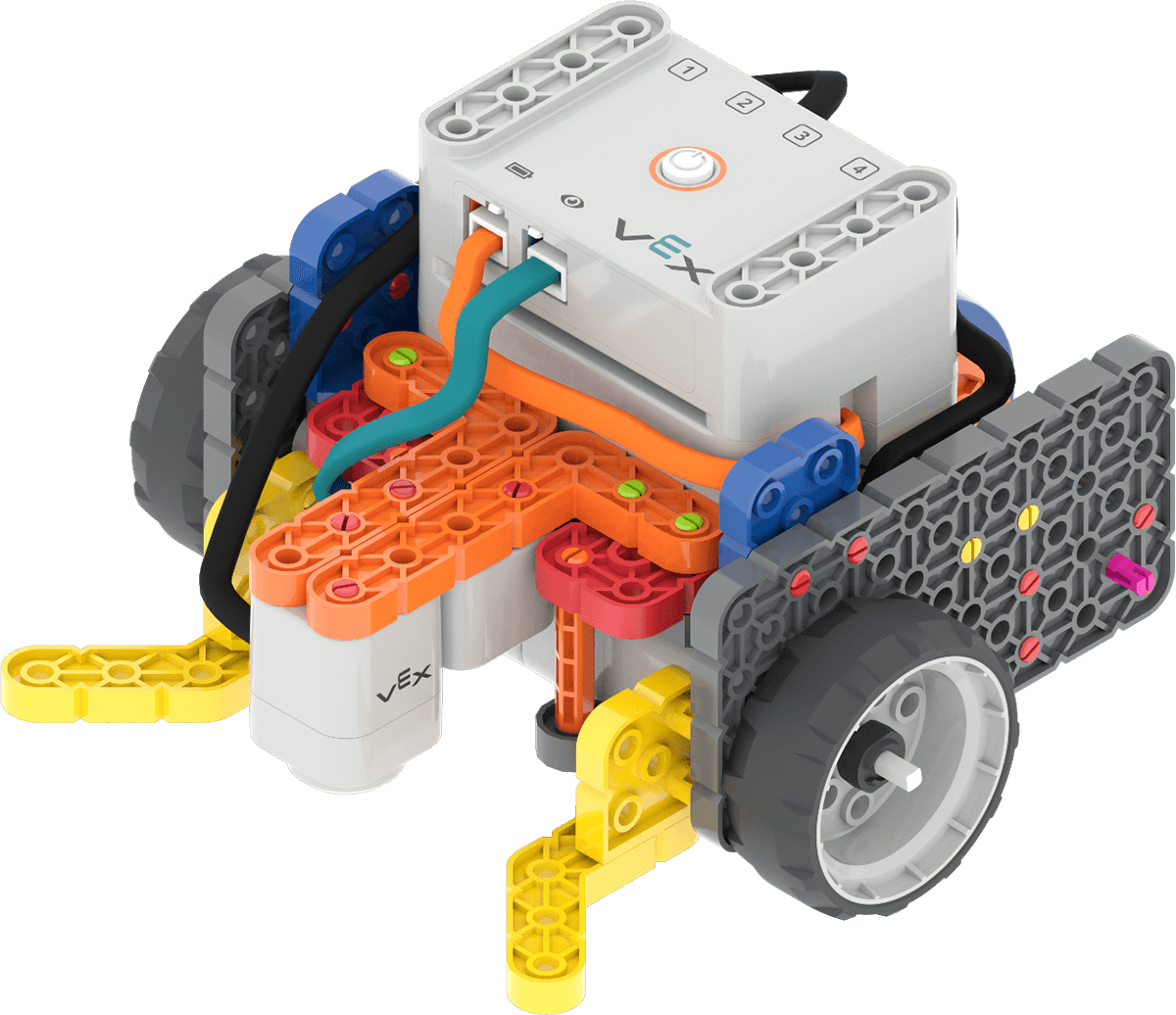
Code Base 2.0 - Eye + Electromagnet -
FacilitateFacilitate
a demonstration of stepping through a project for students, to show the project flow with the [If then] block.
- Turn on, connect, and configure VEXcode GO for the Code Base, if you have not already done so before the start of the Lab. See the Connecting articles in the VEX Library for device-specific information about connecting your robot to VEXcode GO. See the Configuring a Code Base article for more information on configuring VEXcode GO for your robot.
-
Open the Sort Red 1 project from Lab 2. See the Open and Save section of the VEXcode GO VEX Library for device-specific steps to open a VEXcode GO project, if needed. If you do not have access to the project from Lab 2 build the following project in VEXcode GO.
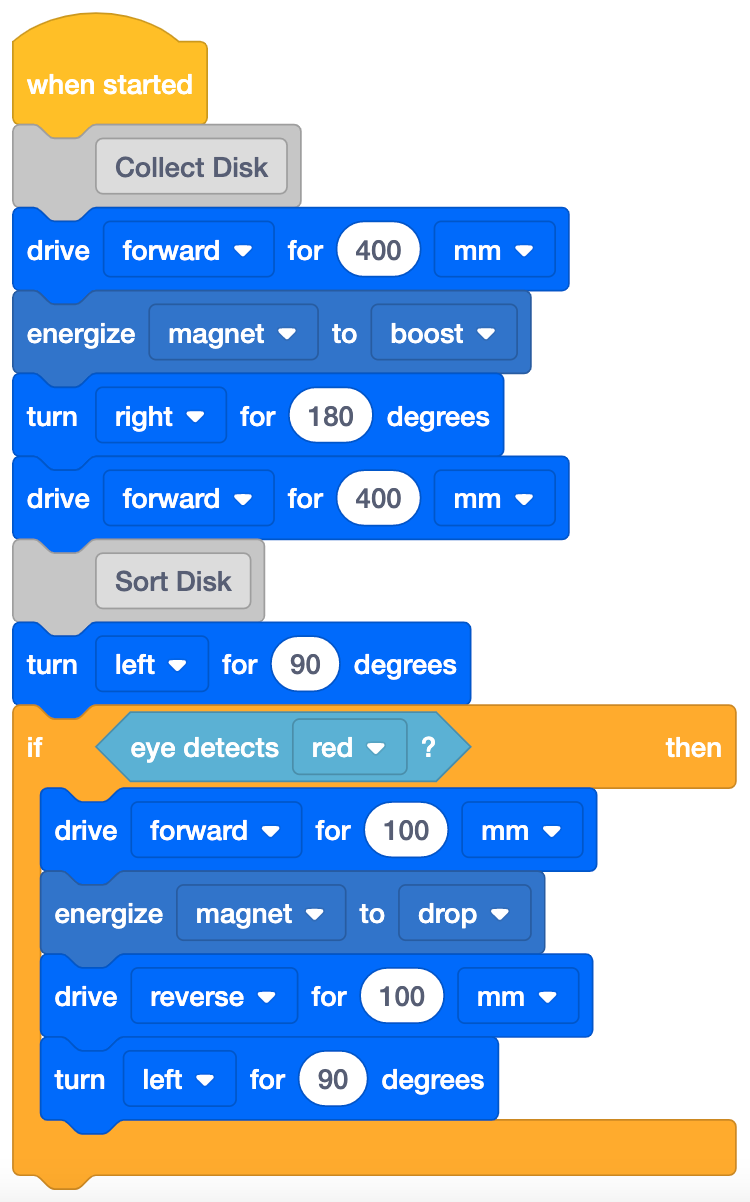
Sort Red 1 project -
Place a Red Disk in the location, as shown in the Field Setup image below, and place the Code Base on the Mars Base (starting position).
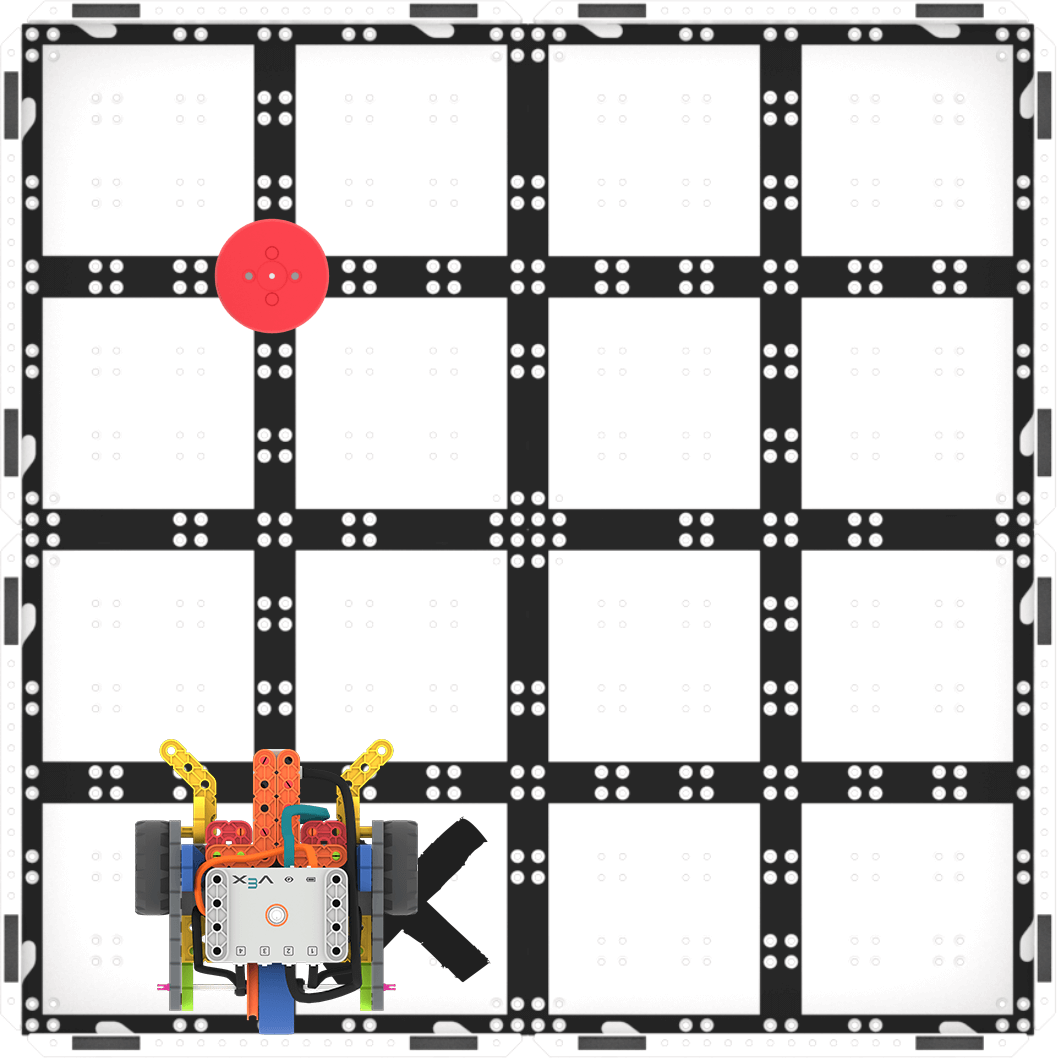
Setup to test -
Press the Step button in the VEXcode GO Toolbar, to begin the project one block at a time. When the Step button is pressed, the highlight feature in VEXcode GO will flash on the block being executed, then glow solidly around the next block in the project. Press the Step button again to move to each block in the project. Help students to recognize that the block that is highlighted is the block that is running in the project. To learn more about the Stepping Feature in VEXcode GO, see the Stepping Through a Project in VEXcode GO VEX Library article.
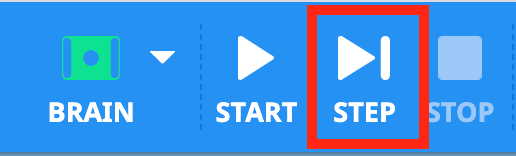
Step button -
After the Code Base collects the Red Disk, guide students to think about the project flow of the [If then] block. Ask students to predict whether the blocks inside of the [If then] block will run. We will know if these blocks run because they will become highlighted:
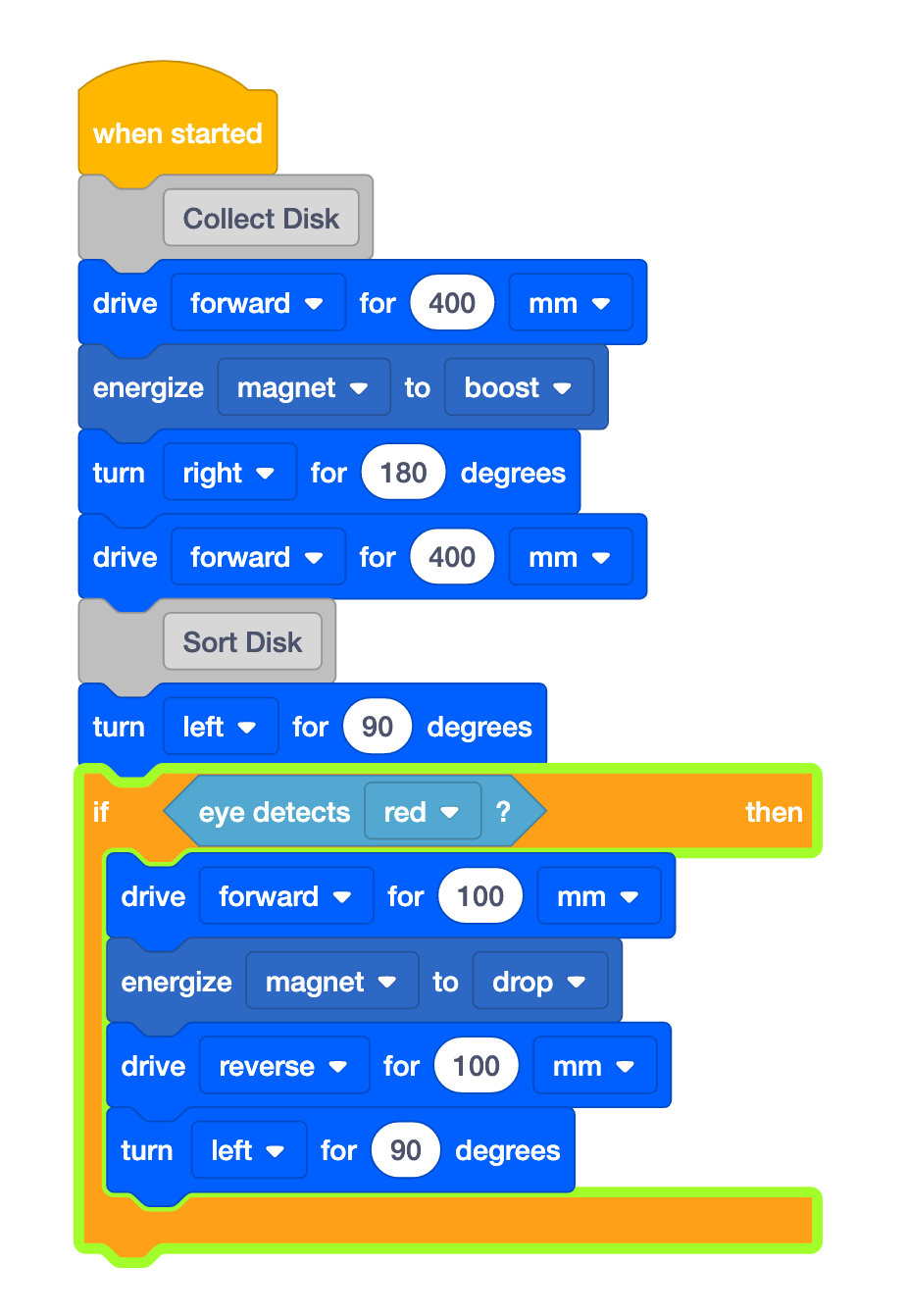
Will the blocks inside the [If then] run? - Our Code Base collected the Red Disk. Will the blocks inside of the [If then] block be highlighted next? Why or why not?
- Since the Disk is red, and <Detects color> block is set to 'red', the condition of the [If then] block is true. So the blocks inside of the [If then] 'C' block will run.
- Our Code Base collected the Red Disk. Will the blocks inside of the [If then] block be highlighted next? Why or why not?
- Continue to step through the project, to show students how the highlighting moves through the blocks in the [If then] block as the Code Base sorts the Red Disk.
- Once you have stepped through the project completely, remind students that the Mars rover will collect different kinds of samples. Show students the Blue Disk, to represent a different rock sample. Reset your Code Base on the Field and replace the Red Disk with a Blue Disk.
- Step through the project again, and after collecting the Blue Disk, ask students to predict whether the blocks inside of the [If then] block will be highlighted:
- If we use a Blue Disk instead of a Red Disk, will the blocks inside of the [If then] block be highlighted? Why or why not?
- Since the Disk is blue, and <Detects color> block is set to 'red', the condition of the [If then] block is false. So the blocks inside of the [If then] 'C' block will NOT run.
- If we use a Blue Disk instead of a Red Disk, will the blocks inside of the [If then] block be highlighted? Why or why not?
- Ask students what they could do to code their Code Base to make it sort both Red and Blue disks. Tell students that they will be exploring this during Play, when they build on their projects to add more [If then] blocks, to make their Code Base collect and sort different colored Disks to their sorting areas, based on color.
- OfferOffer positive reinforcement for students who are actively engaging in the demonstration, asking and answering questions, and listening to their classmates.

Teacher Troubleshooting
- Check the colors - Remind students to check the color in the <Detects color> block, to help ensure that they are focusing on the correct Disk locations, as they build and test their projects.
- Inside the [If then] - If the Code Base is not driving to the correct location once the Eye Sensor detects a color, check that the Drivetrain blocks that are needed are located inside the [If then] ‘C’ block, to make sure that the project runs as intended. Students can reorder blocks into and out of the ‘C’ block by dragging and dropping them within their project.
- Check your ports - Remind students to check to make sure that they are connecting the Eye Sensor and the Electromagnet into the correct port. The Eye Sensor is plugged into the teal port on the front of the Brain, and the Electromagnet gets connected to Port 3.
Facilitation Strategies
- Think about how your students will access VEXcode GO. Ensure that the computers or tablets that students will use have access to VEXcode GO. For more information about setting up VEXcode GO, see this VEX Library article.
- Gather the materials each group needs before class. For this Lab, each group of two students will need a GO Kit, Build instructions, a computer or tablet to access VEXcode GO, and the Red, Blue, and Green Disks from the Kit. Students will also need access to a Field for testing.
-
Set up your Fields ahead of time, as shown in the image below, to serve as a testing area for the Code Base. Have these spread out around the classroom to allow students ample space to test their projects. In this image, the Blue Disk is shown in place for Play Part 1. You may want to mark the starting locations of the Disk and the Code Base, as well as the sorting area locations with a dry erase marker to help students when they are setting up to test their projects.
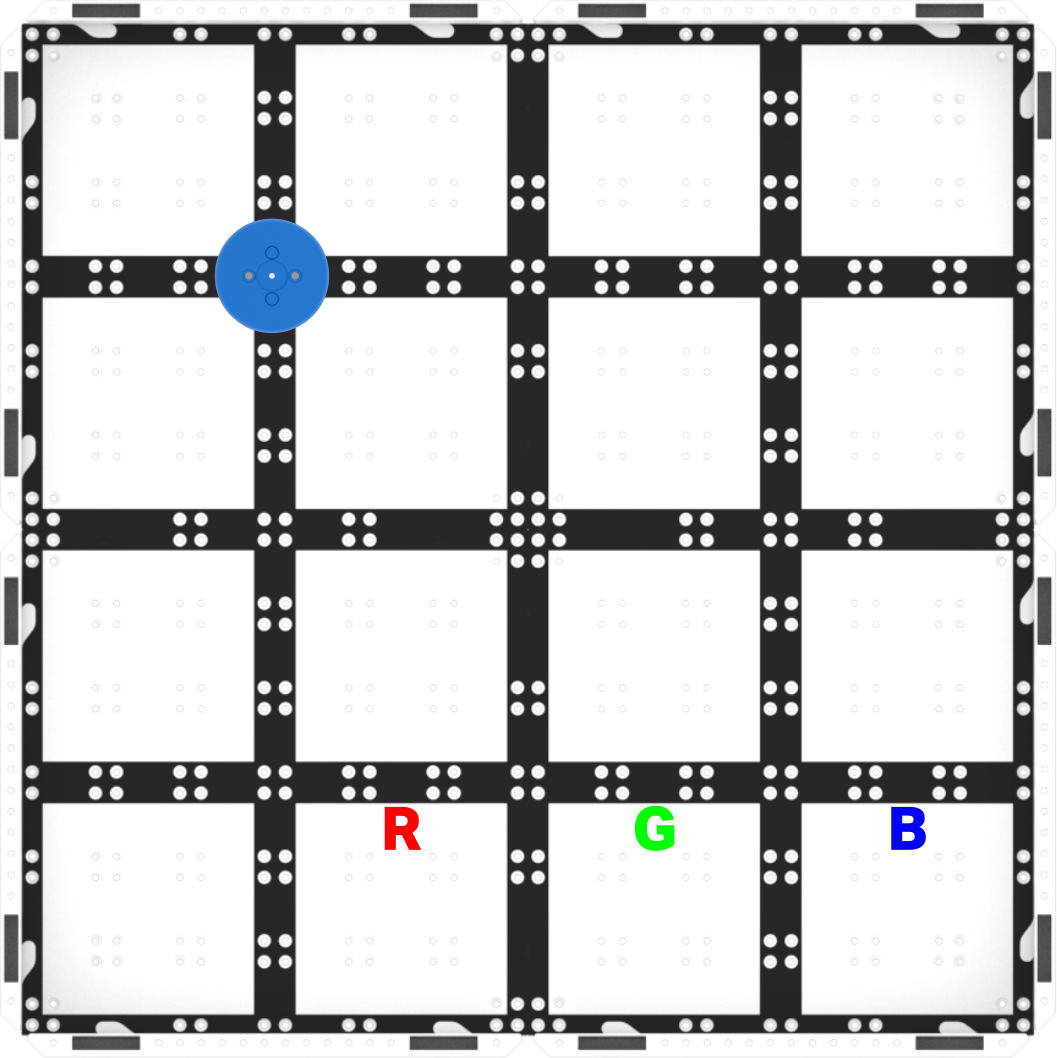
Field setup - Use the gridlines on the Field to help with alignment. The Disk and the Electromagnet can both be lined up on intersecting grid lines of the Field, to make it easier for students to be set up for success when they test their projects.
- Students can use the Step button at any time while testing. The Step button can be used during student tests, to help them slow down their project’s execution, and more easily identify mistakes while troubleshooting. Students can look at each block’s behavior individually, to better identify where the robot is not performing as intended.
- If students finish early, have them test their project with the Red Disk. Does it collect and sort the Red Disk to the correct sorting area? Why?