
Previously in this Unit, you learned to do the following:
- Use the Pen Holder Tool on the 6-Axis Arm to draw on the Whiteboard Attachment.
- Identify a waypoint between two locations to move around an obstacle safely.
- Code the 6-Axis Arm to move from one location to another around obstacles.
You will complete one additional activity with the 6-Axis Arm putting all of these skills together.
Putting It All Together Activity
In this Activity, you will create a project for the 6-Axis Arm to navigate through a maze, marking the path with the Pen. Watch this animation to see how the 6-Axis Arm could move in order to complete the activity.
Setup: Draw this maze on the Whiteboard.

- Use these approximate dimensions to guide you as you set up the maze. Be sure to use a ruler so that walls of the maze are straight.
- The space between each of the walls on the maze are between 30 and 40mm wide.
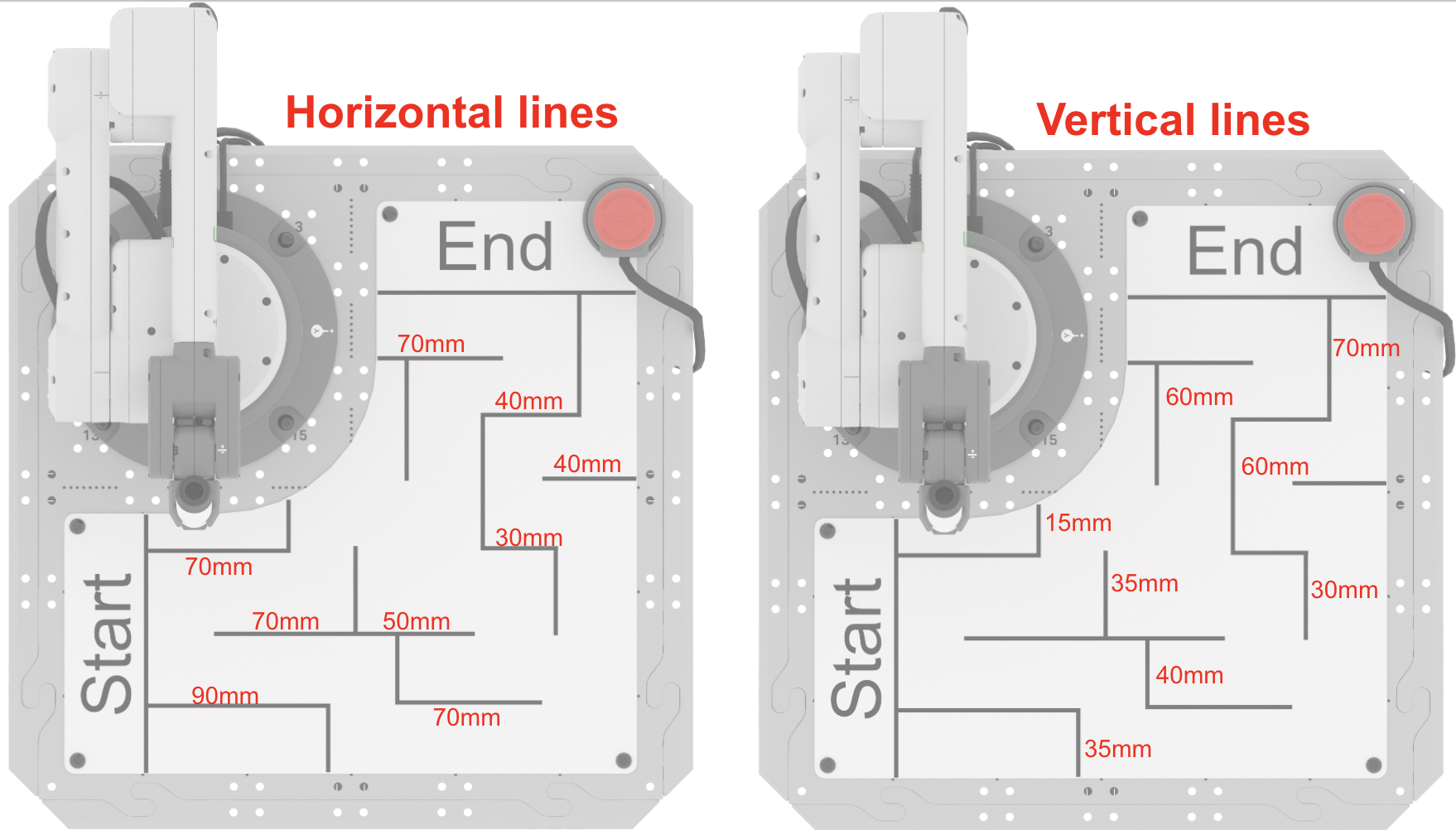
Activity: Create a project for the 6-Axis Arm to navigate through the maze from the Start to the End, and draw the path with the Pen.
- Begin by loading the project you created in Unit 4 Lesson 3. Modify this project to complete the activity.
- Be sure the 6-Axis Arm is connected to VEXcode. Run the project to test it.
- Did your project successfully move the 6-Axis Arm through the maze? If not, continue to modify your project and test it until you are successful.
- After you have successfully completed the maze, rename and save the project to your device.
- Document your project by recording it in your engineering notebook.
Pro Tips for this Activity:
- Document the sequence of behaviors needed to complete the maze before you begin coding. Together with your group, agree on the route you want to take through the maze. Draw the maze in your engineering notebook and add your route. Then make a list of the behaviors in order that you will need to code in order to solve the maze. This can help you build your project more easily and collaboratively.
- Use the Monitor Console to help you find x, y, z-coordinates of your waypoints. Follow the steps in Lesson 3 to open the Monitor Console. You can then move the 6-Axis Arm by hand to your desired coordinate locations to help you find your waypoints through the maze.
- Test your project incrementally while completing the activity. In Lesson 3, you tested the project after adding a few coordinates, then you added additional blocks and coordinates. By testing your project as you go, you can make any changes to the path or coordinates needed without needing to run the longer version of the project each time.
- Use the Step feature. Not sure where in your project your 6-Axis Arm is going off course? Try using the STEP button to step through the project so that it is easier to identify which block corresponds to which behavior. This can make it easier focus your troubleshooting within the project.
Wrap Up Reflection
Now that you have coded the 6-Axis Arm to draw its route through the maze, it is time to reflect on what you have learned and done in this Unit.
Rate yourself as a novice, apprentice, or expert on each of the following concepts in your engineering notebook. Provide a brief explanation for why you gave yourself that rating for each concept:
- Using the Pen with the 6-Axis Arm to draw on the Whiteboard.
- Identifying a waypoint between two locations to move around an obstacle.
- Coding the 6-Axis Arm to move in a controlled path around obstacles.
Use this table to help you determine which category you fall under.
| Expert | I feel that I fully understood the concept and could teach this to someone else. |
| Apprentice | I feel that I understood the concept enough to complete the activity. |
| Novice | I feel that I did not understand the concept and do not know how to complete the activity. |
Then, reflect on the learning targets you co-created with your teacher for this Unit. Have you learned what you set out to learn? Why or why not? What were you most successful with? Why? How do you think you can build on your progress moving forward?
Each person in your group should complete their self-reflections in their engineering notebooks. Once everyone in your group has completed their self-reflections, check-in with your teacher and let them know you are ready for your debrief conversation.
Debrief Conversation
Using your reflections and notes in your engineering notebook, rate yourself on the Debrief Conversation Rubric (Google Doc / .docx / .pdf). For each of the topics, rate yourself as Expert, Apprentice, or Novice.
Ask your instructor if you need any clarification on what is expected of you during this self-assessment.

Select < Return to Units to go back to all Units.