
In the previous Lesson, you learned about computer science fundamentals including what a programming language is, what a robot behavior is, and how to modify robot behaviors. You then applied these skills by identifying the behaviors of the 6-Axis Robotic Arm.
In this Lesson, you will learn how to code the 6-Axis Arm to move along the x-axis.
At the end of this Lesson, you will code the 6-Axis Arm to move along the x-axis to find the minimum and maximum x-value that the 6-Axis Arm can move to.
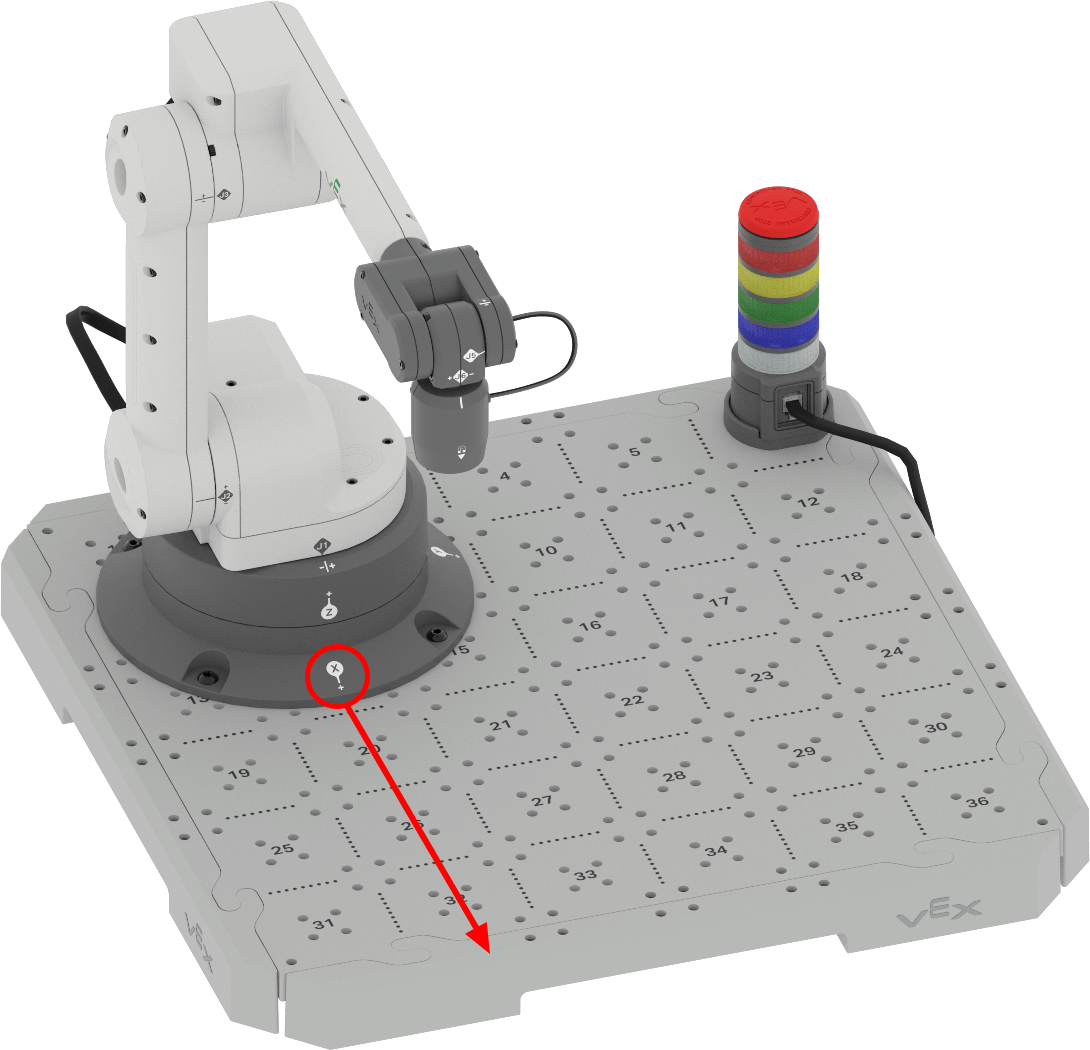
Coding the 6-Axis Arm Along the X-Axis
You can use the information about coordinates and how the 6-Axis Arm moves in 3D space to code the 6-Axis Arm to move autonomously along the x-axis. Follow along with the steps below to code the 6-Axis Arm to move along the x-axis.
In VEXcode, open a New Blocks Project.
Follow the steps in the video to open a new project.
Select the File option in the Toolbar to open the File menu, then select New Blocks Project. A pop up window appears with the option for EXP Brain or 6-Axis Arm. Select 6-Axis Arm. The new project is then opened.
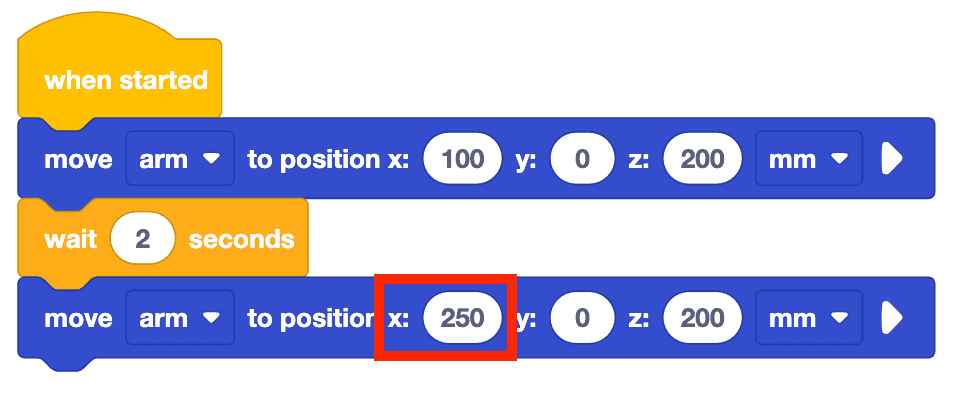
Recreate the project shown here by dragging blocks into the Workspace and attaching them as shown.
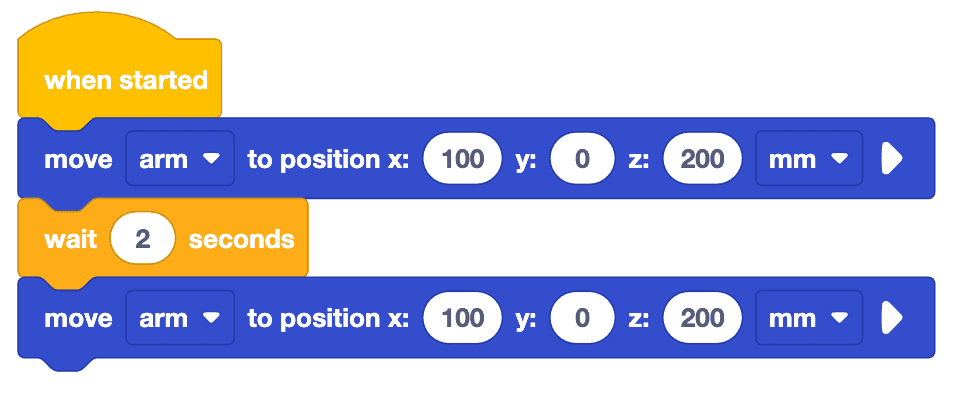
This project uses the Move to position block to move the end of the 6-Axis Arm in space. This block has spaces for x, y, and z coordinate values to be input. This block will be used throughout this Lesson to move the 6-Axis Arm to a new coordinate.
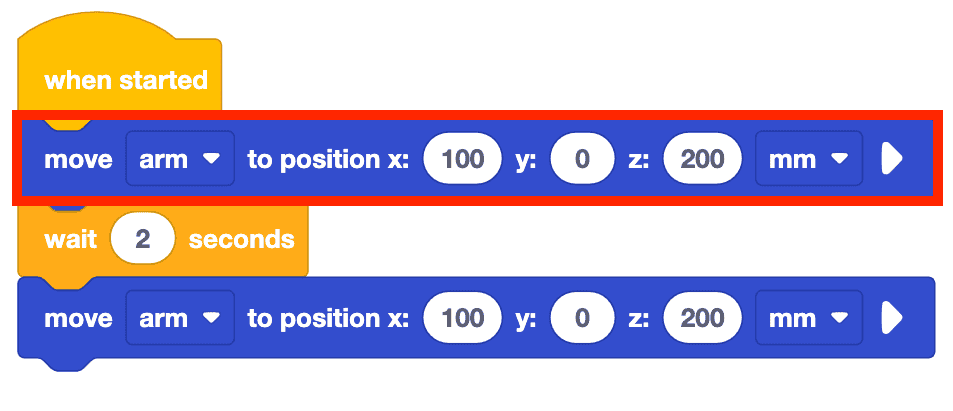
Note that this block includes the full coordinate values (100, 0, 200). Recall that the 6-Axis Arm requires a value for each axis in order to move to the desired location.
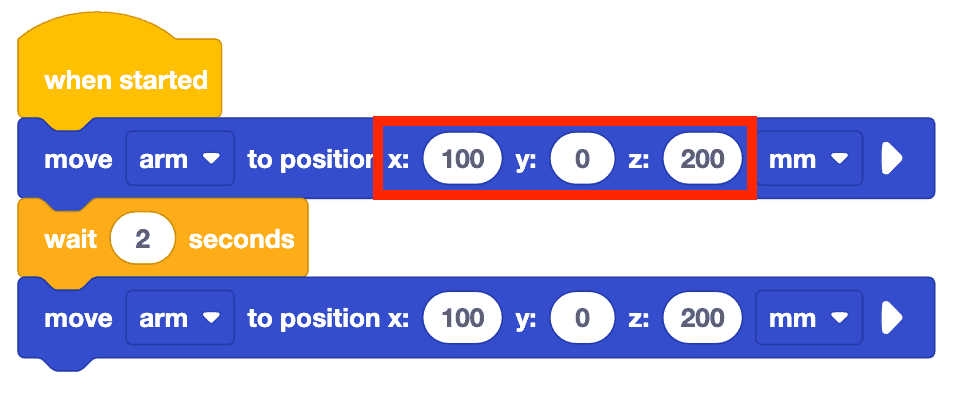
Change the x-value in the second Move to position block from 100mm to 250mm.
What do you think this will cause the 6-Axis Arm to do? Record your prediction in your engineering notebook.
Note: The y and z-values are not changed here because the goal is to change and observe one axis at a time. Keeping the y and z-values the same but changing the x-values allows us to see how the 6-Axis Arm will move along the x-axis.
Rename the project and save it to your device.
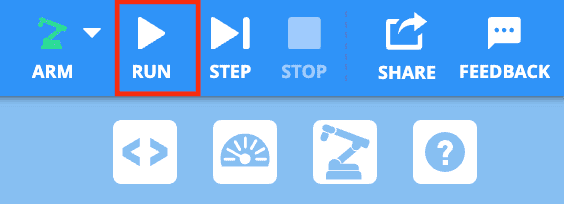
Be sure the 6-Axis Arm is connected to VEXcode. Run the project.
Observe the 6-Axis Arm as it moves along the x-axis. Notice that the 6-Axis Arm will start by moving to the Safe Position (120, 0, 100), then will execute the project.
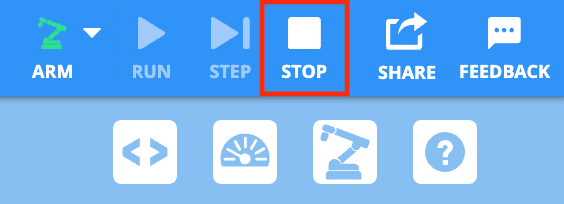
Stop the project once the 6-Axis Arm has stopped moving.
Record your observations in your engineering notebook. How did the 6-Axis Arm move in this project? Is it similar or different to your prediction? Why?
Notice that when the x-value is changed the 6-Axis Arm retracts and extends along the x-axis. In this animation, as the 6-Axis Arm extends forward away from the base, and backward toward it, along the x-axis.
Stepping Through the Project
Now that you have run the project with the 'RUN' button, you can also execute the project using the 'STEP' button. The Step feature executes a project one block at a time. This can allow you to clearly see how each block in the project corresponds to a robot behavior. Follow the steps below to step through the project.
Press the STEP button.
The 6-Axis Arm will move to the Safe Position, then the first block in the stack connected to the When started block will highlight. In this project, the Move to position block will highlight, but not execute until the STEP button is pressed a second time as shown in this video.
Press the STEP button a second time to run the Move to position block.
Once the block is run, the highlight will move to the next block in the stack, the Wait block, as shown in this video.
12. Stepping through a project follows a process – first a block is highlighted, then it is executed. Continue selecting the STEP button to execute the remaining blocks in the project one at a time, as shown in the video below. This can be very helpful when trying to troubleshoot a project, as you can view individual robot behaviors more clearly. View the video below to see the rest of the project executed with the Step feature.
Activity
Now that you have learned how to code the 6-Axis Arm to move along the x-axis, you will practice these skills. In this activity, you will code the 6-Axis Arm to move along the x-axis to find the minimum and maximum x-values that the 6-Axis Arm can move to.
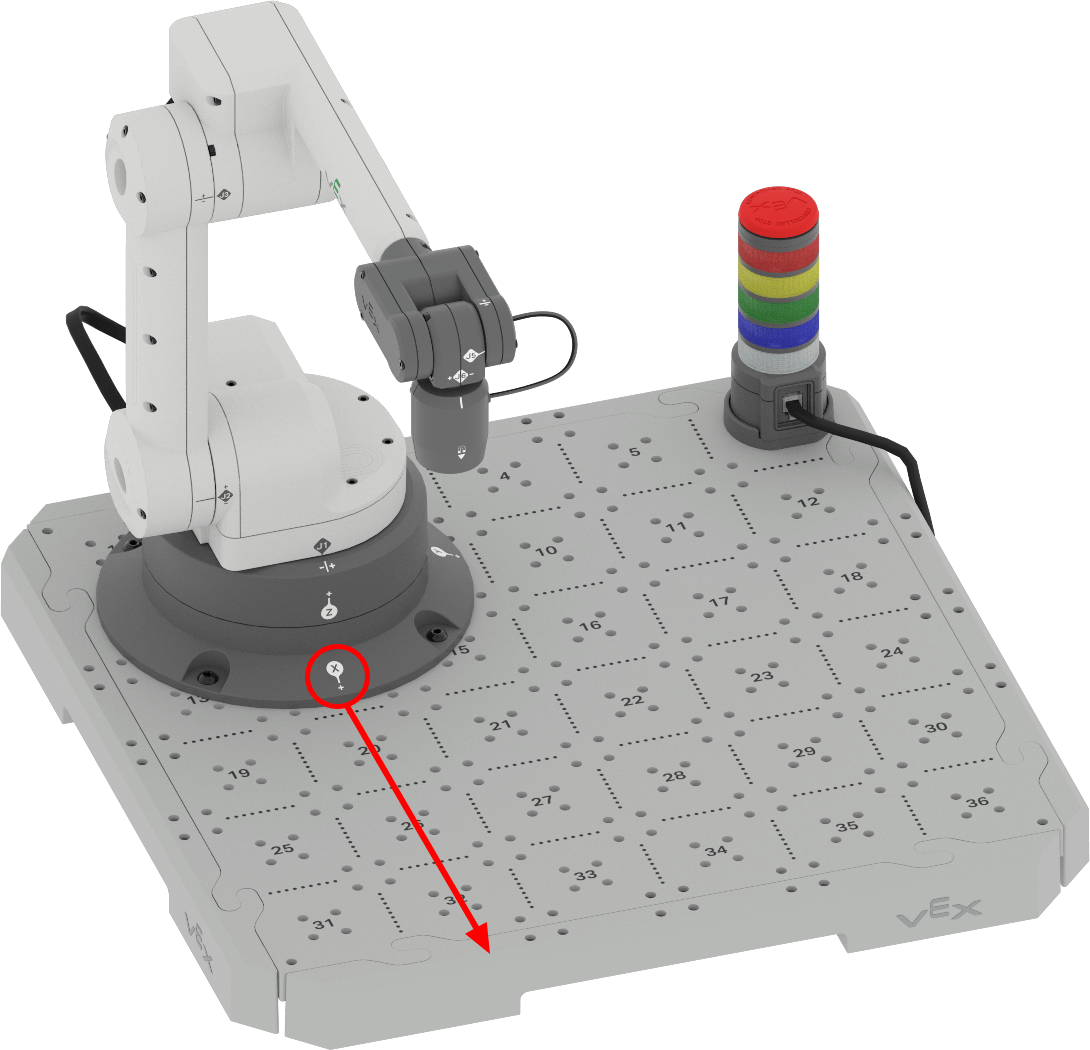
- Make a prediction for the minimum and maximum x-values that the 6-Axis Arm can move to. Record the predicted values in your engineering notebook.
- Using the same project from above, change the x-values in the Move to position blocks to your predicted values.
- Run your project to test your predictions. Ensure your 6-Axis Arm is connected to VEXcode.
- Continue to predict and test different x-values. Be sure to record your predictions and results in your engineering notebook when testing your projects. What minimum and maximum values do you find?
- Compare your results to other groups' values. Are they similar or different? Which group has the largest and smallest values? Test those values and adjust your results if needed.
Check Your Understanding
Before beginning the next Lesson, ensure that you understand the concepts in this Lesson by answering the questions in the document below in your engineering notebook.
Check Your Understanding questions > (Google Doc / .docx / .pdf)
Select Next > to complete the Mid-Unit Reflection.